
Getting Started: Employee Guide
Hello and welcome!
Your company is now using TimeKeeper to streamline how you manage your time and attendance. This guide will show you how to use the platform to make your life easier—whether you're tracking hours for payroll, ensuring you get paid for overtime, requesting annual leave, or submitting expenses. Plus, you'll now have a much more convenient way to check your work schedule on the go!
This guide will walk you through everything you need to know about using TimeKeeper, including:
Getting set up
Using the Mobile App
Logging in
Clocking in and out
Requesting time off
Submit requests
Viewing your timesheet
Using the Web Portal
Logging in
Clocking in and out
Requesting time off
Viewing your timesheet
Using a Shared Kiosk
Logging in
Clocking in and out
Requesting time off
Viewing your timesheet
Resetting your password
Helpful links and resources
Please note: Your account administrator controls your access to the mobile app and web portal. If you’d like to clock in using the app but are unable to do so, please contact your company’s account administrator and request access. They can update your permissions in your profile under Access and Permissions.
You may also wish to download our Employee Guide PDF here.
Getting Set Up
So the first interaction you will receive from TimeKeeper is either an email or text informing you that you have been signed up to the platform by your employer. Within this correspondence, you will receive two things:
A 4 digit pin (more explained below)
A link to set up your own password
So what do I do?
When you receive this email or text, just click on the link attached and enter in your desired password. This will give you access to your personal employee account and only you know the password. This invite link will expire within 7 days so if you don't set the password within that timeframe, you may need to get your TimeKeeper administrator to resend the invite.
Please note : The password must be 12 characters and of a random combination for examples 'YachtGarden6$3)' using a password generator like LastPass is a good one to create a unique password.
What is the 4 digit pin?
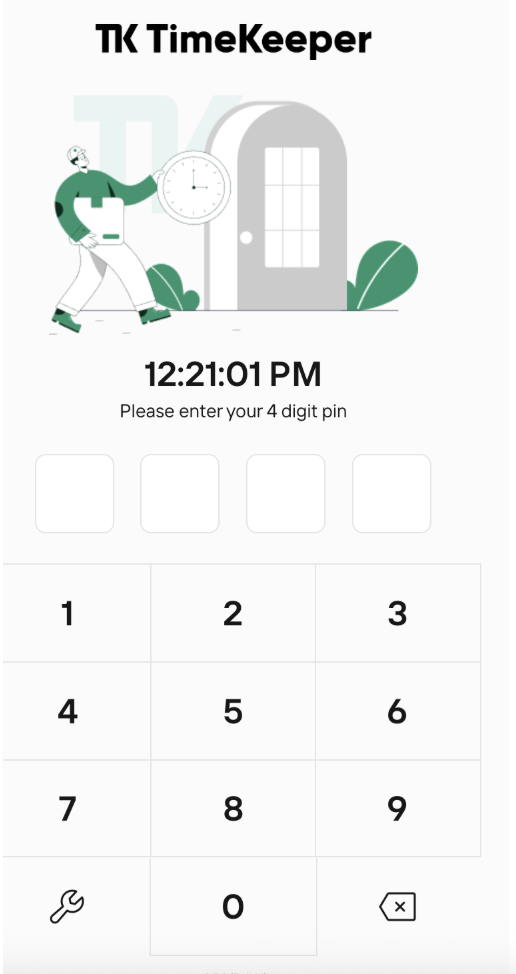
TimeKeeper works on a variety of formats, one of which is on a tablet. The tablet shows a keypad - which allows an employee to walk up, enter their 4 digit pin and proceed to clock in.
So why do I need the password and the pin?
Well it depends on your employer. If they are planning to allow employees to use their mobile to clock in/out, then you require a password to log in to your own account on the TimeKeeper app. If you are using the tablet version, you will require the 4 digit pin to clock in to the tablet on-premise e.g. in the office or out on site.
If you forget your password for clocking in and out on your mobile app, You can visit this link https://app.timekeeper.co.uk/password/forgot which will allow you to enter your email or mobile number. We'll then send a password reset link out that allows you to set up a new password.
Logging into the app
To log in to the app, download the app to your device (see useful links below) and log in with your email/phone number and password you set up. The email/phone number to log in with is included in the original email/text we sent you. The password is the one you configured.
The below video will take you through
Clocking in and out
Requesting time off
Submit requests
Viewing your timesheet
Logging into the web portal
Same as the app - use your email/phone number and password. See web portal link below.
If you haven't received your text or email from your employer, please each out to them and see if they have the right details for you.
Going to our website and signing up for your own trial won't help connect you to your company profile.
Once in the website you will see this page

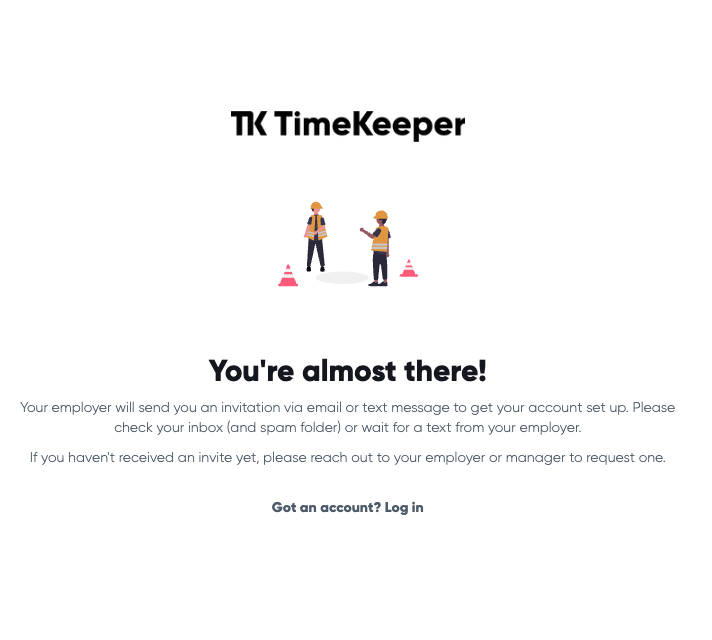
If you are an employee you will get this message
Looking at the web portal, this video will show you how to:
Logging in
Clocking in and out
Requesting time off
Viewing your timesheet
Looking at the Kiosk App. This video will show you have to:
Logging in
Clocking in and out
Requesting time off
Viewing your timesheet
Useful Links
Web Portal - https://app.timekeeper.co.uk
TimeKeeper app on the Apple App Store - https://apps.apple.com/gb/app/timekeeper-time-and-attendance/id1387606323
TimeKeeper app on the Play Store - https://play.google.com/store/apps/details?id=uk.co.timekeepr&hl=en_GB&gl=US
If you are seeing an error message when trying to clock in on mobile or kiosk, please review this Troubleshooting Guide -
If you would like a certain topic to be added to this guide, please get in touch with us at [email protected] and we'd be happy to add it to the list.