
Rota Planner
Here is a full demo of our Rota Planner
Before you can schedule an employee's shifts in the Rota Planner, you'll need to enable them as a Shift Worker/Rota Hours by ticking 'Rota Hours' in their profile.
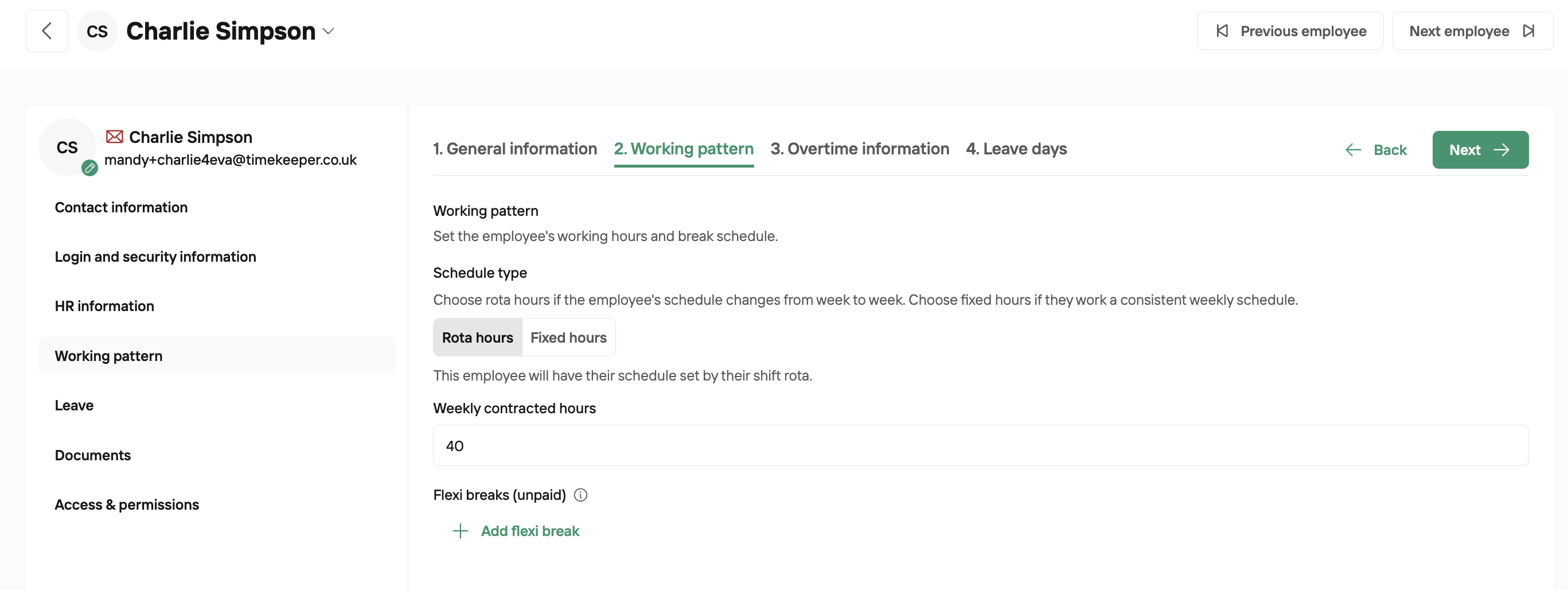
If an employee has a fixed Working Pattern set, they'll still show on the rota planner, but their fixed Working Pattern can only be amended in their employee profile.
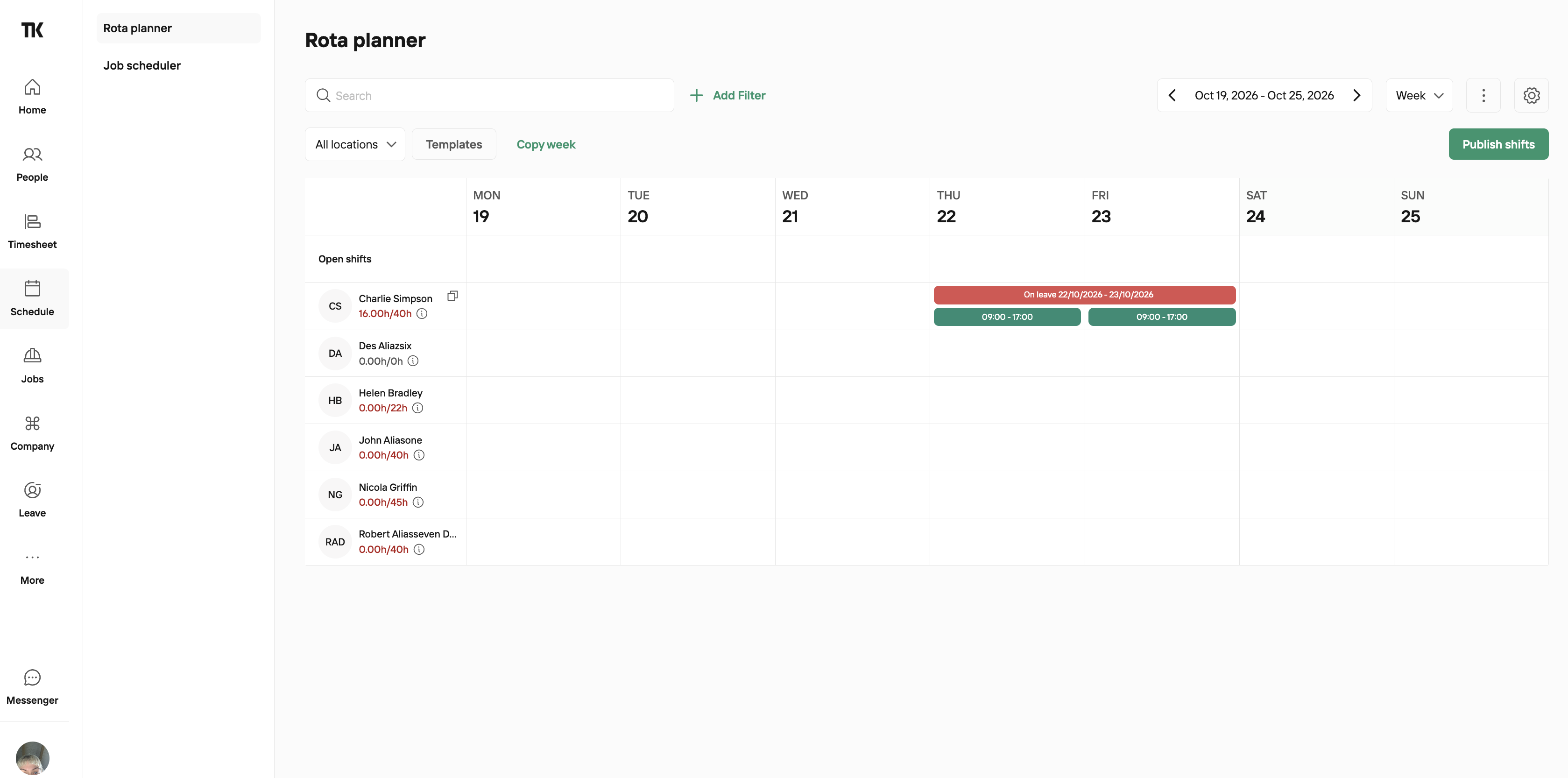
You can use the Rota Planner to assign shifts to your employees, if their shift pattern changes week to week. Employees who are on a fixed working pattern will show in grey and cannot be amended here. You can choose to only show Shift Workers on the rota.
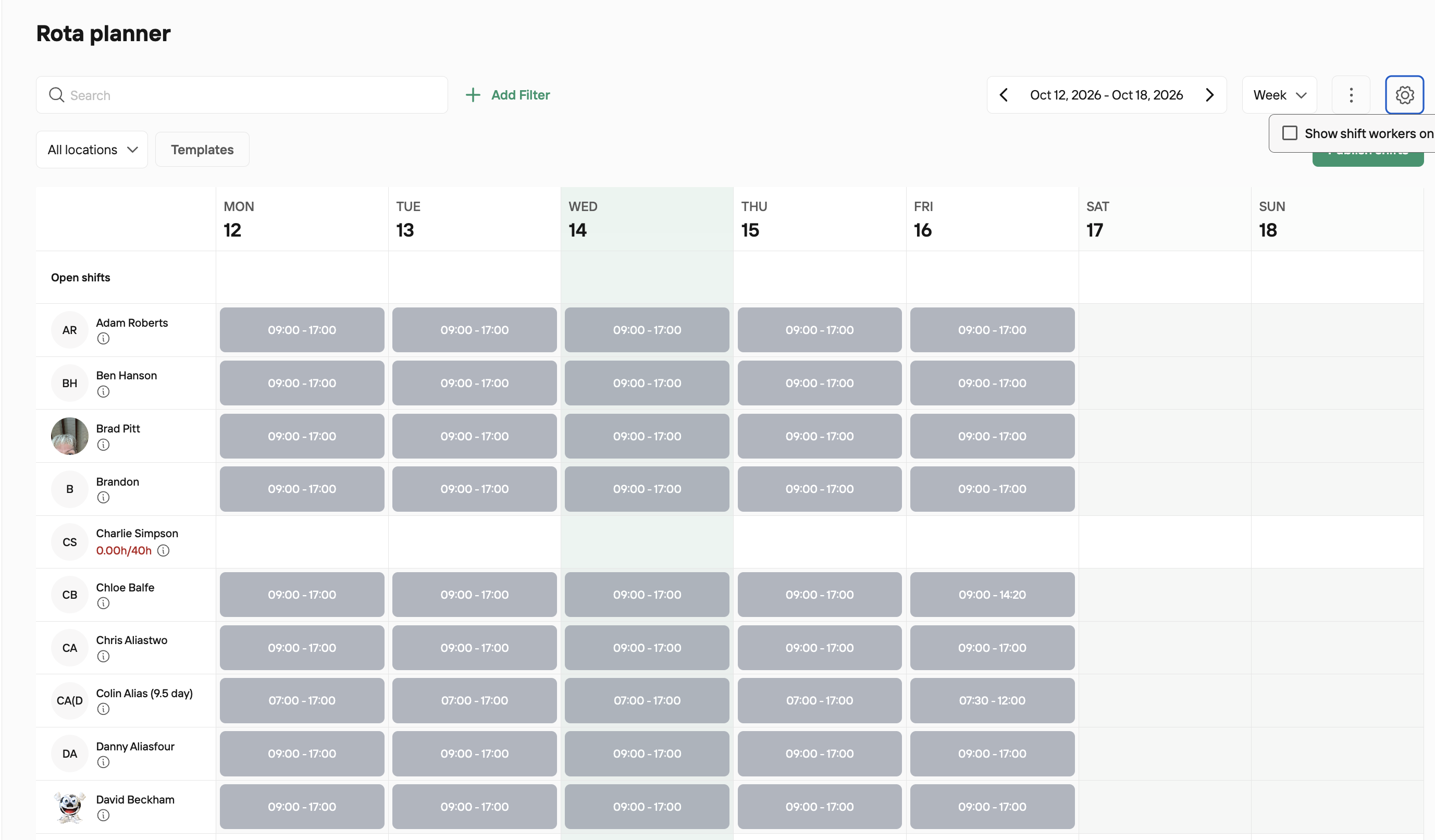
Assigning Shifts to Employees
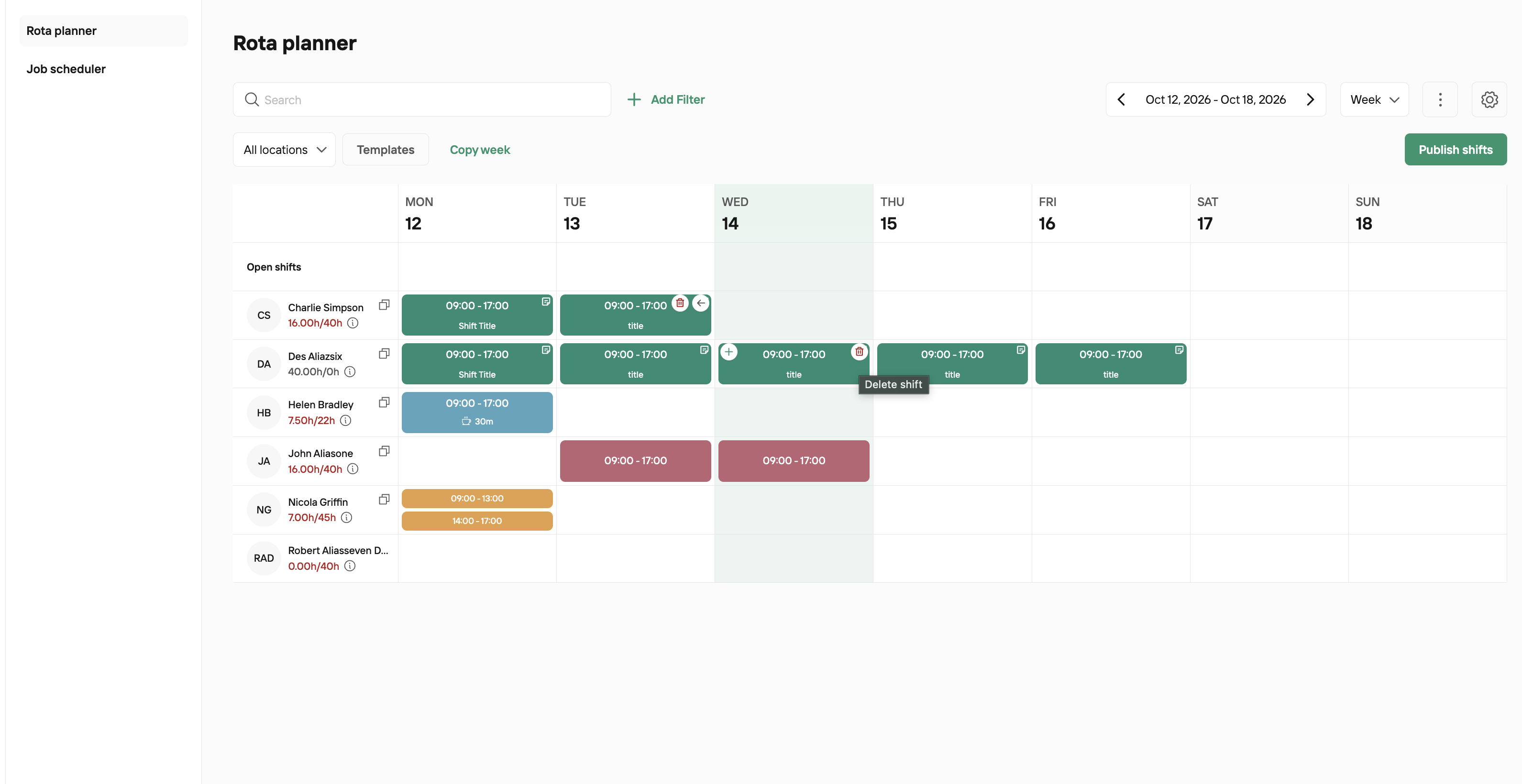
To assign shifts to employees, simply click where you’d like to place a shift and select the times. You can also set a break duration to be automatically deducted from that shift, and have the option to add a title and notes to the shift. Please note, if you have a break already configured in the employee profile you don't need to add it into the shift too. Doing so will mean 2 breaks are deducted.
To determine which day you would like to have at the beginning of the Rota Planner, go to More > Settings . General Settings >'First Day of Working Week' > scroll down to the bottom of the page and click save. The rota can be exported as a CSV & in JPEG format, exactly how it appears on screen.
Open Shifts
What is an open shift?
An open shift refers to a work shift that has not yet been assigned to an employee. It remains available for scheduling, and can be filled by an employee based on availability or specific scheduling needs. If a shift has been assigned but the employee is no longer able to work this, the shift can be reverted back to 'open' - ready to be assigned. Please note as employees can not see open shifts available in their app. Only the admin can and needs to communicate with staff outside of Timekeeper to see who is available and then assign it to them.
Copying & Pasting Shifts
To move a shift, simply drag and drop to where you need it.
Hold the 'Shift' key whilst clicking and dragging on a shift to copy and paste it into a new cell on the rota.
To copy an employee's shifts onto another employee, click 'Copy icon' then 'Paste icon'. You can also copy and past shifts onto the same employee, but a different week.
Draft and Published Rotas
When creating a Rota, this will be saved as a draft so you can come and go and work away at assigning shifts. Once you're happy, you can finally publish your rota which will notify employees they have a new schedule to view. If things change, you can still edit the rota once published - it will return to a draft again.
Deleting a Shift
Click on the shift and a Red Bin icon with appear. Click that once, and then click it again and it will delete the shift.
Rota Planner Templates
The Template feature in the Rota Planner allows you to streamline the process of assigning shifts and rotations to staff. If you operate a recurring pattern, such as 4 on, 4 off, Templates allows you to configure and save this shift schedule. Once saved, you can apply templates to a specific timeframe and choose to replace existing saved shifts with the new applied template.
By using pre-configured templates, you can quickly apply a set of predetermined shifts or rotations to your team's schedule, saving time and ensuring consistency. We have a guide specifically for Rota Planner Templates here, which covers more detail around creating and applying reusable templates.
Setting the Working location of a Shift Worker
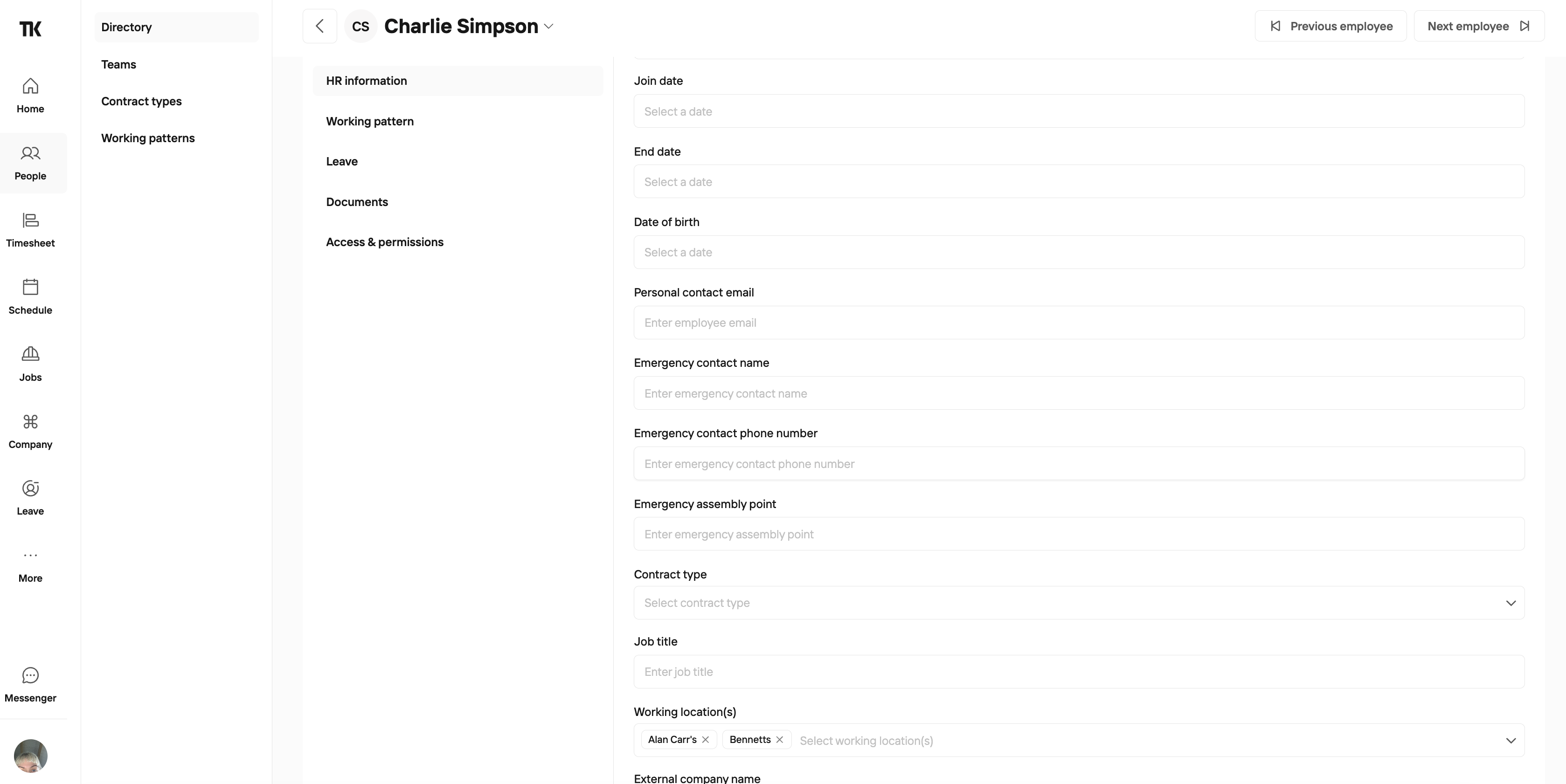
To set a working location of a Shift Worker/Rota Hours, go to People > Directory > profile of the specific employee > HR tab > scroll down to the end and enter in Working Location(s). Click 'Update Employee'.
Leave for a Shift Worker
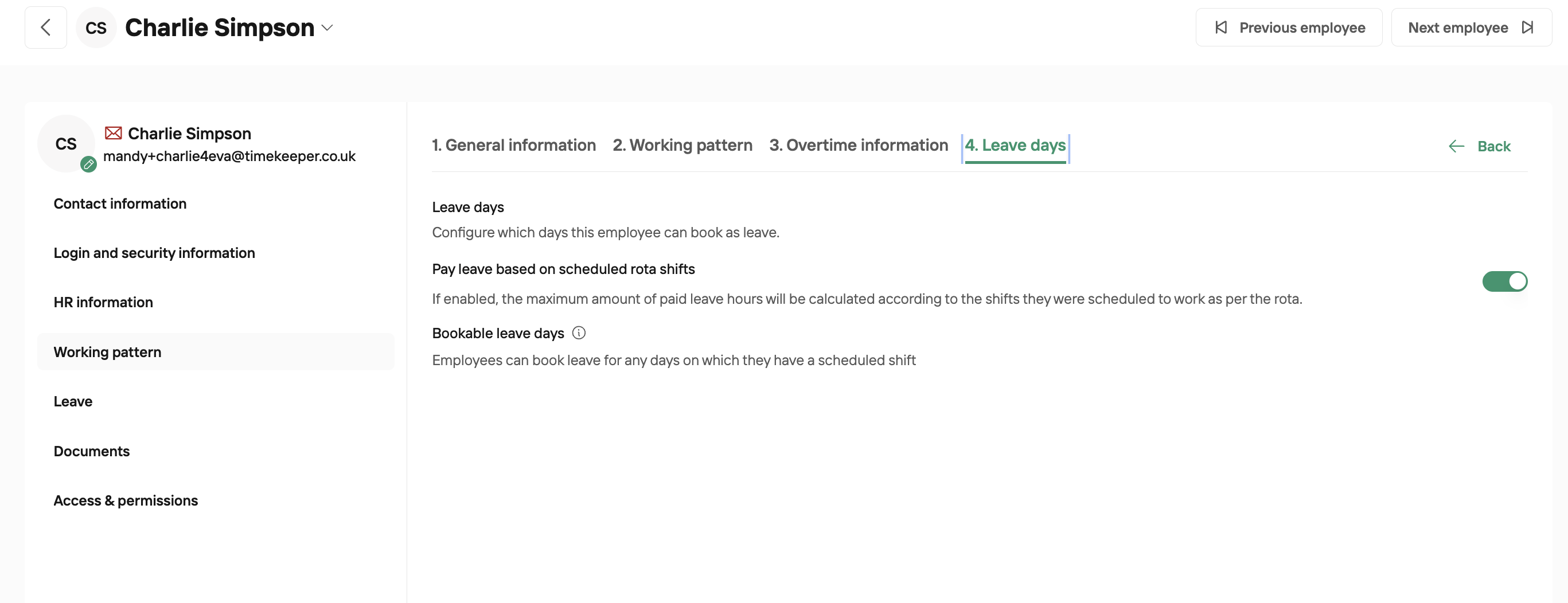
If in the employee profile, you have configured that leave is Paid based on Scheduled Rota Shifts, you will still need to add in the shift the employee was expected to work so their hours are pulled through as paid
If you have any further questions on the Rota Planner, please reach out to us at [email protected]