Creating a Team
Each employee can be assigned into a team(s). Teams can be used to filter reporting, and limits can be set for how many team members can be on leave at one time. Team managers can also be assigned to each team, who can manage leave and timesheets for the whole team.
Here is a run through of setting up your team.
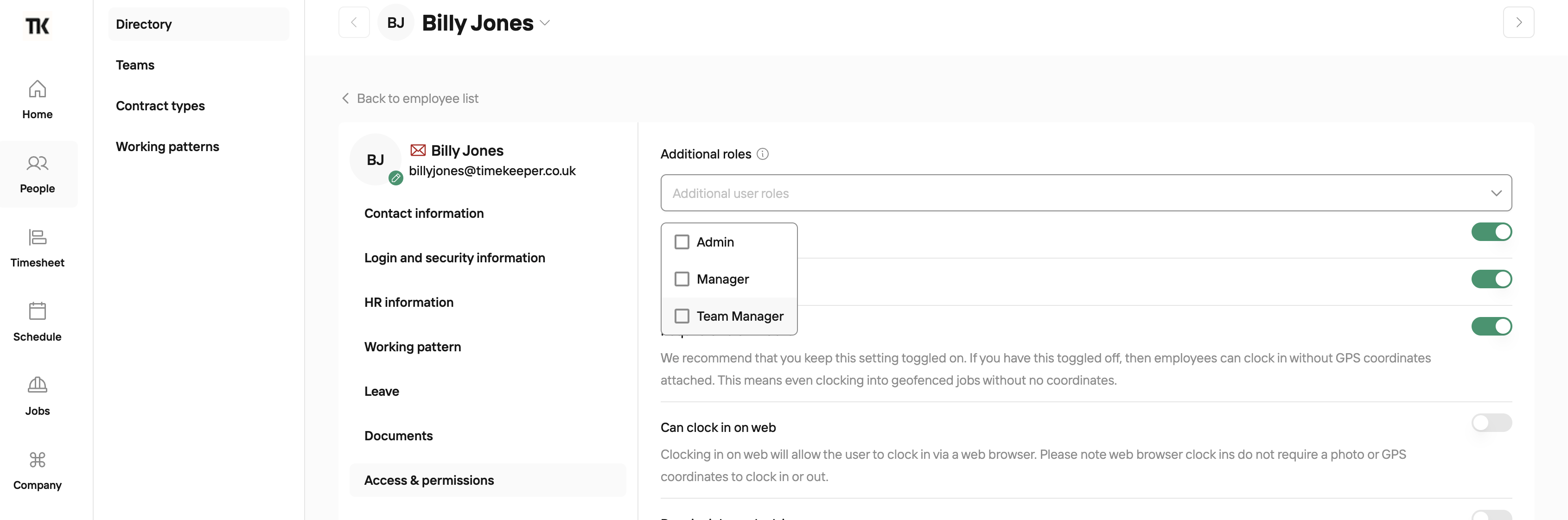
As mentioned in the video, an employee must be assigned the Team Manager role before you can add them as a team manager to a team. If an employee has not been given Team Manager permissions, they will not appear in the Team Manager drop-down list.
To assign someone as a Team Manager, follow these steps:
People > Directory > Open the staff member’s profile > Access and Permissions > add “Team Manager” under Additional Role > Save.
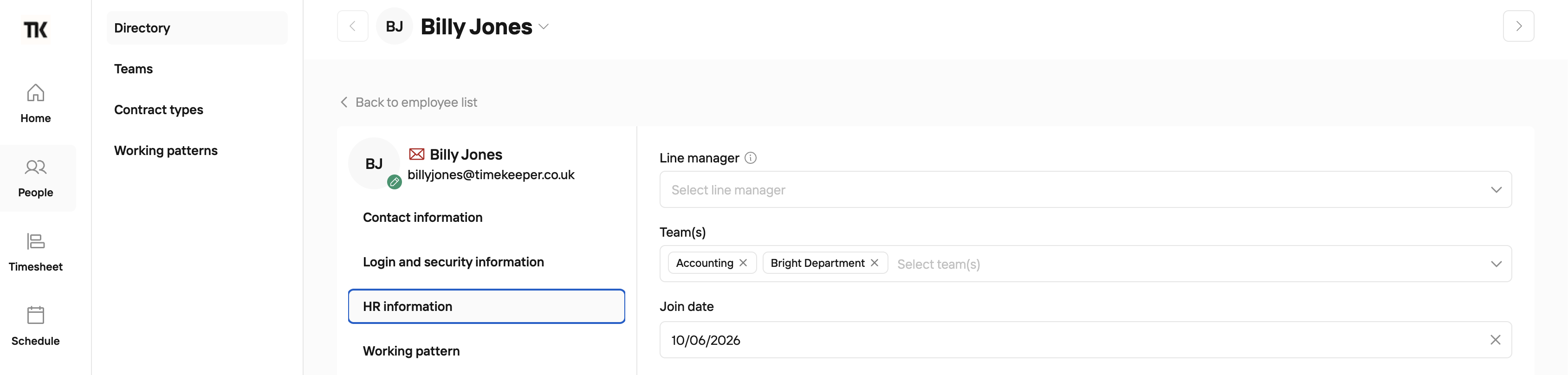
Employees are not limited to a single team; they can be assigned to multiple teams if needed.
You can view team members by opening the team itself. If you’re in an employee’s profile, you can see which teams they belong to under the HR Information tab.
Filtering Reports
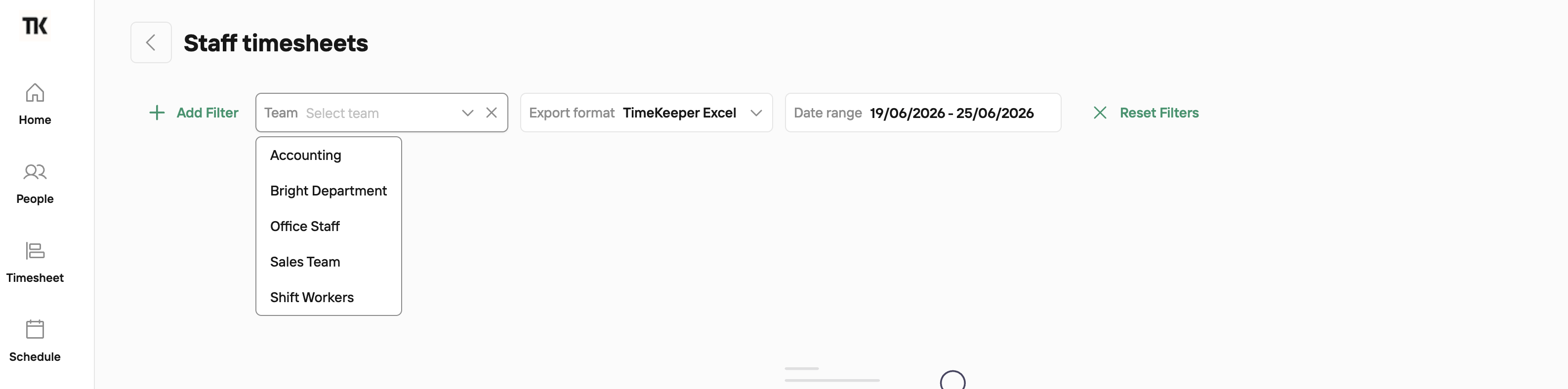
Many of the reports in TimeKeeper can be filtered by team. This can be handy if you run separate payrolls for different groups of employees, or just need to export data for one team at a time.