Importing into Sage50 Payroll
TimeKeeper supports generating a CSV export that can be imported in Sage 50 Payroll. It's a simple three step process.
Step 1 - Set up Employee Mapping Between the Two Systems
To configure the employee mapping between TimeKeeper and Sage, you will need to enter into TimeKeeper the Employee Reference Number of each Sage employee.
So for example, Jack Allan here has an Employee Reference of 1.
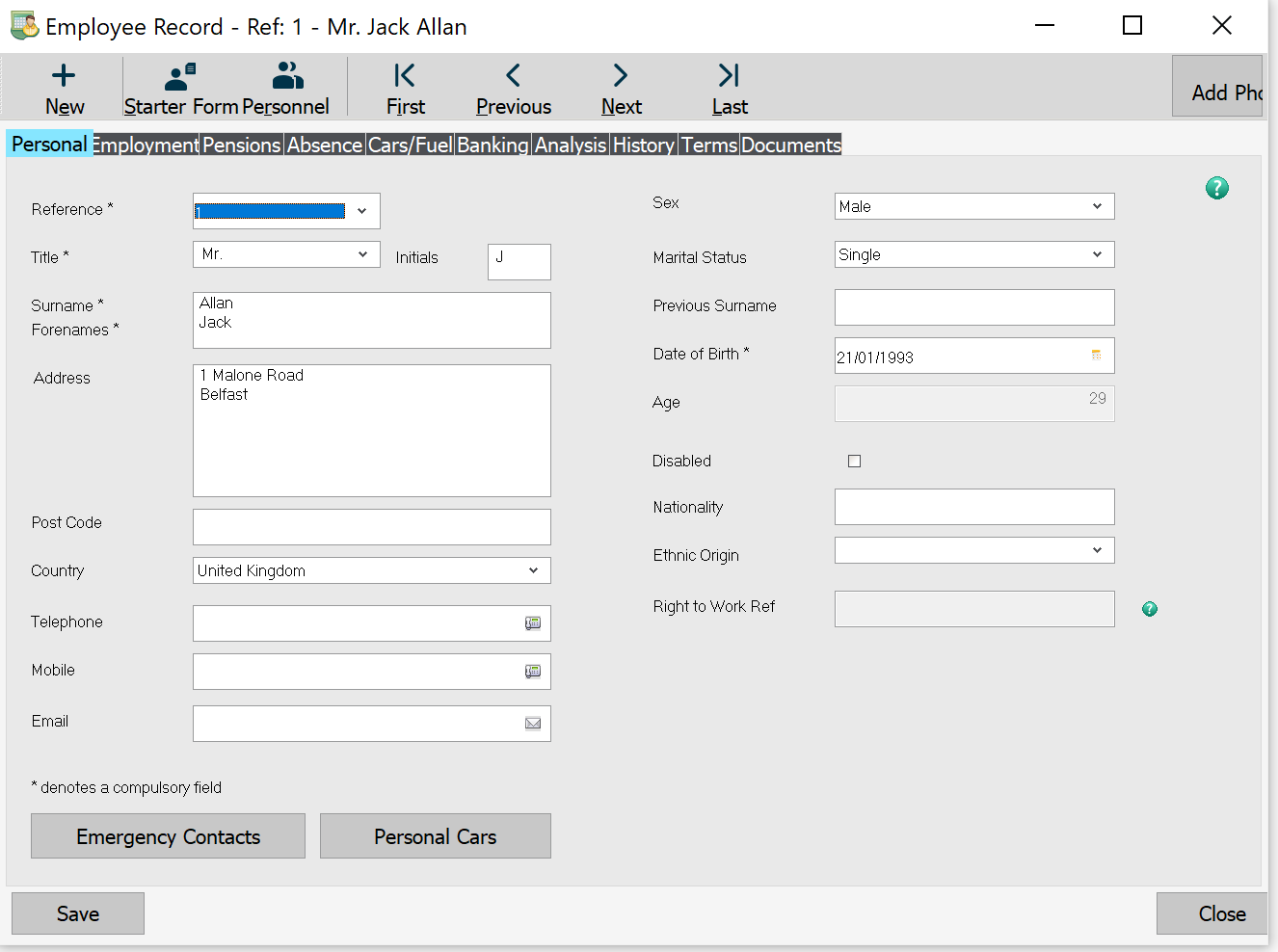
You need to enter this number into the employee profile. Please go to People > Directory > Into employees profile > HR information and scroll down to Internal Employee ID and enter.

Step 2 - Run the Sage Report
Typically we recommend users to run the TimeKeeper Staff Timesheet Excel report to check over everything (as it's more user friendly). Then once happy with that, run the Sage 50
export from the Staff Timesheet Report screen.
To get there, go to More > Report > Time & Attendance tab > Staff Timesheet > and change the export format to Sage 50 and run for the date range you want.

This will generate a CSV file that you can import into Sage.
Step 3 - Import into Sage 50
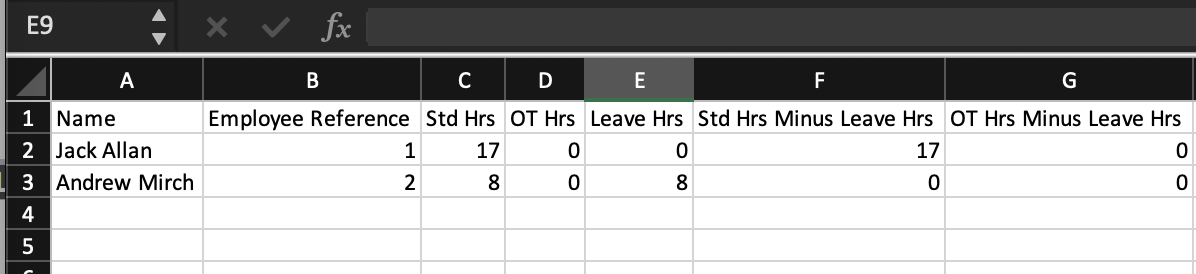
Once the CSV has been exported, open it and up and take a look inside that you are happy with the data.
To import into Sage, simply:
Click "File" -> "Advanced Data Import"
Take a Backup first before continuing as this data is not reversible
Click "Next" -> "Timesheet Payments"
Click "Browse" to go to the file in question and ensure "Import File has Header Row" is ticked
The next screen will allow you to map what fields in the export map to what fields in Sage
I have mapped "Std Hrs" in the TimeKeeper report to "Standard". This includes hours worked + hours paid on leave. If I wanted to import only hours worked excluding leave, I would use "Std Hrs Minus Leave Hrs". Similarly, I've mapped "OT Hrs" to "Overtime Hours".
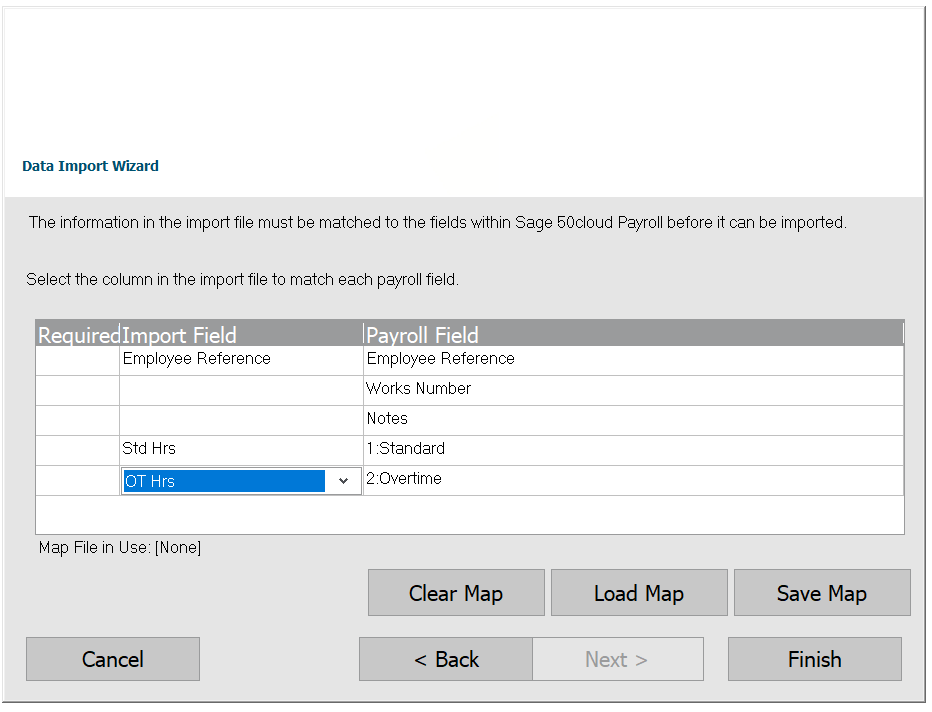
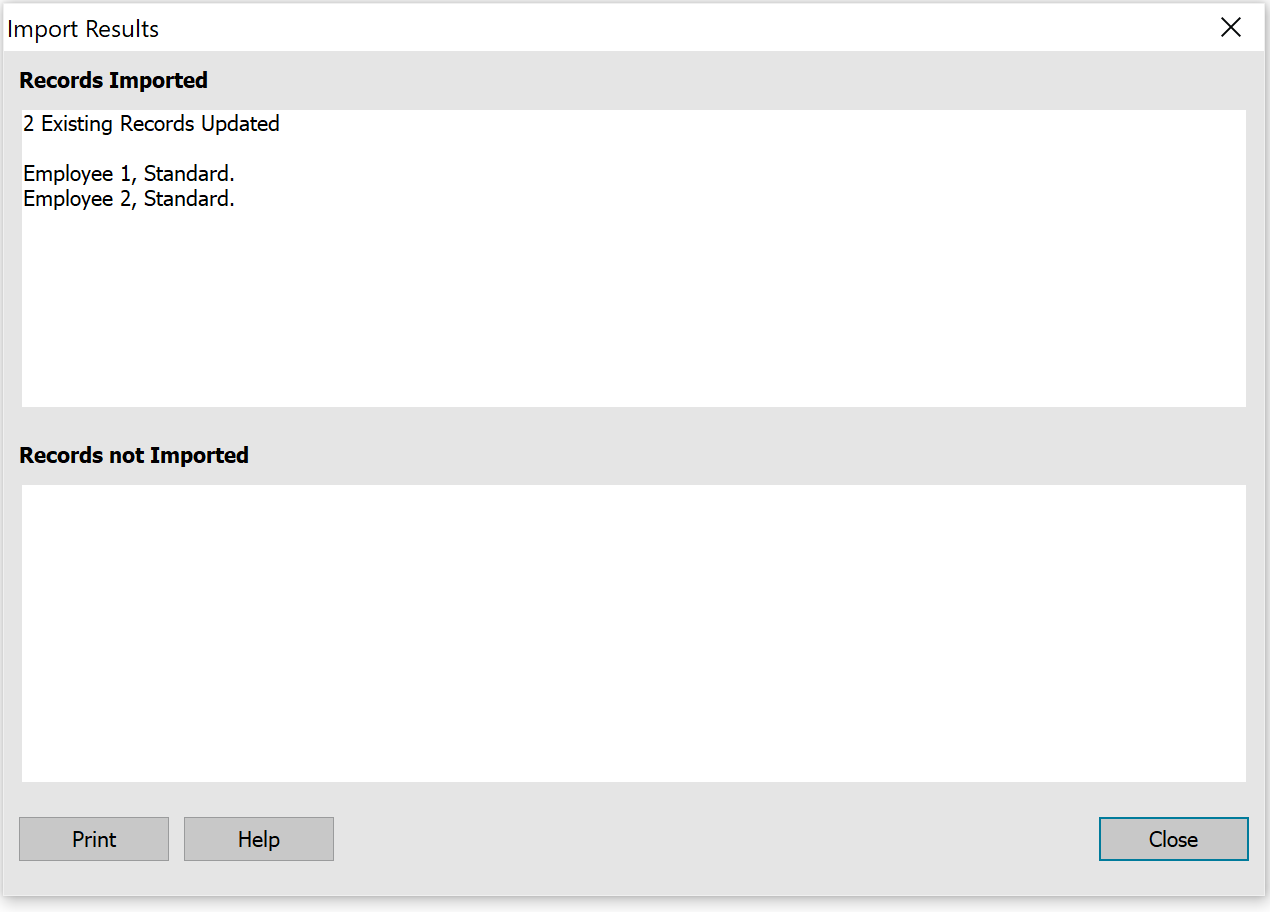
Press Finish and the data should be imported.
Select the employees and click "Timesheet Entry" - should show the imported values.