
Setting up Zapier
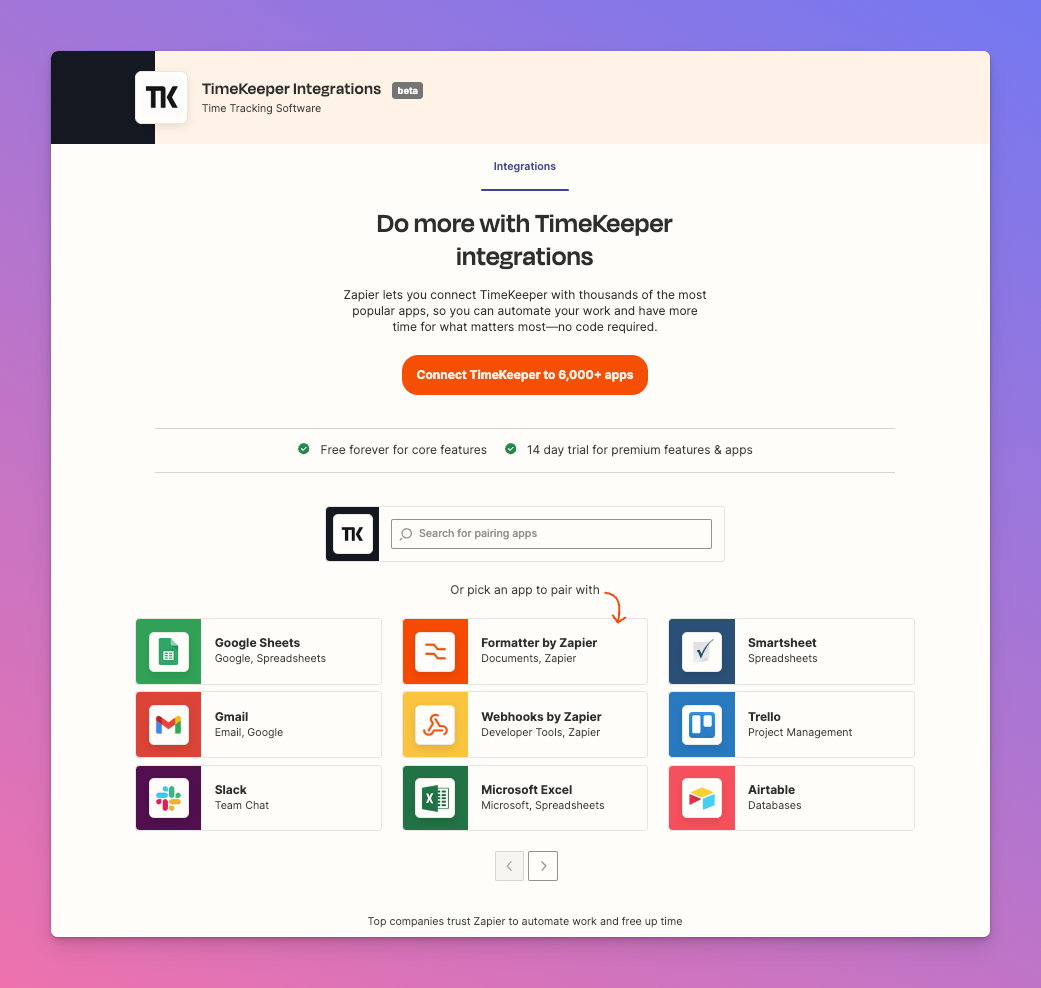
TimeKeeper has a Zapier integration allowing you to connect your favourite apps with workflows in TimeKeeper.
Quick Setup
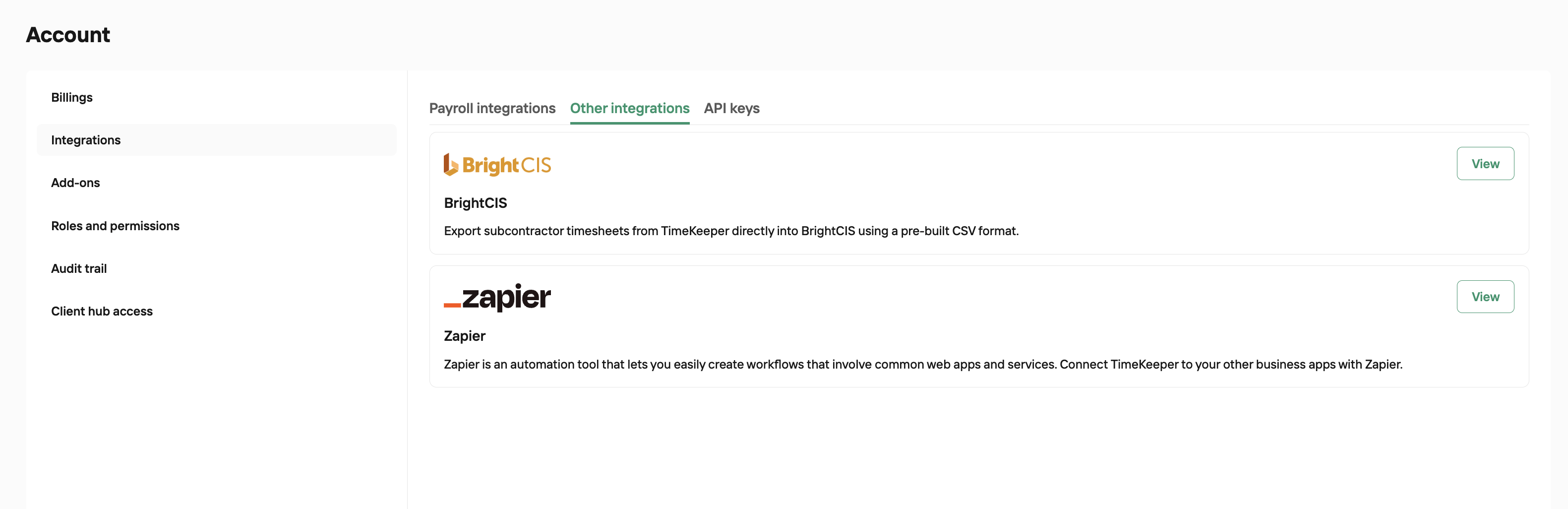
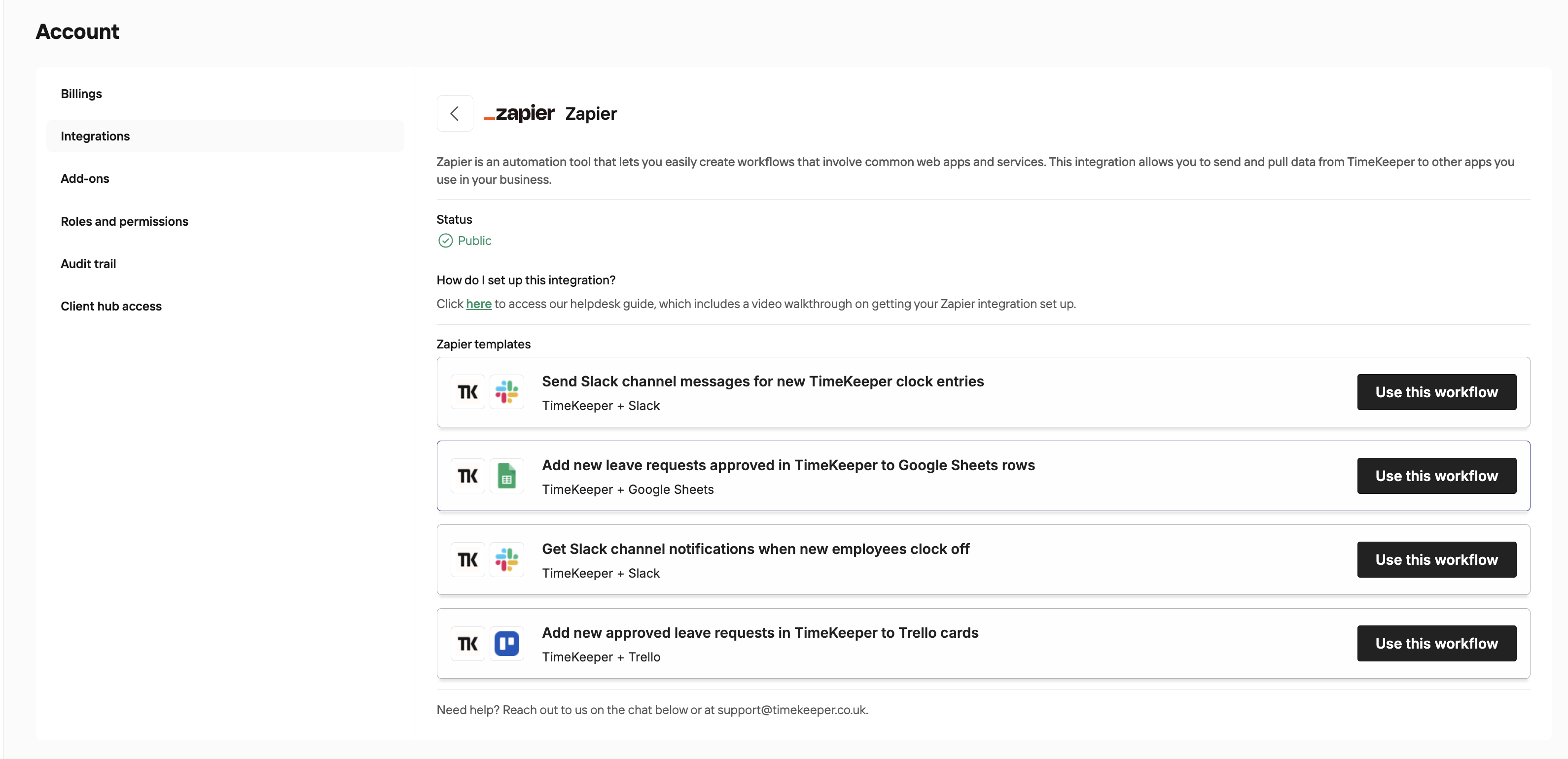
If you head to the TimeKeeper integrations page by going to User Icon > Account > Integrations > Other Integrations, you can click View and then "Use this Workflow to setup some popular workflows in Zapier. This will redirect you to the site to setup your Zap with TimeKeeper.
Manual Setup of Zapier Connection
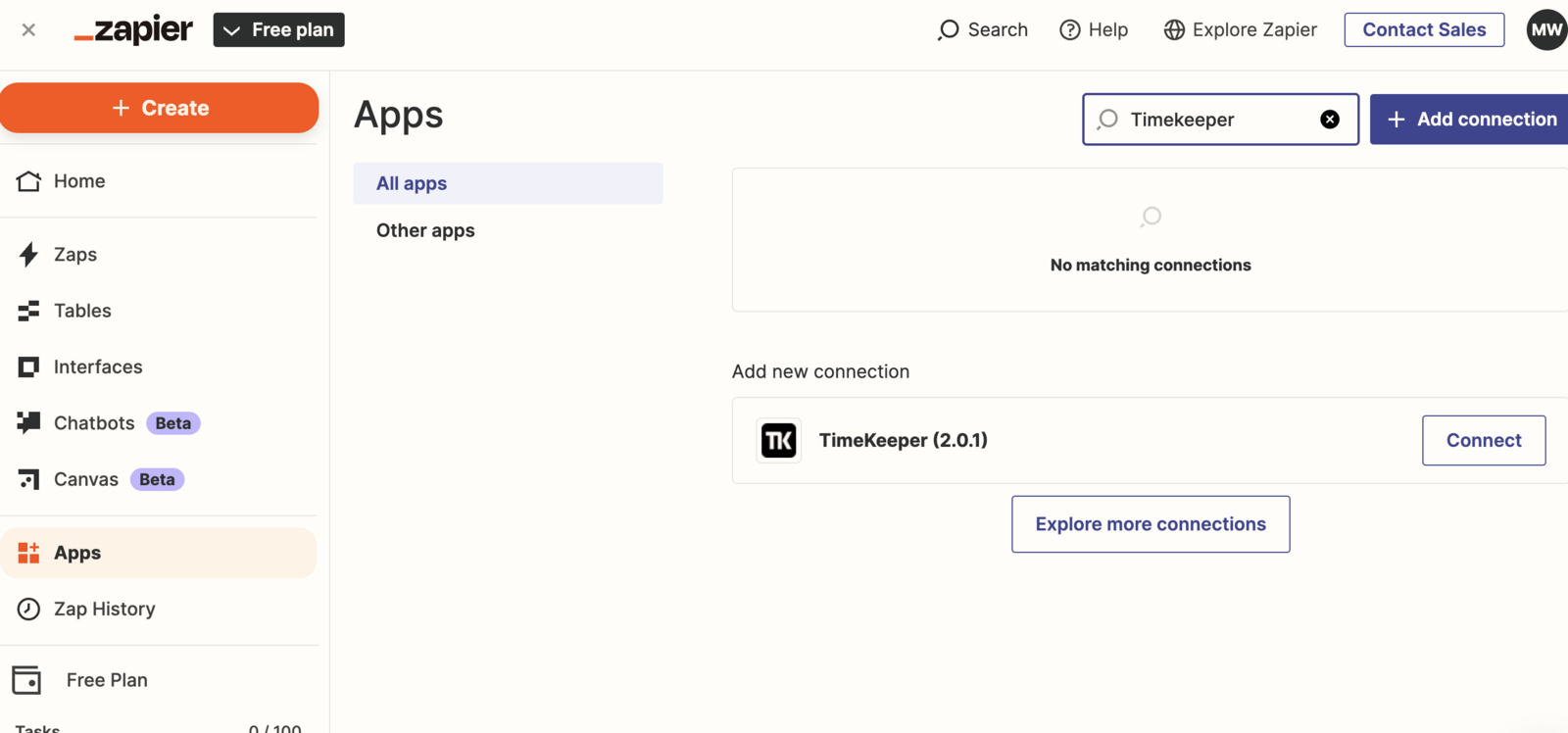
Log-in to Zapier, search in apps, then find and connect to TimeKeeper. To do this, you'll need to generate an API key within your TimeKeeper account
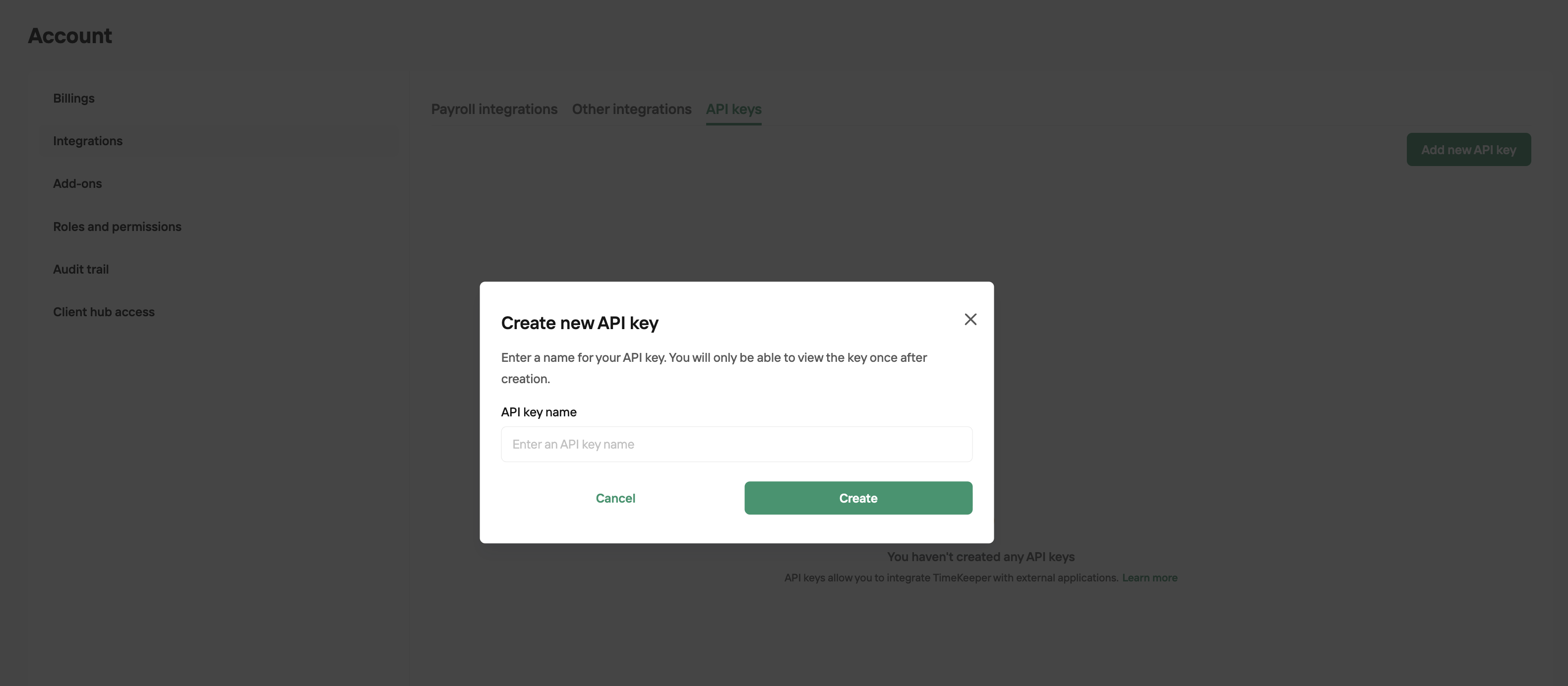
Under Account > API Keys, select New API Key to trigger the following pop up. Name as required, create and then copy the API key once generated.
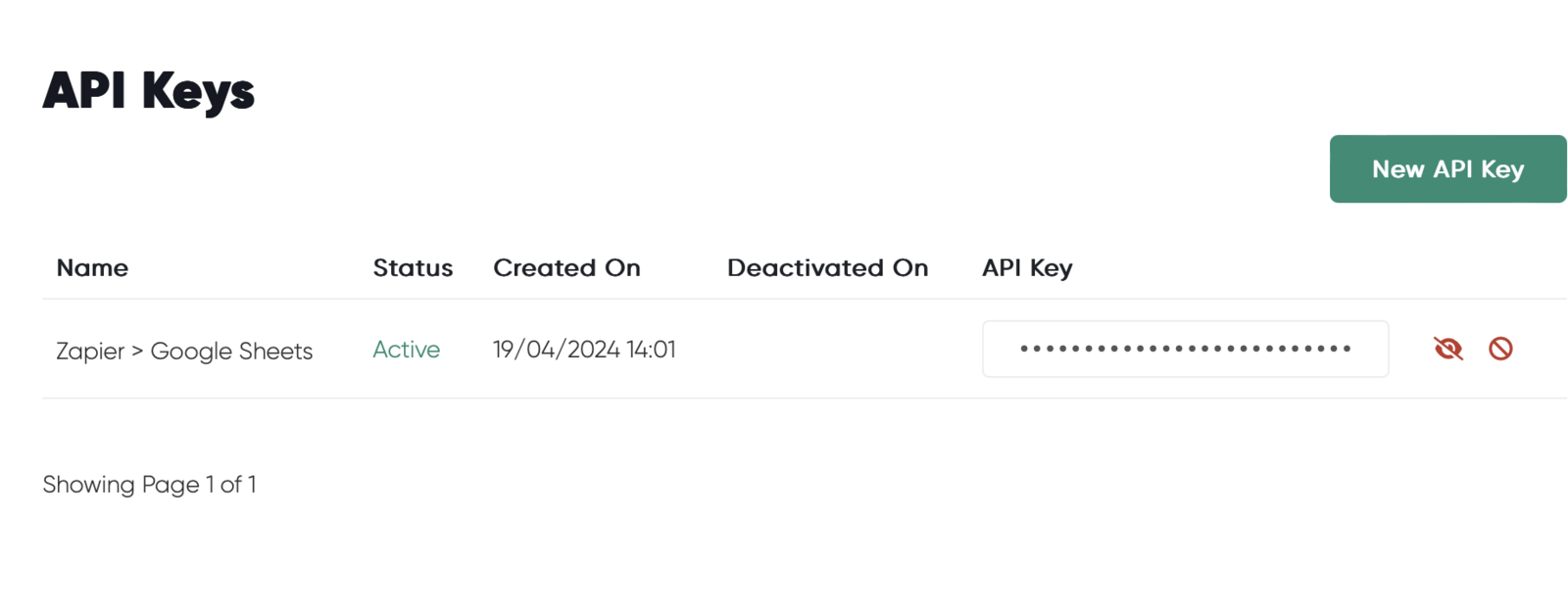
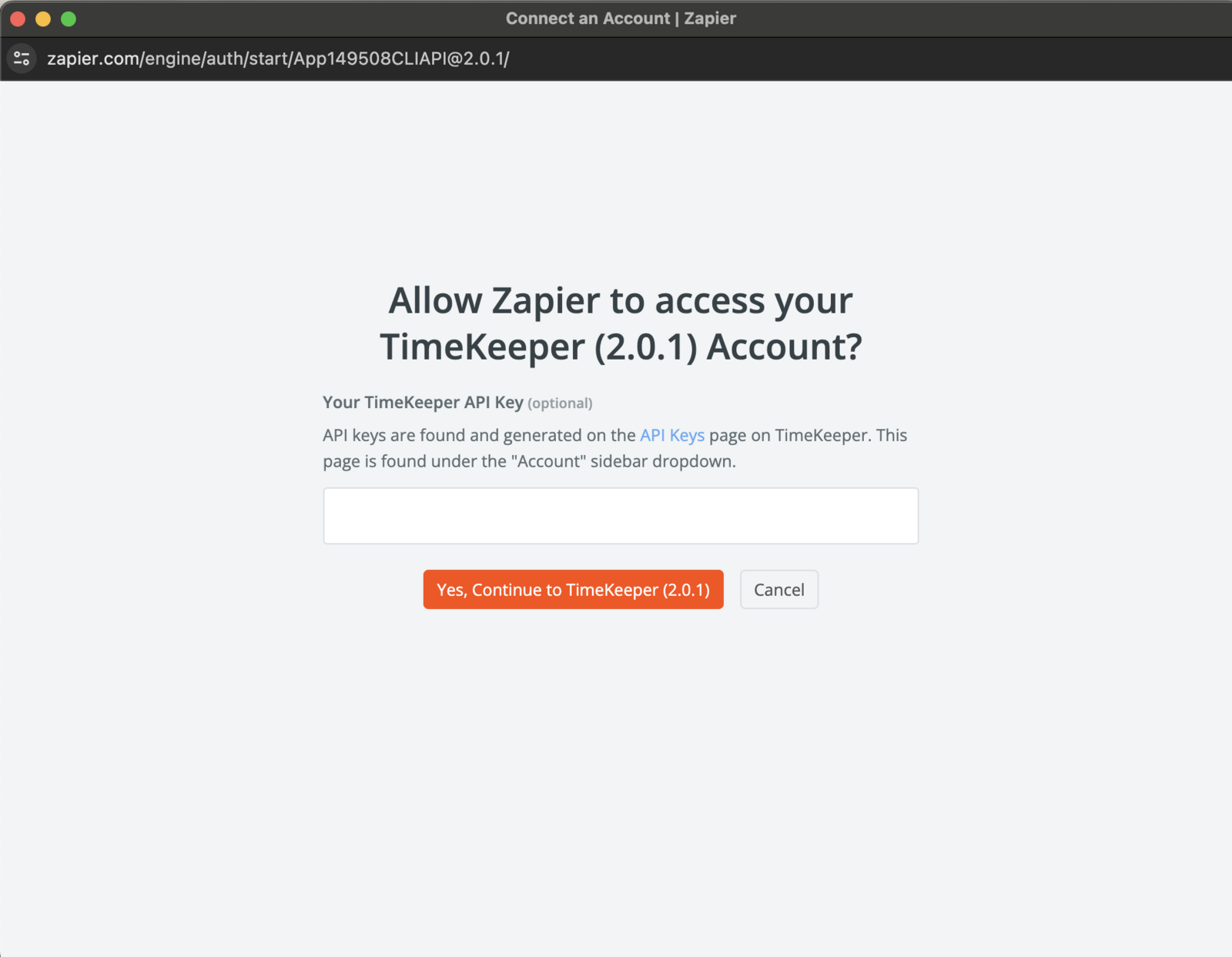
In Zapier, select connect to TimeKeeper - you'll then be prompted to add the API key you've just copied.
Example of setting up a Zap with Google Sheets
Now you have TimeKeeper connected, you can create the required integration. Below is an example, being used with Google Sheets:
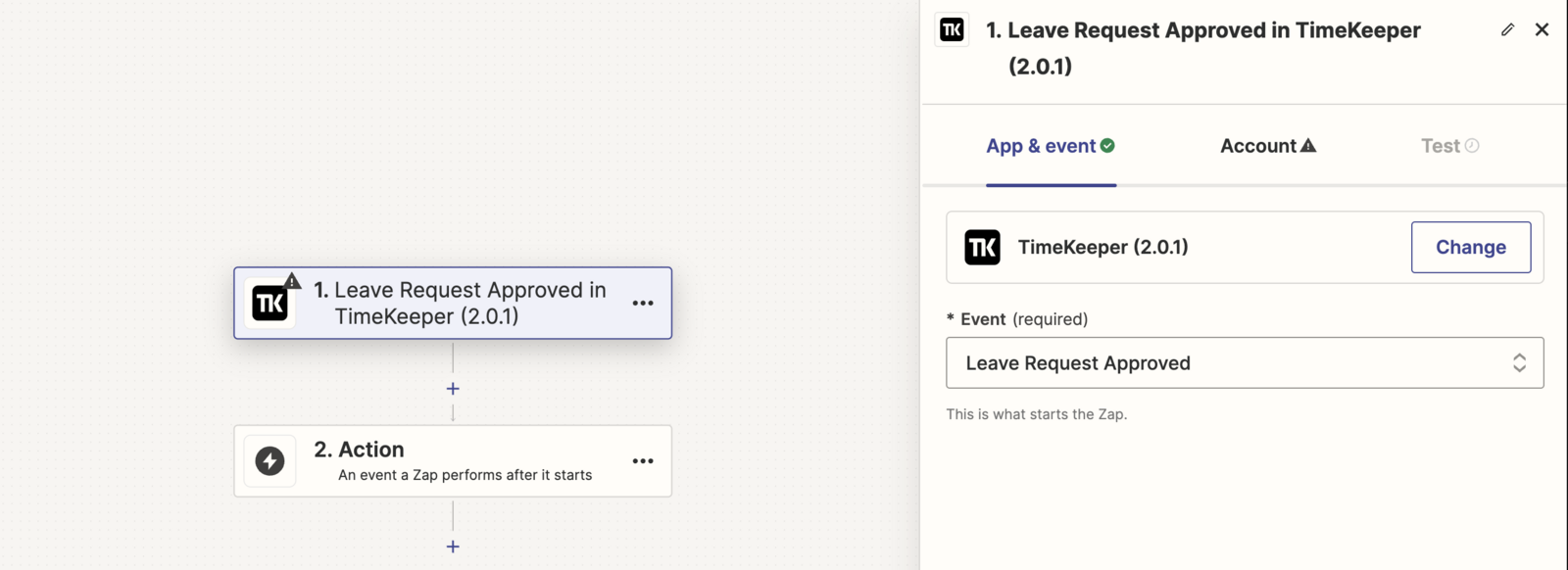
Depending on the integration you're building, you may need to connect another platform . In this example, we have connected Google Sheets and created a new spreadsheet for this.
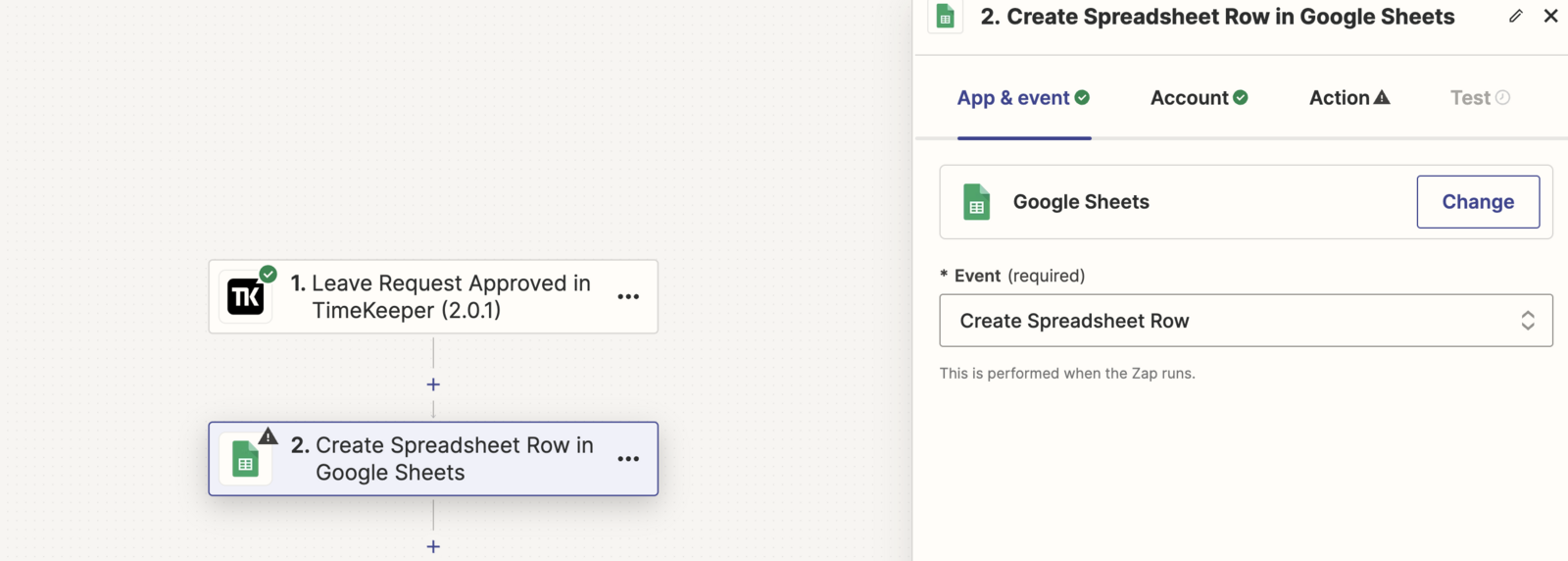
Again, depending on the integration, you'll likely need to map specific fields/confirm what data you wish to sync and the specific end point.
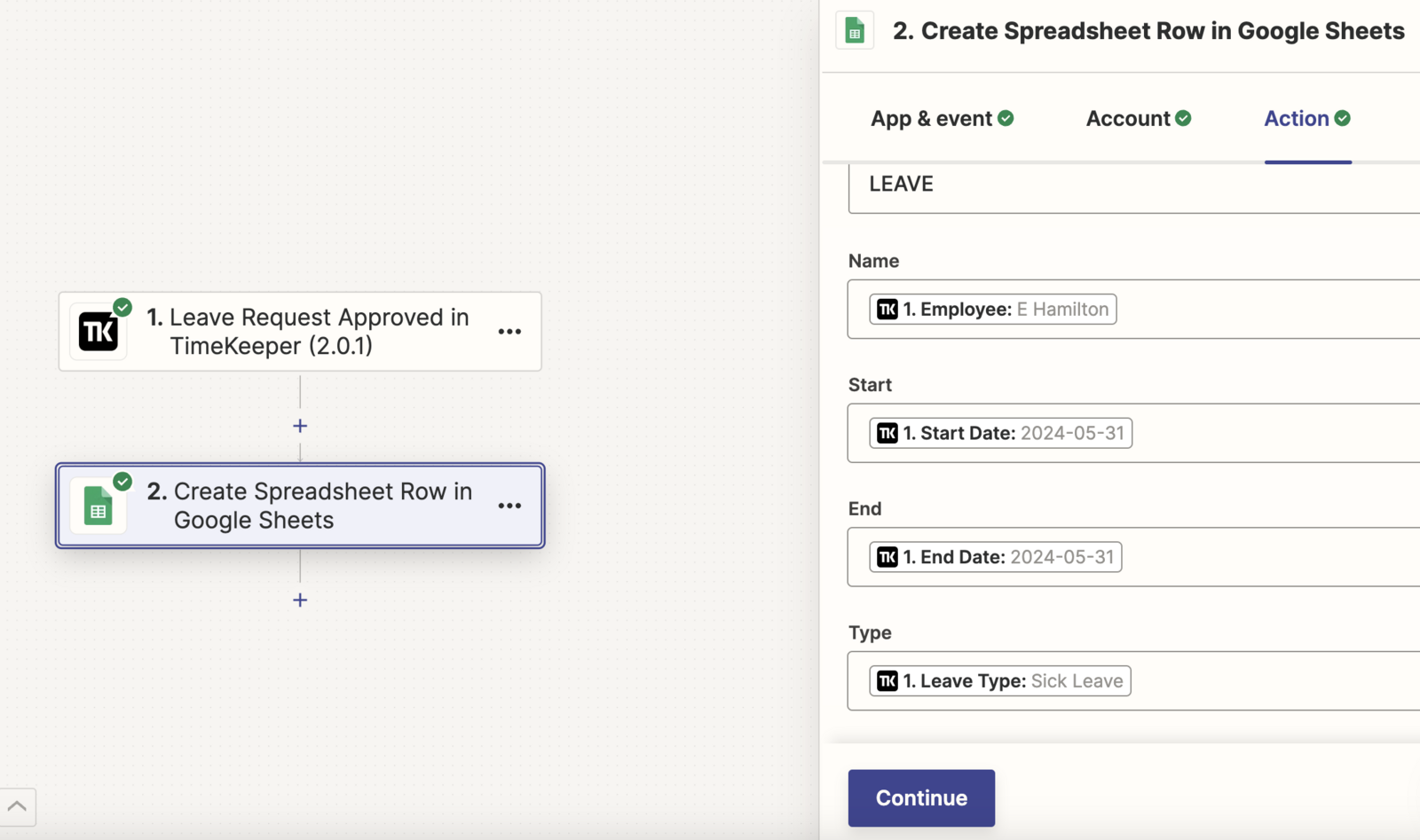
Before switching the integration live/publishing in Zapier, you'll need to test this works as expected by triggering the action in TimeKeeper and then doing a test run:
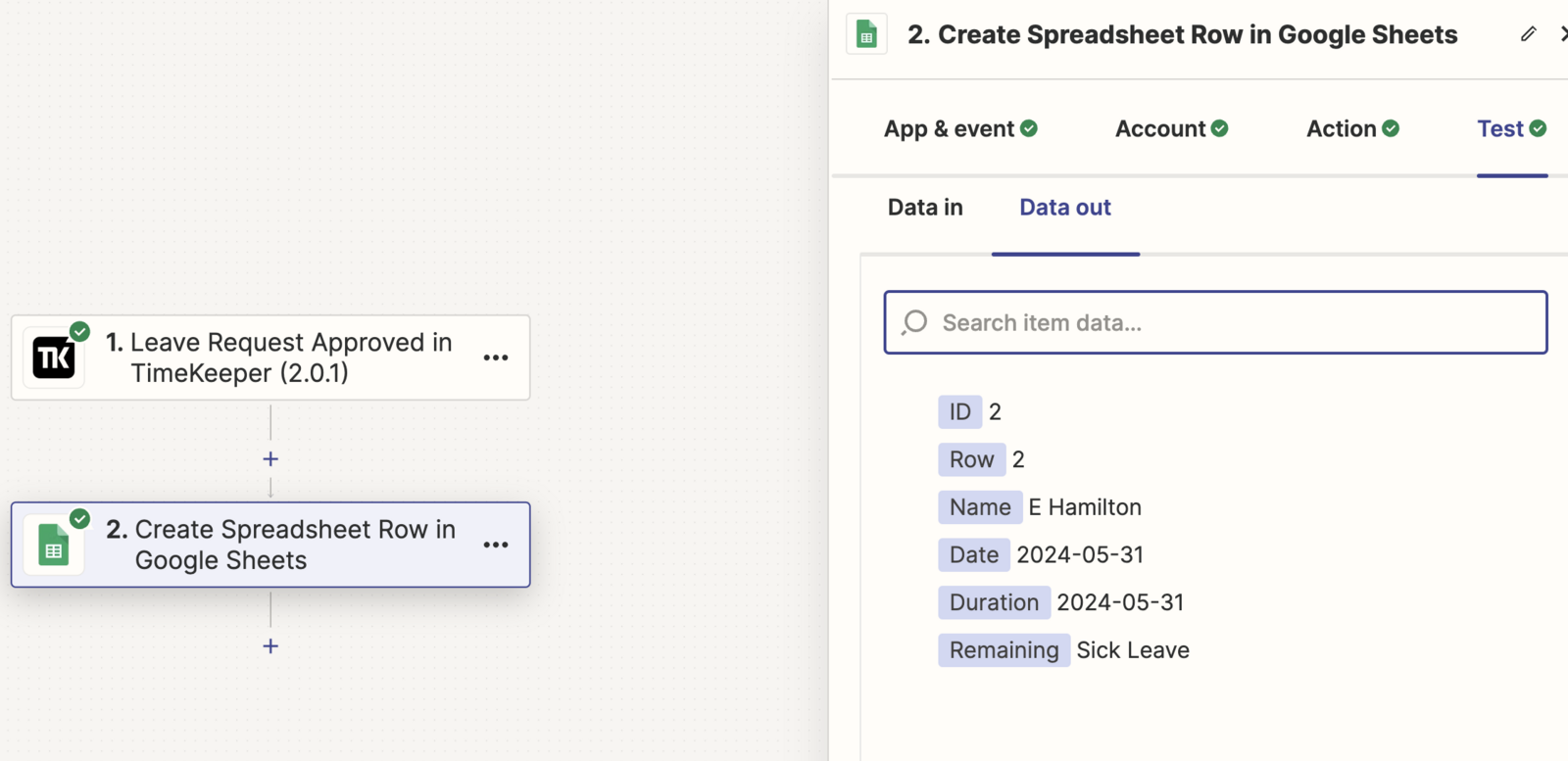
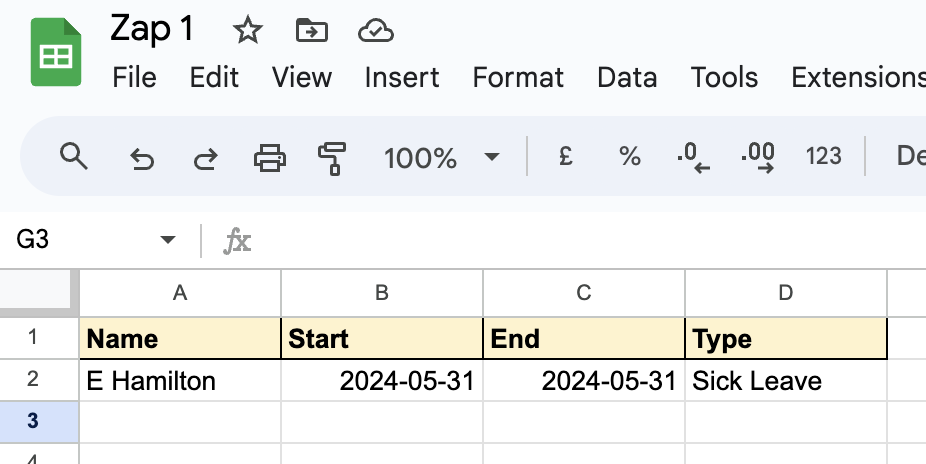
In this example the run was successful:
If you have any further questions, please don't hesitate to reach out to our Support Team: [email protected]