
Configure Manual Timesheets
By default, employees need to clock in and out for their time to be recorded in TimeKeeper. However, if you’d prefer that employees don’t clock in and out each day and instead submit a manual timesheet at the end of the week, TimeKeeper supports that too.
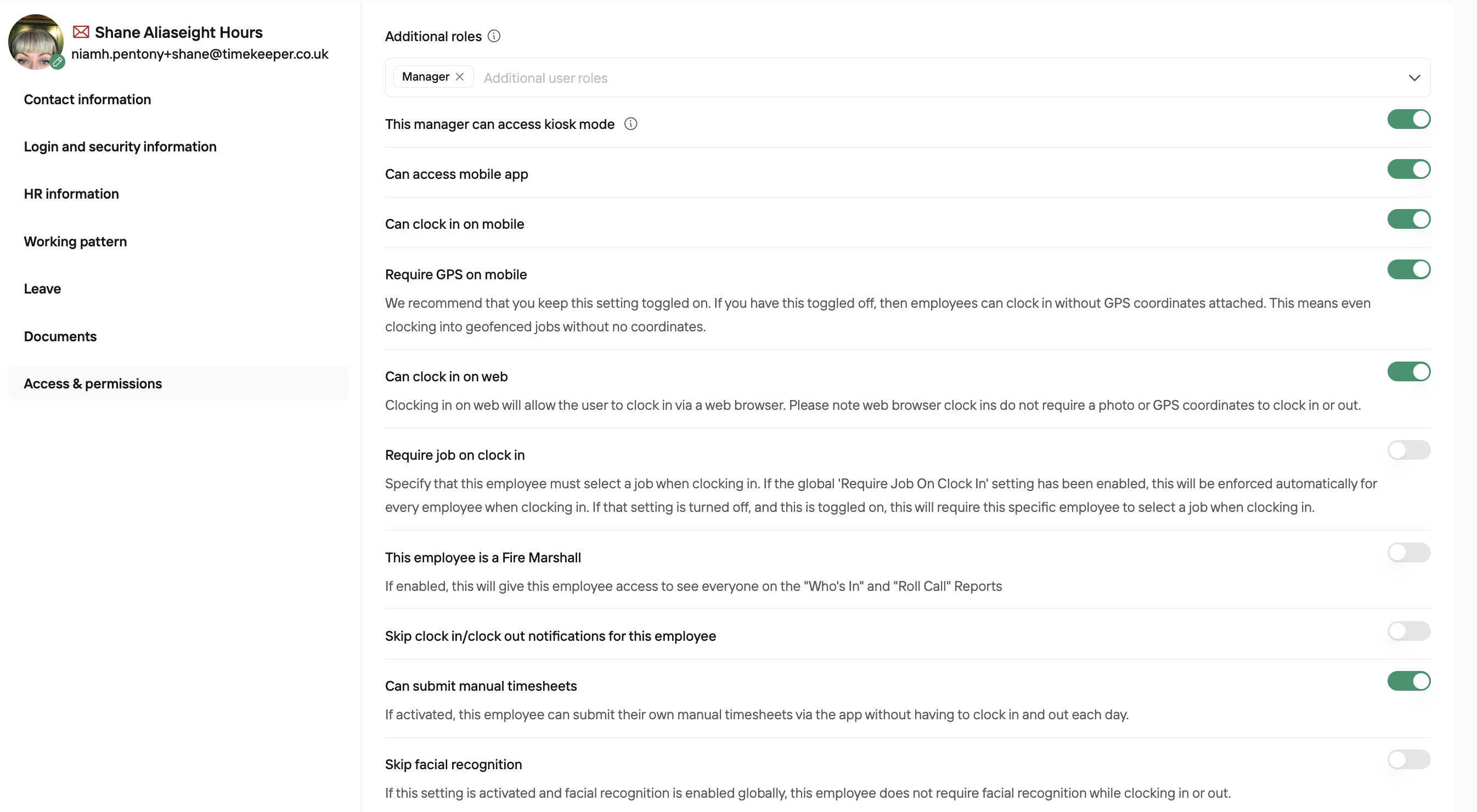
Step 1 – Enable manual timesheets for the employee
You first need to give each relevant employee permission to create manual timesheets:
Go to the People directory
Open the employee’s profile
Go to the Access & Permissions tab
Tick Can Access the Mobile App and then Can Submit Manual Timesheets
Click Save
Step 2
Employees can then create manual timesheets for themselves using the mobile app.
Creating a manual timesheet as an employee
Log in to the TimeKeeper app with your employee details
Tap Services
Tap My Timesheet
If you’ve been given the correct permissions, you’ll see a plus (+) icon in the top‑right corner. Tap this
Complete the fields on the screen and tap Add Time Entry – this will create a manual time entry
To edit an existing entry, simply tap the relevant row in the My Timesheet view