
Group Leave Bookings & Lock Date
Group Leave Booking
To create a leave booking for multiple employees at once, go to the Leave Wall Calendar.
Click Add New > Group Booking in the top‑right corner and set the details for the booking. You can either select a specific team or apply the booking to all employees.
You can not delete a group booking all at once. You need to delete per each employee on that date.
Lock Date Booking
Just like creating a Group Booking, you can set up a Lock Date, which prevents anyone from requesting leave on that day.
As an admin, go to Leave Wall Calendar > Add New > Lock Date to create it.
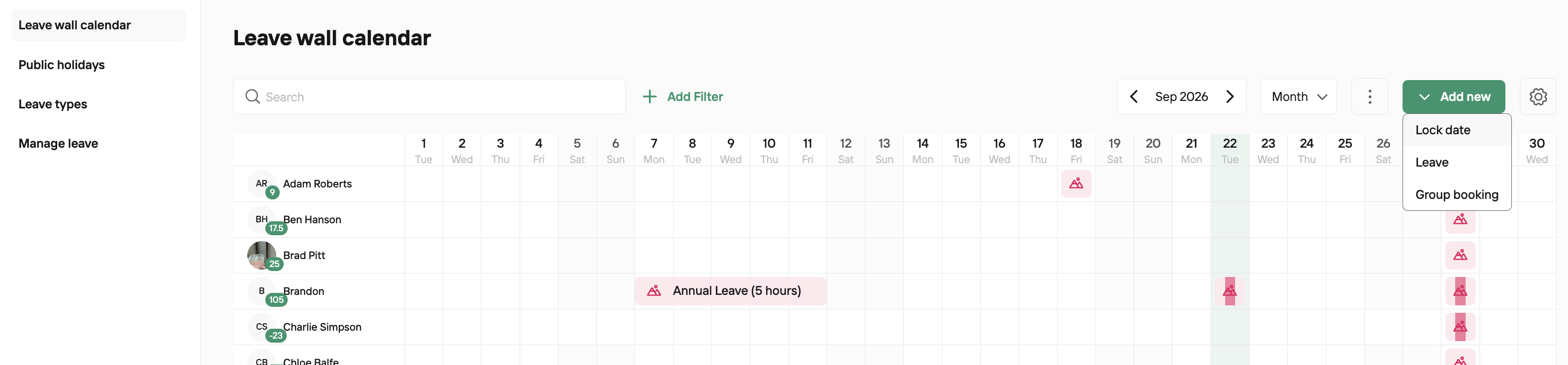
When you click Lock Date, a pop-up box will appear. Here you can choose whether the lock applies to all staff or to a specific team, select the relevant dates, optionally add a reason, and then save by clicking Lock Dates.
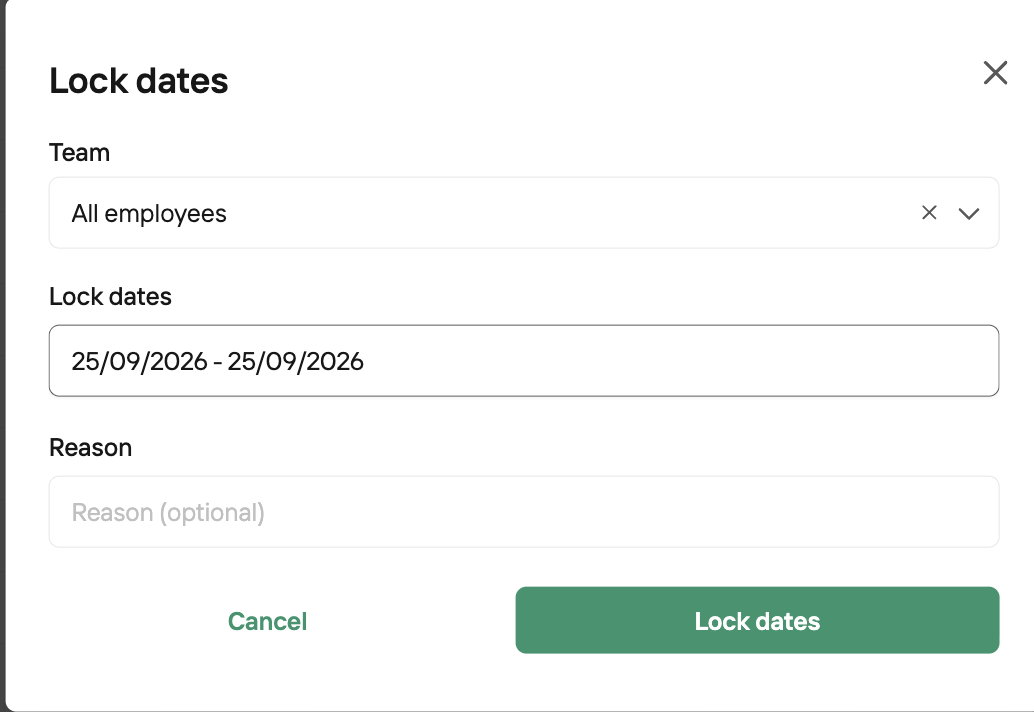
Now staff will no longer be able to submit a leave request for that date.