
Converting an Employee from Daily Leave to Hourly Leave
TimeKeeper allows employees to book leave either in days or in hours. By default, when a new employee is created, their leave is managed in days (daily leave).
If you want to change an employee from daily leave to hourly leave, follow the steps below.
NOTE: Changing an employee from daily leave to hourly leave is a one way street. Once you do this - you cannot change that employee back from hourly leave to daily leave. Please make sure this is something you want to do prior to confirming this change.
Changing an Employee from Daily Leave to Hourly Leave
To change an employee from daily leave to hourly leave we need to go through a conversion process.
First go to People > Directory and click into the employee you want to edit.
Head to the 'Leave' tab. Below leave entitlement you will see a piece of text that says 'Allowance is tracked in days. Change to Hourly Leave Entitlement'.

Click 'Change to Hourly Leave Entitlement' - a pop up will show.
This popup is important because it asks you to define how many hours are in one day of leave.
For example, if an employee has 20 days of leave and their annual quota should actually be 160 hours, then each leave day needs to equal 8 hours (20 days × 8 hours = 160 hours).
The system suggests a default value based on the employee’s current working pattern. In this example, their schedule is 9am–5pm, which is 8 hours, so you can safely confirm the conversion using 8 hours per day.
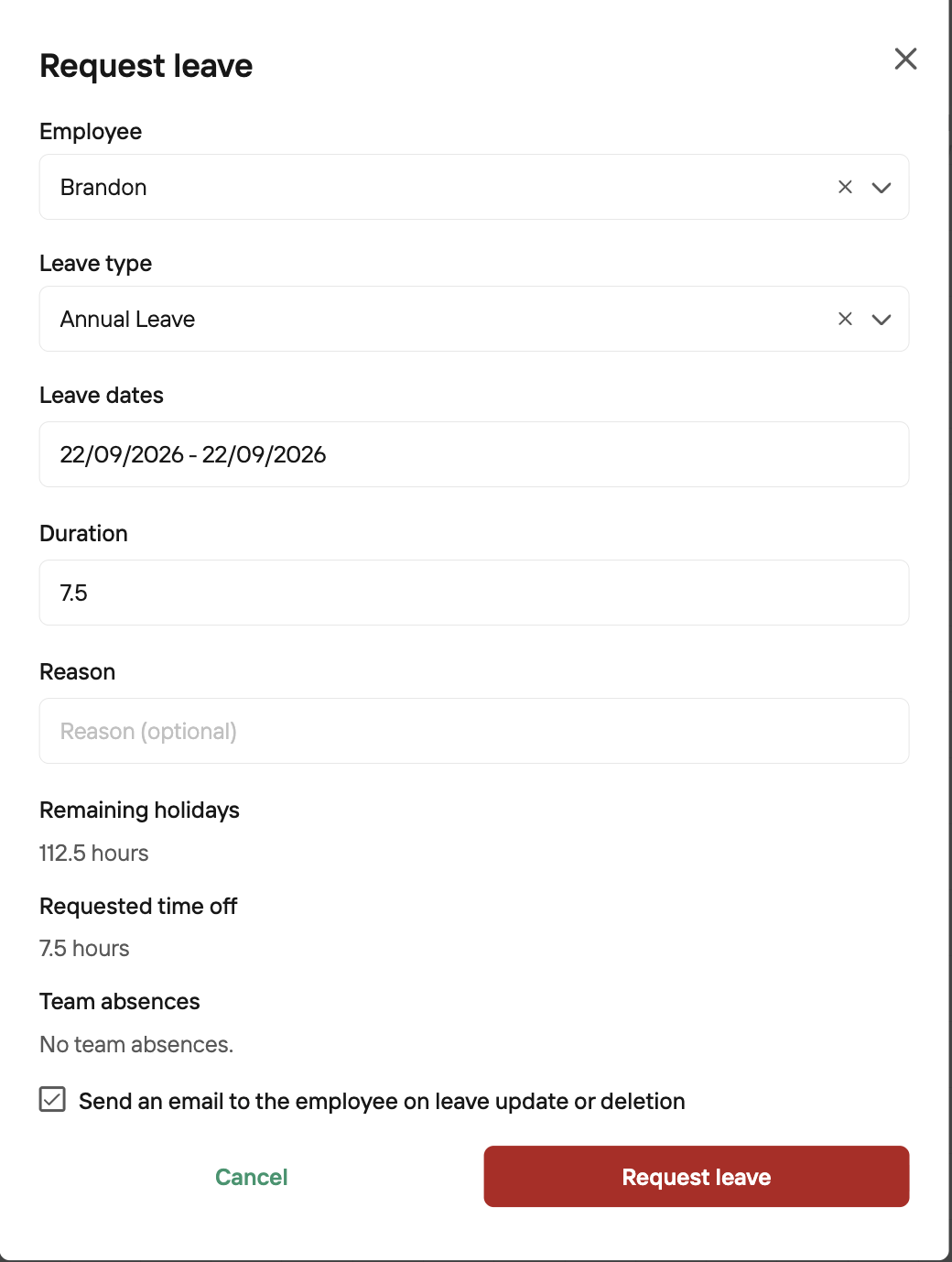
If an unpaid break is configured in the employee’s profile, it will still apply when they book leave. The unpaid break will be deducted from their leave time, so only 7.5 hours will be taken from their leave entitlement.
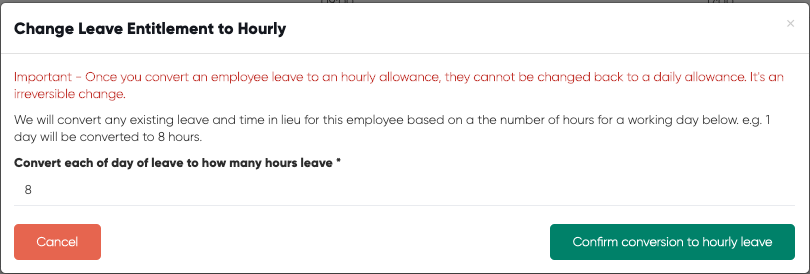
This conversion will update everything from days to hours, including:
Existing leave and leave requests
Time in lieu (from days to hours)
Carry‑over (from days to hours)
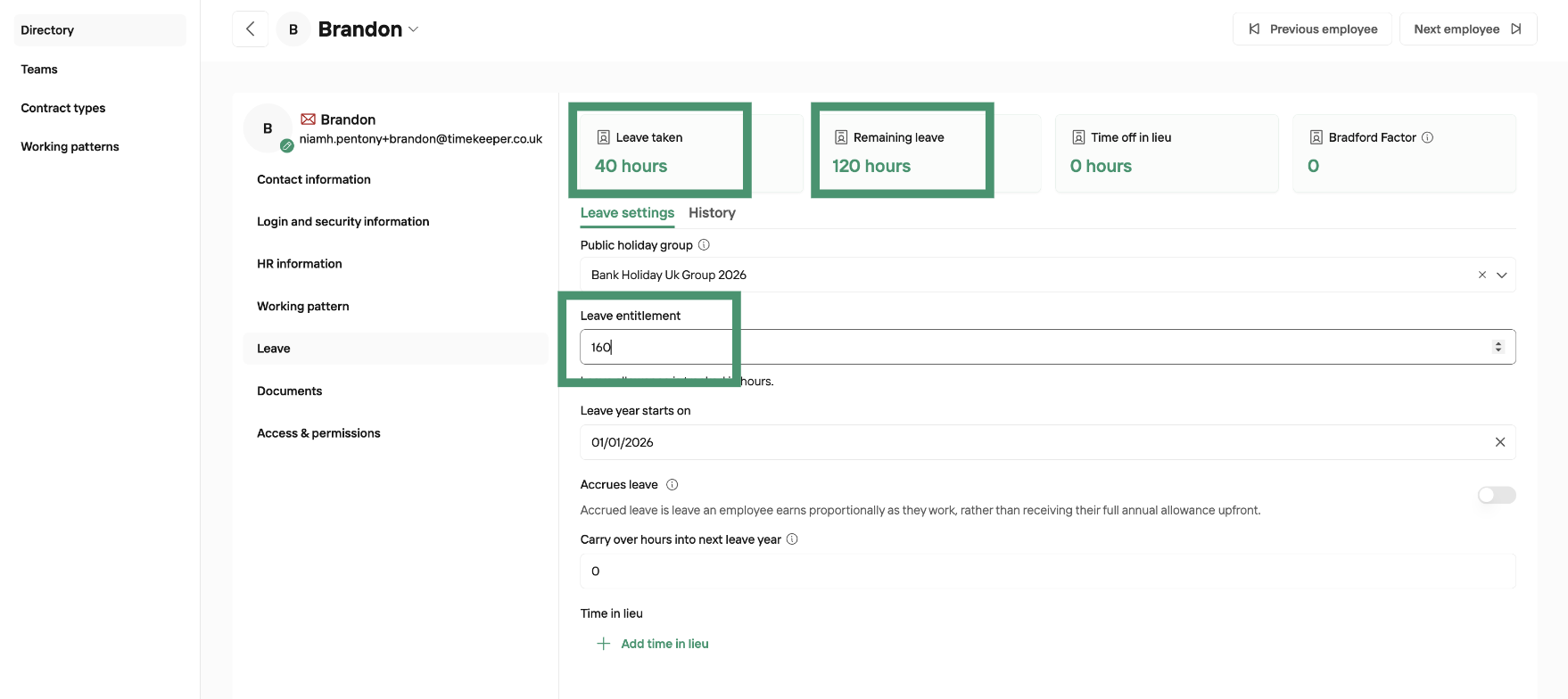
In this example, using an 8‑hour conversion:
20 days of entitlement becomes 160 hours
Carry‑over days remain at 0 (0 × 8 = 0)
Remaining leave converts from 15 days to 120 hours
Before you go any further, please read the note at the top of the page. This is an irreversible change so make sure this is something you definitely want to do.
To confirm, click 'Confirm conversion to hourly leave'.
You will now see the leave total updated according to the conversion amount you specified.
How does an hourly employee book leave then?
Pretty straightforward - if an employee is an hourly employee they can book leave as everyone else does with a small few differences.
Booking within a day
When booking an day - an employee has to specify the number of hours they want to book off for that day. See "Duration in Hours" below.
Booking multiple days
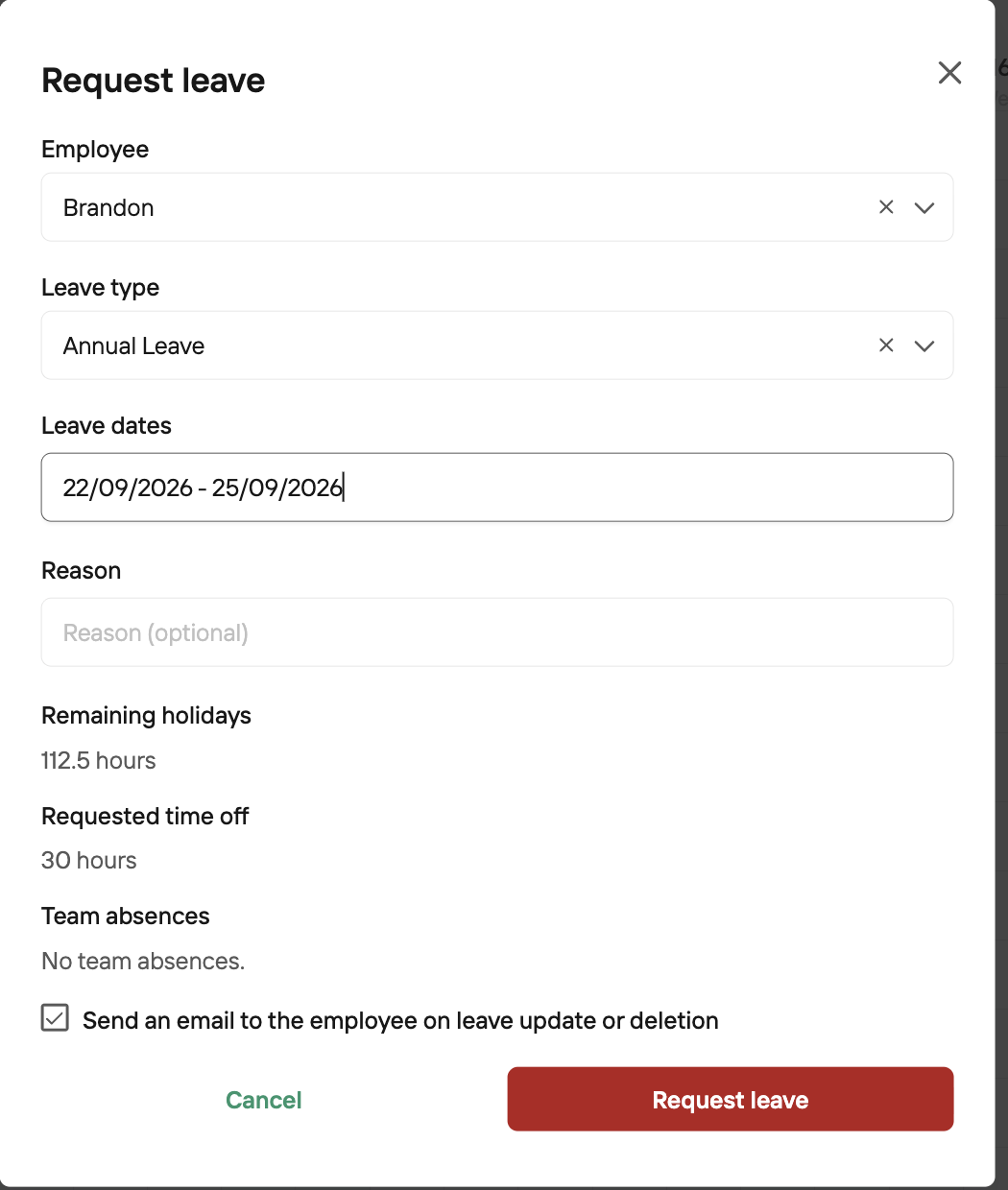
Booking multiple days of leave is straightforward: the employee selects the dates, and TimeKeeper calculates the corresponding hours based on their working schedule.
For example, if someone works 40 hours per week, Monday–Friday, 8 hours per day, then a 4‑day leave booking would normally equal 32 hours of leave.
In Brandon’s case, however, there is a 30‑minute unpaid break in his schedule, so each day counts as 7.5 hours of leave. That means a 4‑day booking results in 30 hours of leave being requested, not 32.
If you have any questions, please reach out to us at [email protected]