
Leave Accrual Settings
This guide will walk you through setting up leave accrual for employees who:
Have a set leave entitlement, which accrues throughout the year
Accrue leave entitlement based on the hours they have worked (only available for employee's with hourly leave entitlement).
How to set up monthly leave accrual
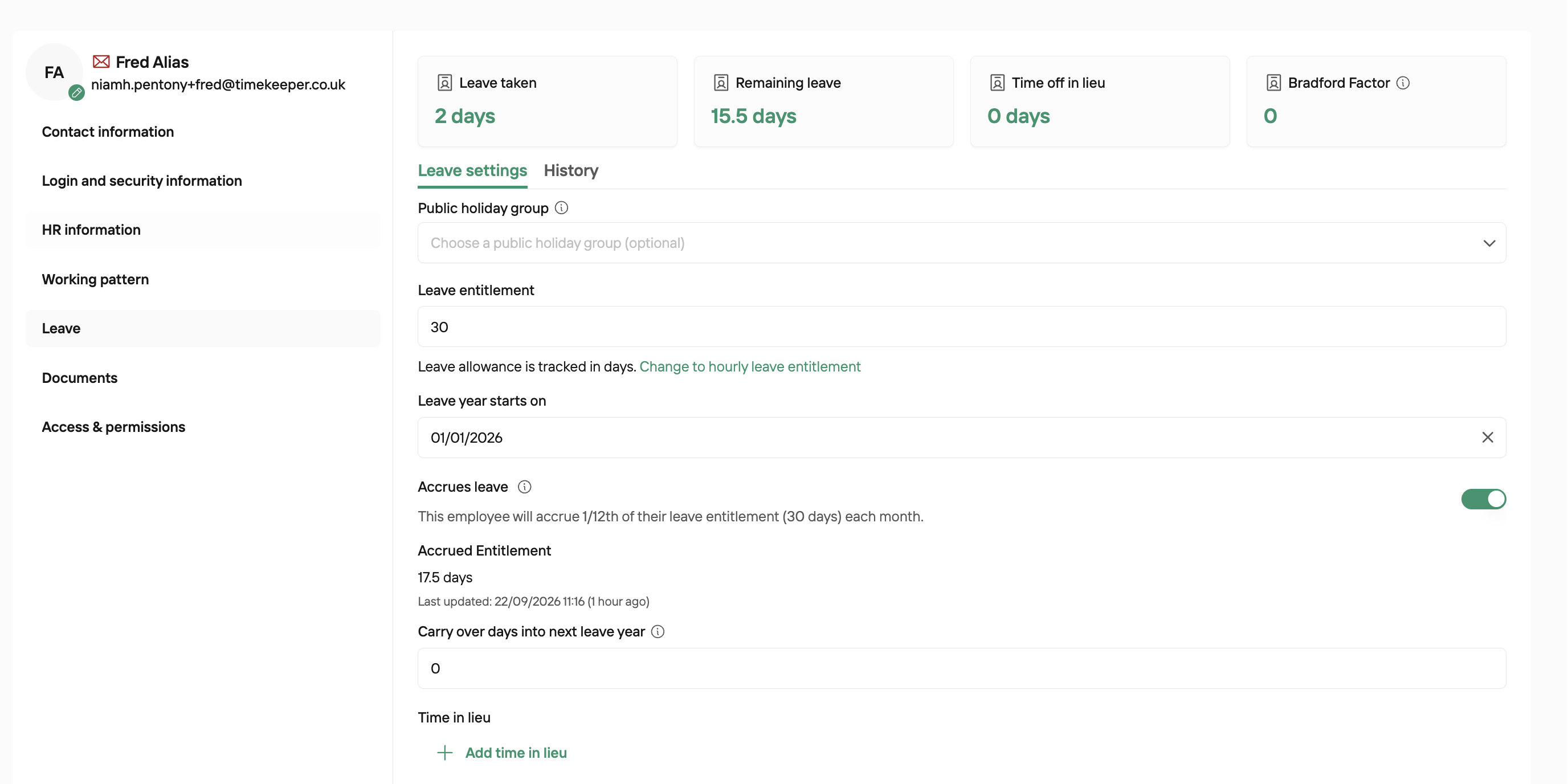
If your employees have a fixed annual leave entitlement, you might not want them to access the full balance immediately. In this case, you can tick “Accrues Leave?” in the Leave tab of their profile.
Once enabled, they will accrue leave at 1/12 of their entitlement per month. This works for both daily and hourly leave allowances. Employees who accrue leave must have a Join Date set in the HR Information tab of their profile.
By default, accrual only applies in the first leave year of employment. If you want employees to continue accruing leave monthly in all subsequent leave years, you can disable “Accrue Only in First Employment Leave Year” under More > Settings > Leave Settings.
How to set up accrual based on time worked
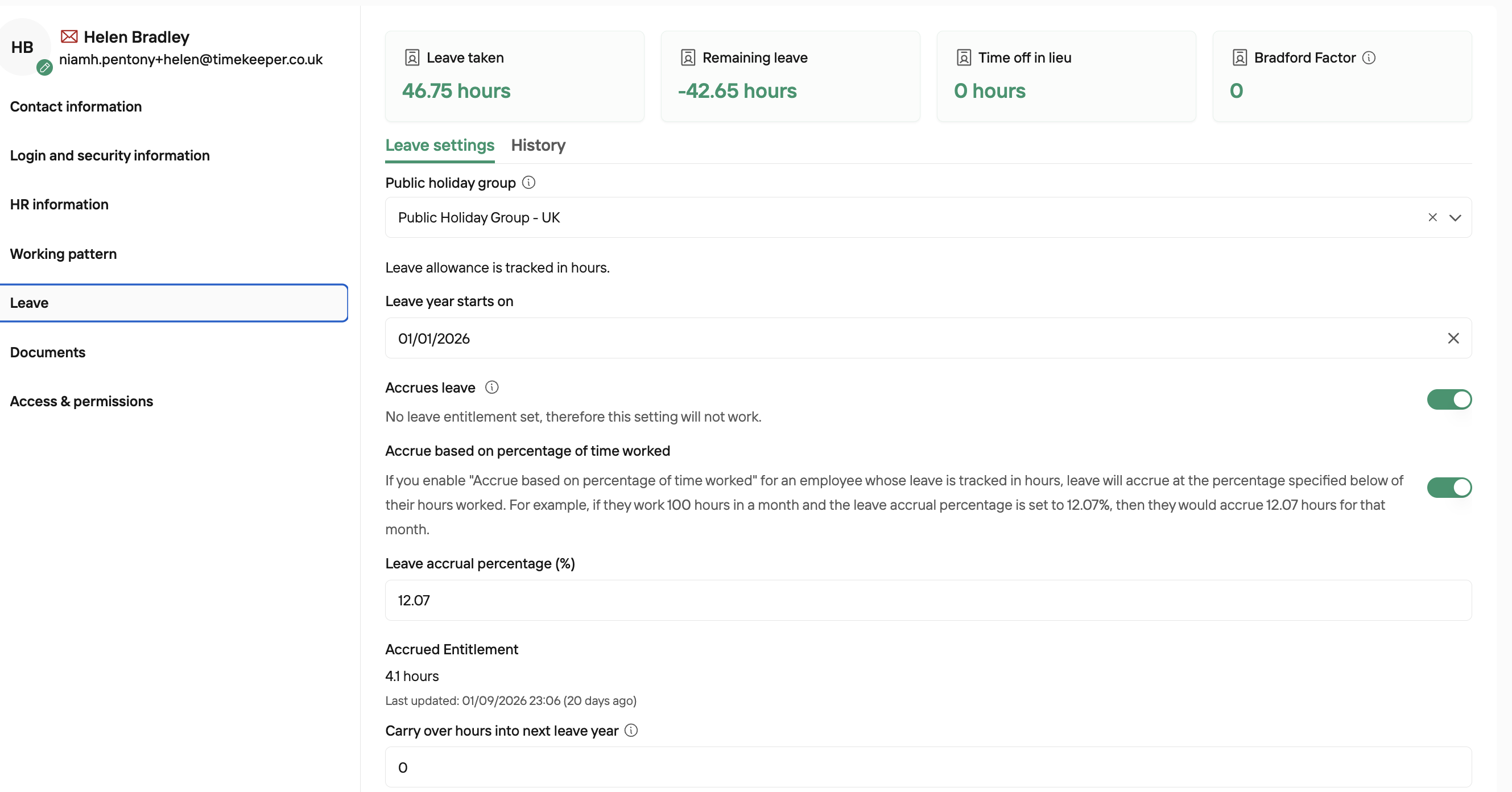
For employees who work irregular hours, you can set their leave to accrue as a percentage of hours worked. “Hours worked” means all worked hours (regular + overtime), excluding any leave hours.
This option is only available for employees whose leave is managed in hours, so you’ll need to convert their entitlement from days to hours first.
In the employee’s profile:
Tick “Accrues Leave?”
Tick “Accrues Based on Percentage of Time Worked?”
The default percentage is 12.07%, but you can adjust this to match your company policy or the employee’s contract. Employees using percentage-based accrual must have a Join date set in the HR Information tab of their profile.
Leave Accrual Scenarios
Under More > Settings > Leave Settings, you can configure additional rules for how leave accrues, tailored to your business.
Scenario: Allow employees to book more leave than they’ve accrued
To let employees request more leave than they have accrued, tick “Allow Negative Leave for Accrual Employees”. By default, employees can only book leave up to the amount they’ve accrued.
Scenario: Employees accrue leave only in their first year
Working Time Regulations recommend using an accrual system in an employee’s first leave year. By default, TimeKeeper only accrues leave for the first leave year; from year two onwards, employees receive their full entitlement.
Scenario: Employees accrue leave every year
If you want employees to accrue leave every year (not just in the first), untick “Accrue Only in First Employment Leave Year”.
Scenario: Round entitlement to the nearest half day
To round accrued leave up to the nearest half day, tick “Round Accrued Days to Nearest Half Day”.
Entitlement less than half a day is rounded up to half a day
Entitlement between half a day and a full day is rounded up to a full day.
TimeKeeper uses the advice of the Working Time Regulations 1998 here for it's defaults.