
Kiosk/Shared Device Setup
Overview
TimeKeeper supports kiosk/shared clock-in devices that allow multiple employees to clock in and out using a single device. This guide covers setting up the kiosk, signing in as an administrator vs manager, device requirements, and useful resources.
When staff are added to the Timekeeper, they will get an automatic email or text message which will give the employee their PIN. The PIN is all they need to clock in on a Kiosk. If they are clocking in from their own mobile phones, the employee needs to set up a password which is at least 12 characters long.
Device Requirements
Wi-Fi Connection: A reliable internet connection is essential to ensure real-time syncing of clock-ins and clock-outs.
Front-Facing Camera: Required for photo capture during clock-ins/out to verify employee identity. HERE is a link for our facial recognition.
Device: Can use tablets or smartphones; must support the TimeKeeper app or web portal and have a front-facing camera. HERE is a link to our recommended hardware.
Step 1: Understand Administrator vs Manager Kiosk Modes
Decide if you are setting the kiosk up with Admin details or a Manager details. Here are the differences.
Administrator Mode
Full control over all settings and all employee profiles.
Can configure kiosk locations and link devices to locations. - How to Add a Location
Use Admin mode by logging into the app with your admin credentials, selecting Kiosk Mode, and linking the device to a location.
Manager Mode
Limited access to only employees within their assigned teams.
Access must be enabled in manager’s profile under 'Access & Permissions'

Managers can set up kiosks restricted to only those they are set as a line Manager for. You can enable a setting in More > Setting > Clock Entry Setting which allows all employees to use their kiosk.
To do this:
Go to the More > Setting > Clock Entry Setting section of the web portal
Click 'Enable All Employees To Clock In/Out Via a Manager Kiosk'
Click 'Save Settings'

Now any employee can clock in via a manager kiosk.
Learn more from our - Manager Kiosk Mode Guide
Step 2: Activate Kiosk Mode on Your Device
Login
Sign in to the TimeKeeper app using your Administrator or Manager credentials.
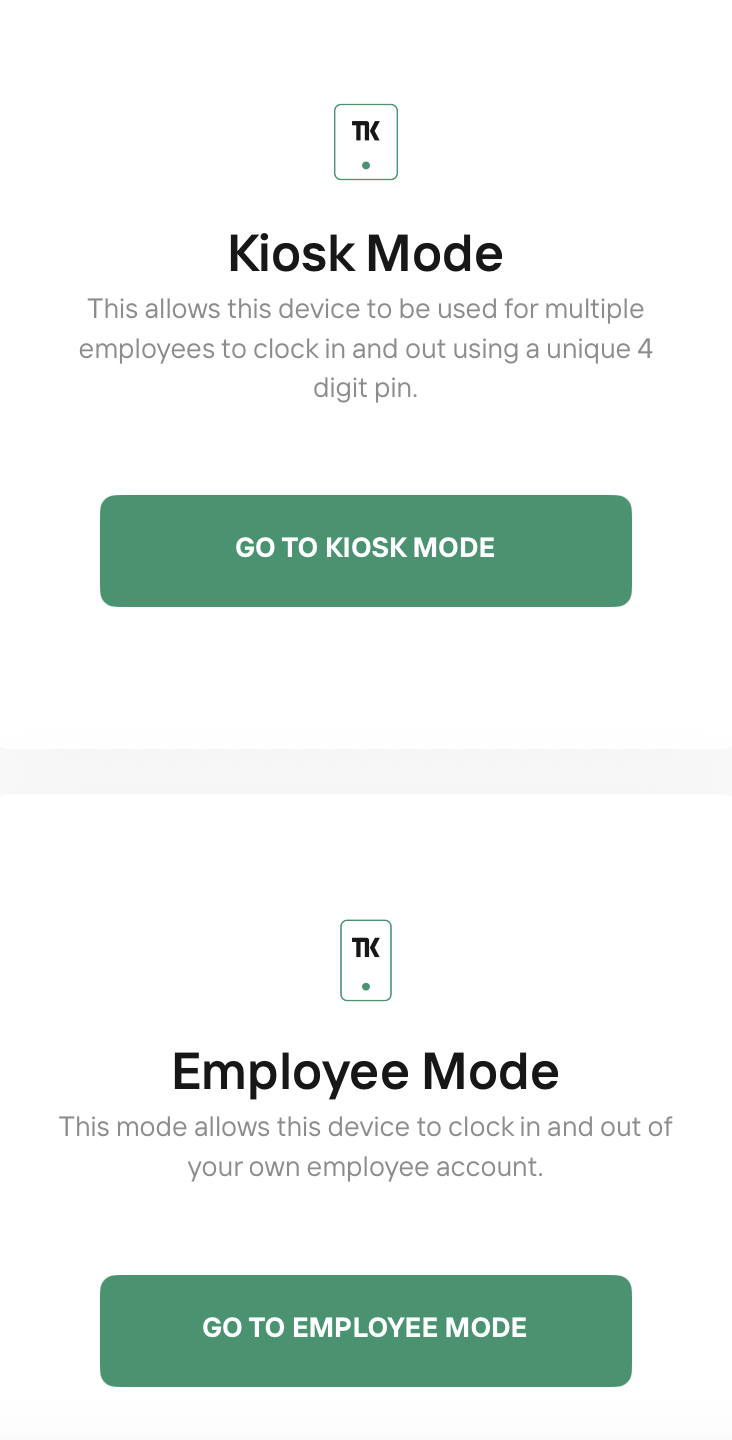
Select Kiosk Mode
When prompted, choose Kiosk Mode to begin setup.
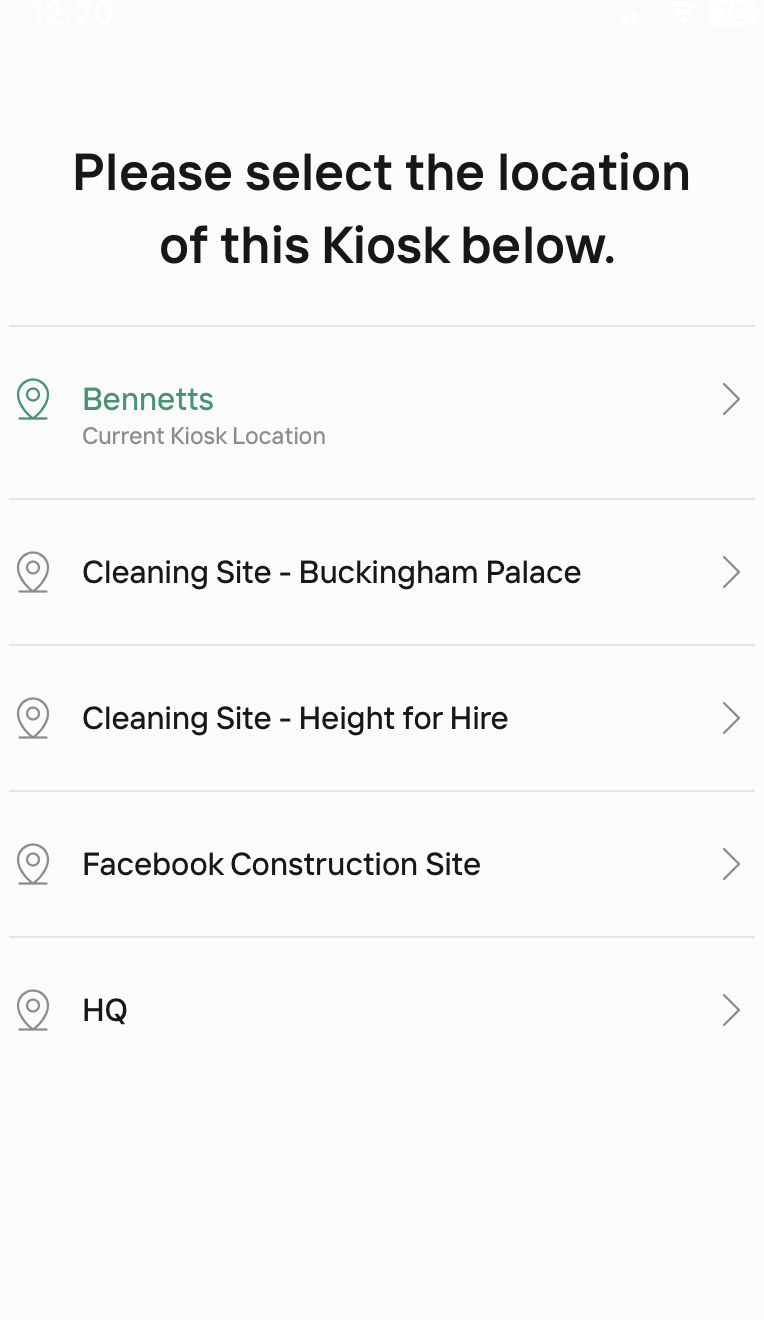
Link Device to Location
Pick the Location you want this kiosk to represent. This ensures employee clock-ins/out are attributed correctly. - How to Add a Location
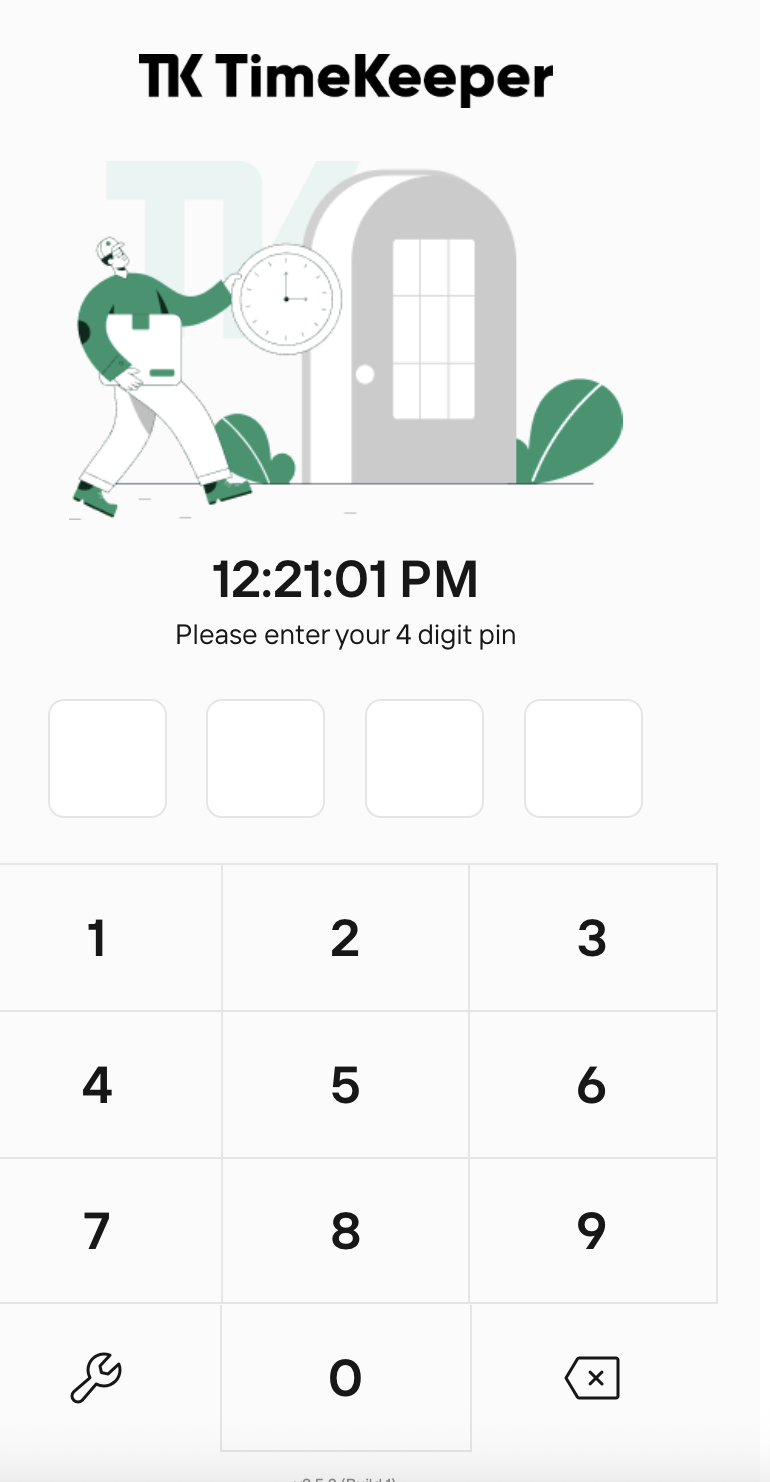
Ready for Use
The kiosk is now active. Employees can clock in/out by entering their PIN on this device. Photos will be captured automatically via the front camera for identity verification.
Additional Tips
Ensure devices remain connected to Wi-Fi for uninterrupted syncing.
Regularly check that the front-facing camera is functional for photo capture.
Configure manager permissions properly to allow team-specific kiosk access.
Useful Resources & Support
Need help? Contact TimeKeeper Support via live chat or email: [email protected]