
Testing Rounding Rules in TimeKeeper
Introduction to Testing Rounding Rules in TimeKeeper
TimeKeeper provides flexible rounding rules to support different business needs, such as:
Rounding time entries to the nearest X minutes
Ignoring time worked before or after scheduled hours
Allowing a grace period around clock‑ins and clock‑outs
Thorough testing is essential to make sure these rules behave as you expect. This guide will help you test and refine your rounding setup. Some trial and error is normal while you fine‑tune the system to match your specific requirements.
Disclaimer
The customer is responsible for how these rules are applied and for complying with local legislation. TimeKeeper does not take responsibility for legal compliance.
Step 1. Clarify how rounding should work in your business
Start by defining exactly how you want rounding to behave. These decisions determine how TimeKeeper will adjust start and end times.
A good approach is to decide how typical time entries should round. Assuming a standard day of 9:00 AM–5:00 PM, consider entries like:
8:42 AM → round to?
8:50 AM → round to?
9:03 AM → round to?
9:08 AM → round to?
4:52 PM → round to?
4:55 PM → round to?
5:02 PM → round to?
5:13 PM → round to?
Agreeing the answers to these gives you clear test cases that reflect real usage and common rounding scenarios.
Step 2. Use the scenario boxes in Global Rounding Settings
In TimeKeeper > Rounding Settings, the scenario boxes show how your rounding rules will apply in practice. As you change the rounding interval and rounding split, the scenarios update to illustrate how clock‑in and clock‑out times would be adjusted for a standard 9:00–5:00 pattern.
These scenario boxes are a key tool for checking whether your rules match the behaviour you want before you roll them out to staff.
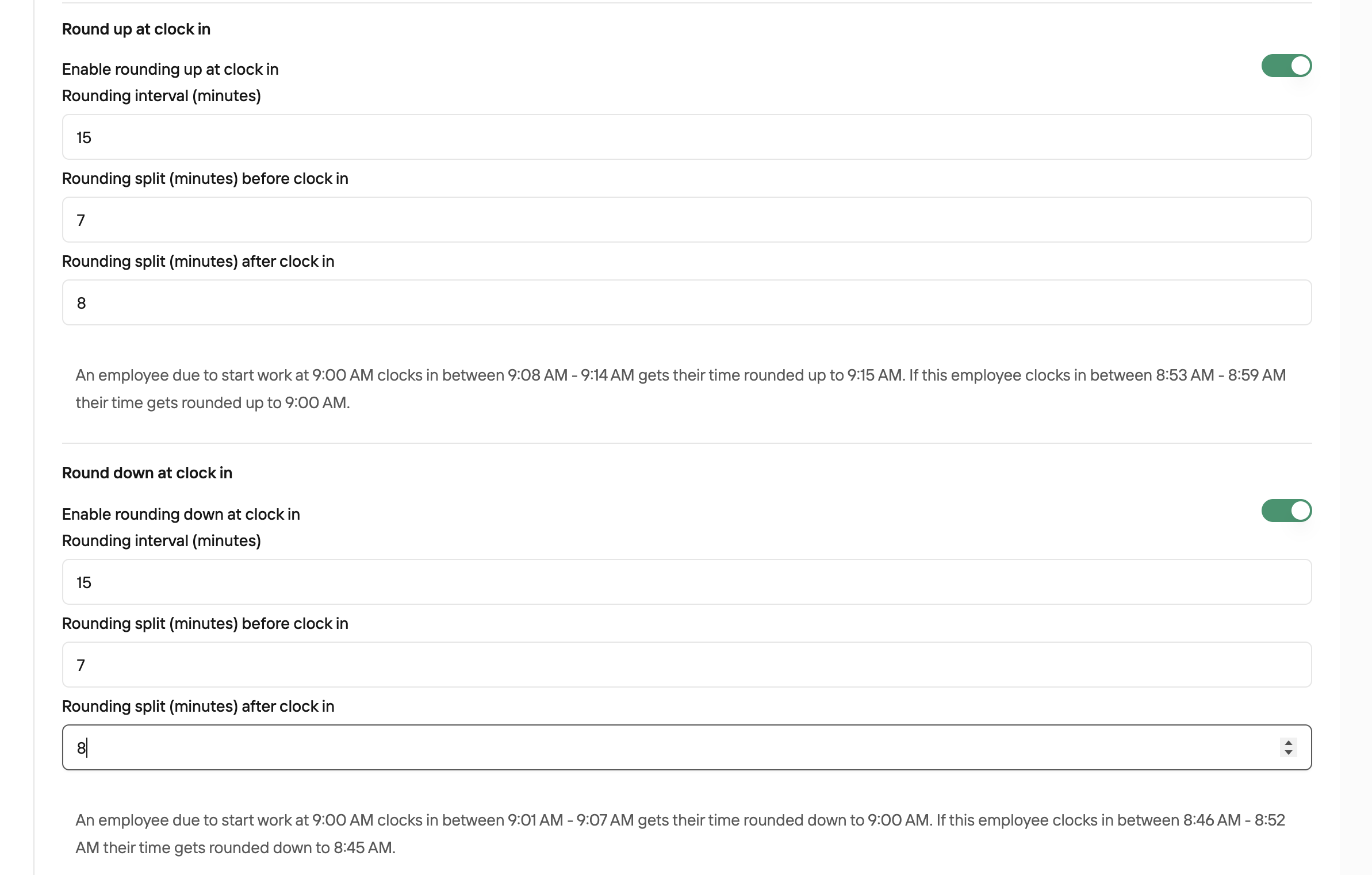
Rounding Settings: Go to the More > Settings >Time Clock > Enable Rounding.
Scenario Boxes as Guidance: The boxes are typically used as indicators or examples of how the rounding works with your specific settings. Refer to these for guidance during your testing.
It’s important to account for all different incidences of rounding and ensure they don’t conflict with one another, especially if you're using multiple rules.
Step 3. Enter Raw Time Entries & Run the Report
Input the test time entries manually. For example, start time at 8.42am, clock out time at 5.13pm for a specific employee. To do this, head to Timesheets > set the date range > Run > click into a staff member and add the time entries
Save the entries to ensure they are recorded in TimeKeeper.
Repeat this process for different test times to ensure thorough testing across various intervals.
Raw time entries will stay as they are. When we run reports, that is when the rounding rules will apply.
Testing Raw Entries below for Adam Roberts
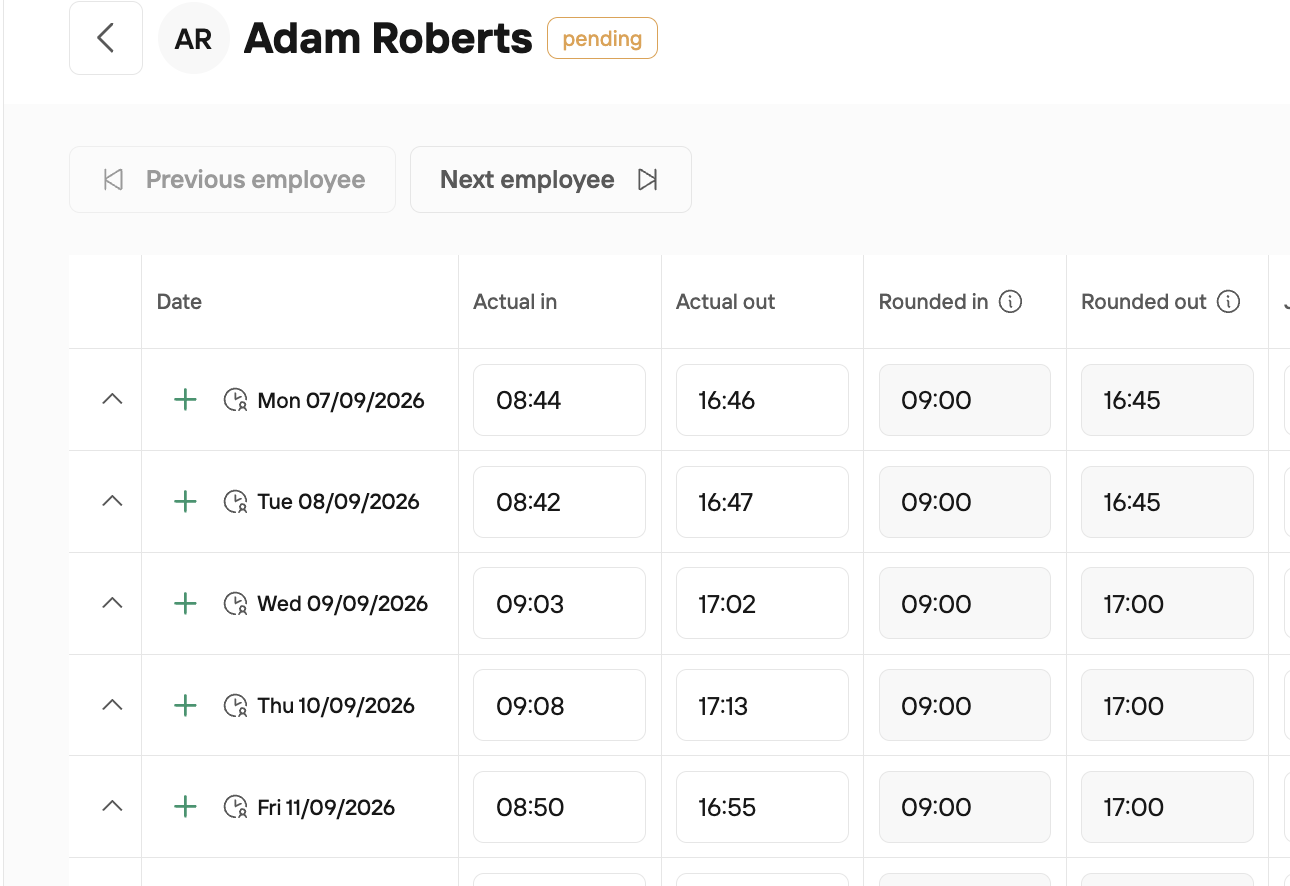
In the Timesheet page, you can see the raw actutal clock in and out time and now you can also see the rounded in and out times also.
Running the Report
You also have the option to run the Staff TimeSheet Excel report.
On this Excel report, click on the "Rounded vs Unrounded" sheet. This sheet will clearly show how Timekeeper has rounded each entry.
Actual Clock In: the raw time entry we entered / the employee clocked in at
Rounded Clock In: The adjusted time based on your rounding rules
This report will help you visually identify whether the rounding rules have been applied correctly to each time entry. See below how the entries above have rounded.

Step 4. Review & Adjust Based on Results
Did the time entries round as expected?
Did any discrepancies appear?
Are any rounding rules conflicting?
Go back to the scenario boxes and verify that the rules in place match the business requirements.
Test again after adjustments to confirm the accuracy of changes.
Final Notes
Test multiple scenarios across different times (e.g., early morning, late afternoon) to ensure rounding works consistently.
Double-check settings to confirm they align with your desired rounding rules. Re-run reports periodically, especially if rounding rules are updated.
The customer is responsible for the application of these rules and ensuring they comply with their country’s legislation, not TimeKeeper.
Rounding FAQs
Can I set rounding rules for some employees and not for others?
No, the rounding rules that are applied in the account global settings will by default apply to all employees on the platform.
We have some staff who from time to time will work a couple of hours before their expected start time. We want to ensure this is counted and added to their timesheet. Is there a way to manage this if we have rounding rules in place?
Yes, for those staff members we would recommend utilising the Time Addition Request. if they work for a couple of hours before their start time, this can be submitted as a time addition request. This is submitted to an administrator and can be approved in the web portal. Once approved, the additional hours are automatically added to the employees timesheet.
The times aren't rounding even though I have set the rules?
More > Settings > Time Clock > Enable Rounding > when rounding rules are applied > ensure to click save in the bottom right corner.
It is normal for raw time entries to remain the same --> the rounding rules apply when we run timesheet reports. Is the raw time still stays the same, it's because the rules that have been applied havn't taken into the account the time the staff member is clocking in. So if someone who is due to start at 9am clocked in at 8:34am they may not be a rule in place to take this into account.
Can I apply different rounding rules for clock-ins and clock-outs, such as rounding clock-ins down and clock-outs up?
Yes, it is possible to configure separate rounding rules for clock-ins and clock-outs within TimeKeeper's settings. You can customize the rounding direction for each, allowing you to round clock-ins down and clock-outs up as needed.
Is it possible to set rounding increments smaller than 15 minutes, such as 5 or 10 minutes?
Yes, TimeKeeper allows you to set rounding increments to smaller intervals, such as 5 or 10 minutes, depending on your preferences.
These individual rounding rules can get very complex - so please do reach out to the support team at [email protected] for help, if you require.