
Clocking In With A Job & Switching Jobs Throughout the Day
The default in TimeKeeper is to just clock in, however you can also clock in against a particular job. This will allow you to get insight into how much time is being spent on particular jobs for each member of staff. To enable clocking in against a job, you have to toggle a few settings as we describe below.
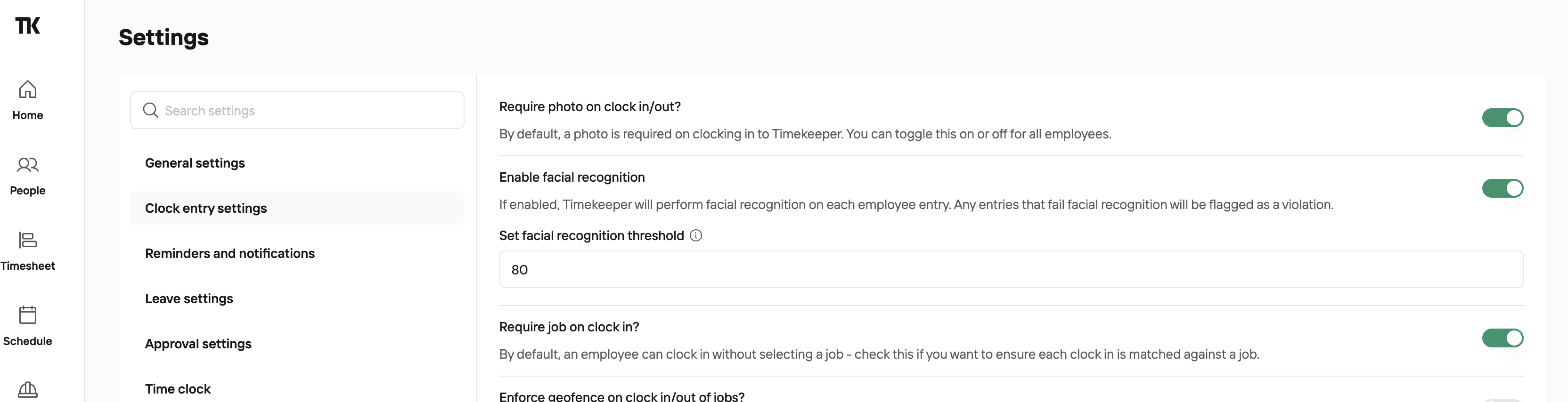
To enable that setting must clock in with a job go to More > Setting > Clock Entry Setting and toggle on 'Require Job on Clock in
If employees work on multiple jobs during the day, they can switch jobs in the app without losing time in-between.
Once clocked in, they have the option to select a new job and 'Switch jobs'. If the job has a geofence enabled, they must be on site for the new job in order to switch to that job.
This will automatically stop recording time on the timesheet for the previous job, and commence timing on the new job.
At the end of the day, the employee can clock out as normal.