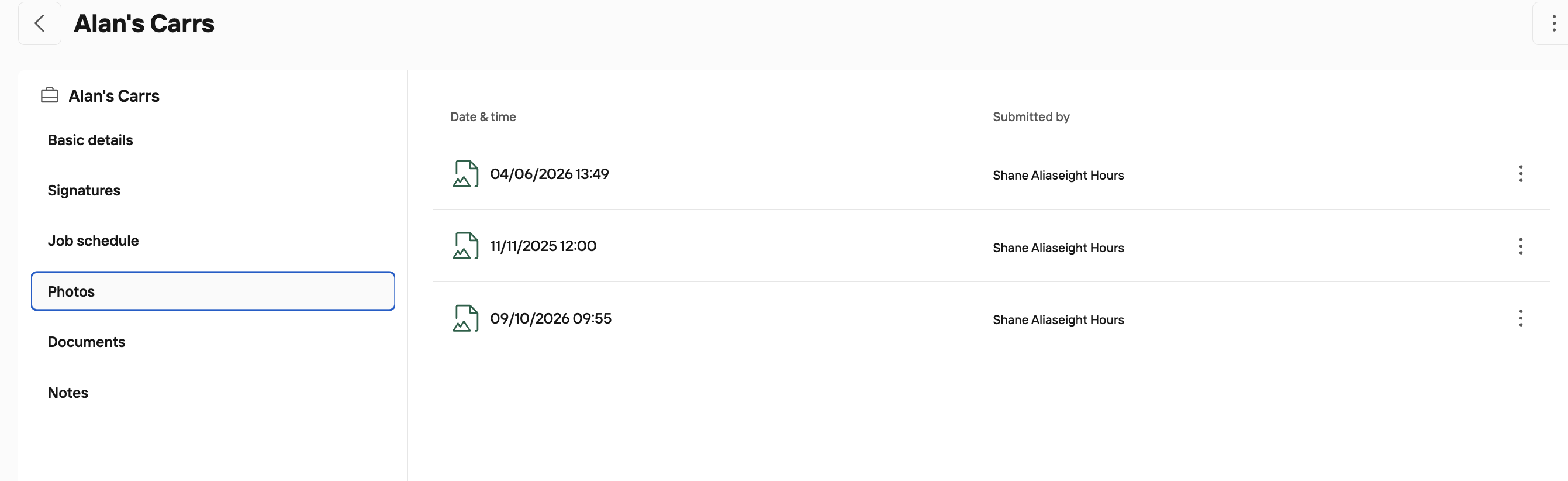
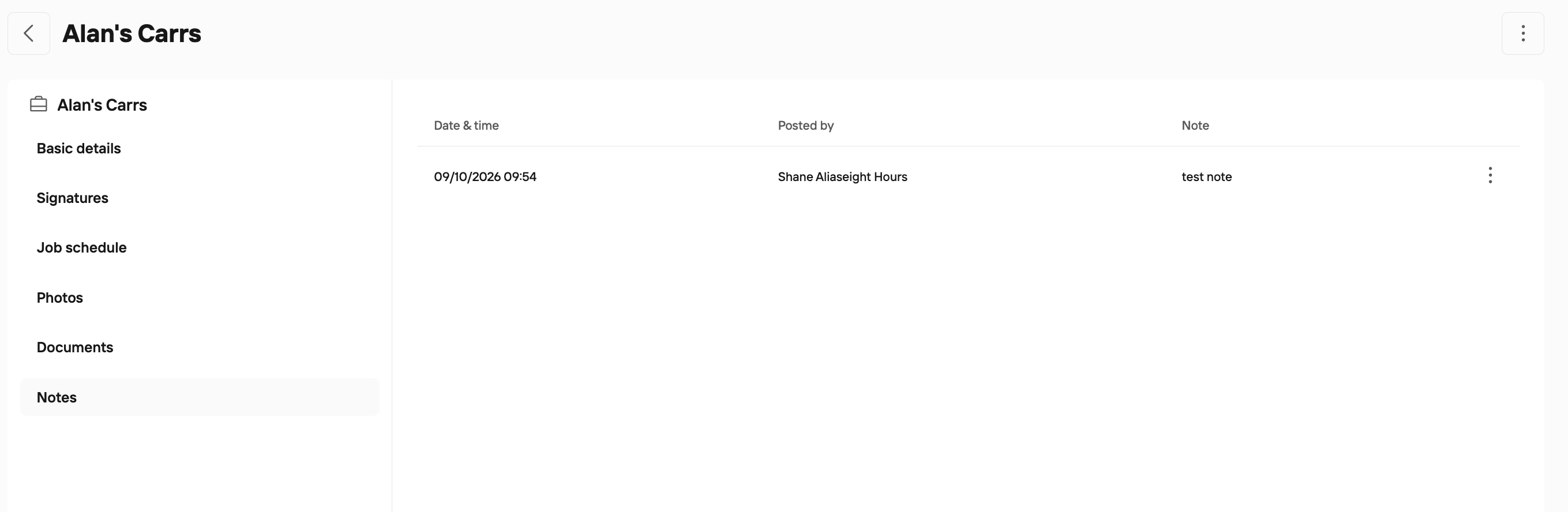
Viewing Job Signatures/Details Uploaded to Job
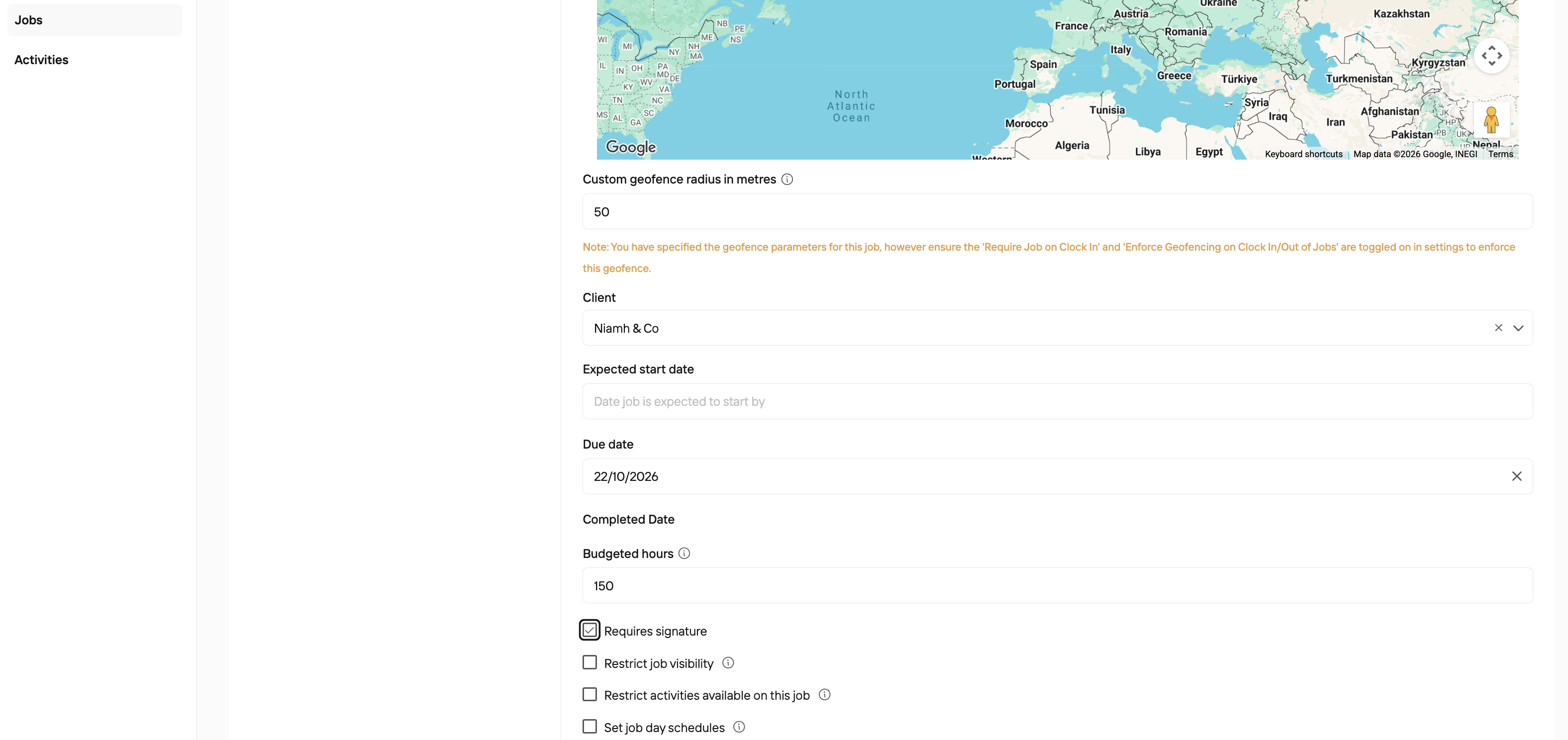
Signatures can be helpful additions to Jobs that require a paper trail. Jobs in TimeKeeper don’t require Signatures as default, however they can be added. It’s also possible to enforce mandatory Job Signatures (such as sign off etc) before a Job can be marked as completed - this is configured in the Jobs Settings.
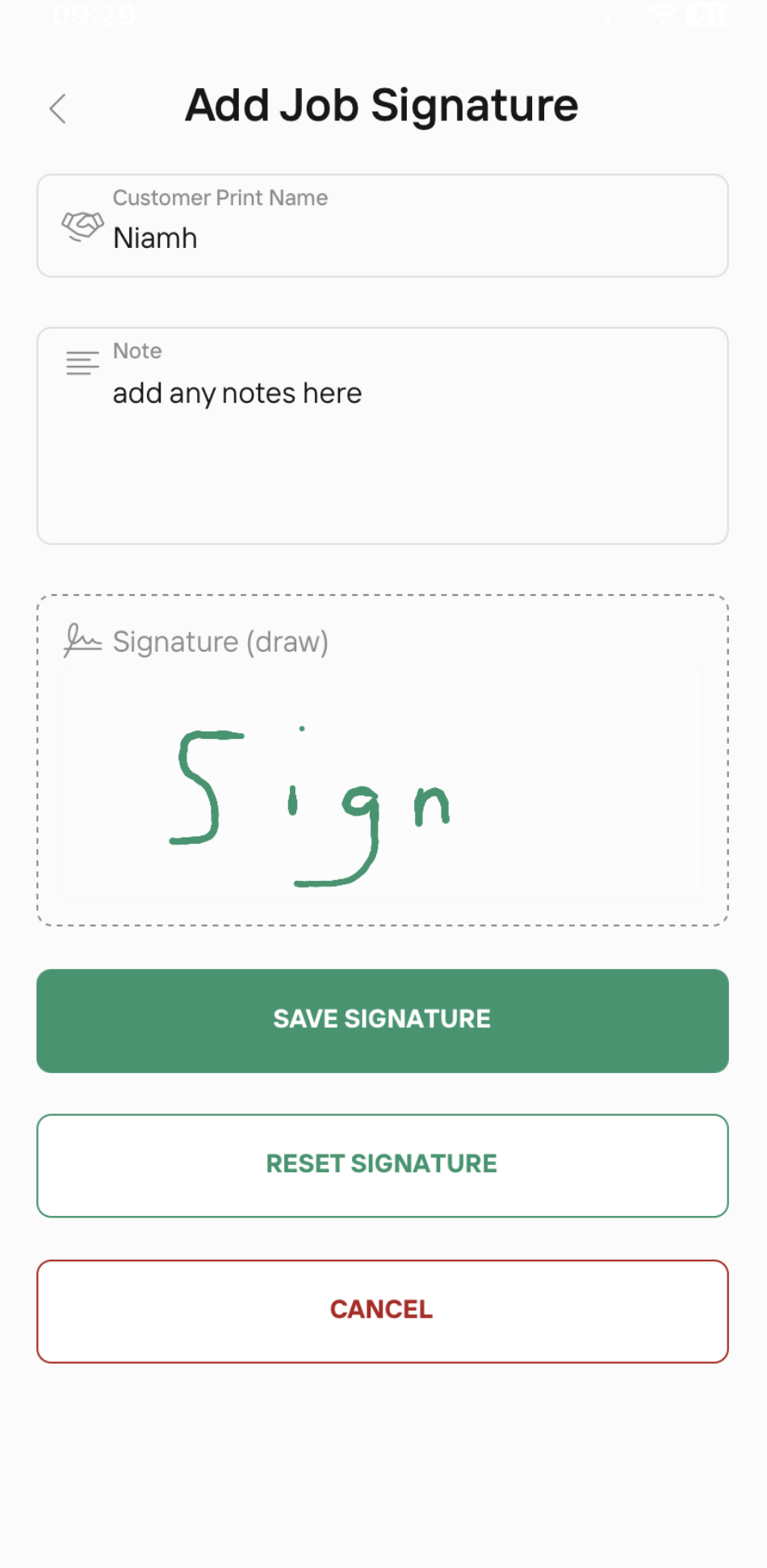
Once logged into the mobile app, under ‘Jobs’ select the particular Job you want to add a signature to. You can then scroll down to ‘Add Signature’ which will open a new window with the required fields and steps. Once completed, press save.
Once logged into the Web Portal, under Jobs tab, select the Job you wish to view, and there be a ‘Signatures’ tab. This will include all the detail, notes, information associated with each logged signature with an option to view the signature as an image too.
If you click into the Signature tab, you'll see any uploaded signature
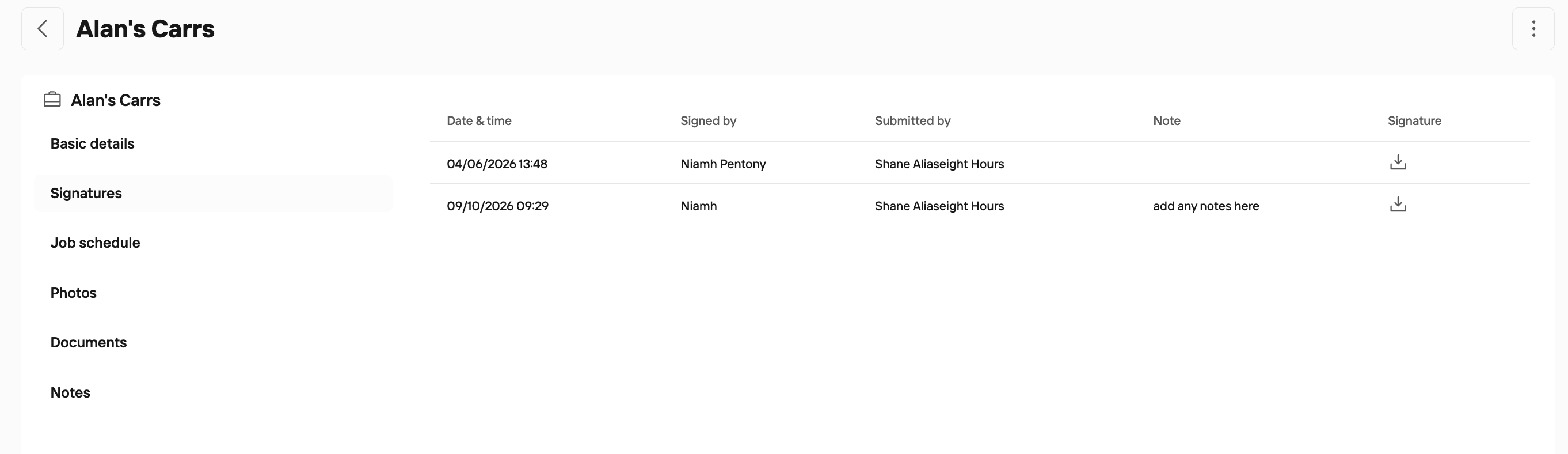
Click the download icon under signature to view the signature.
You can also click into Photo's to see any photos uploaded and like wise with Notes