
Leave Settings Explained
In this guide, we’ll focus on the leave settings in TimeKeeper so you can ensure your account is configured to match your company’s leave policies.
We’ll start with the global leave settings, which you’ll find under More > Settings > Leave Settings.
Next we'll focus on on the leave settings in the employee profile.
Global Leave Settings
Any of the options enabled here will apply to all employees in your account.

In TimeKeeper, /“Allow negative leave for all employees” controls whether staff can book more leave than they currently have in their balance.
Disabled (default):
Employees can only request leave up to their remaining entitlement. If they try to book more, the request will be blocked or flagged.Enabled:
Employees can submit leave requests that push their balance below zero (into negative). The system will still allow and track these bookings.

In TimeKeeper, “Allow negative leave for accrual employees” controls whether employees who accrue leave (monthly or by percentage of hours worked) can book more leave than they have accrued so far.
Disabled (default behaviour)
Accrual employees can only request leave up to their current accrued balance. If they try to book more, the system declines the request.Enabled
Accrual employees can submit and have approved leave requests that push their balance below zero (negative). The system still tracks it, but shows a negative accrued balance.
This setting applies only to employees who have Accrues Leave? turned on in their profile.
Scenario of when to Use this Setting
1: Accruing monthly, but staff need leave earlier in the year
You use monthly accrual, e.g. a 24‑day annual entitlement that accrues 2 days per month.
Employee joins in January
By end of March, they’ve accrued 6 days
They want to book 10 days in April for a holiday
If Allow negative leave for accrual employees is:
Disabled: TimeKeeper will only let them request up to 6 days. You’d have to manually increase their entitlement or add Time in Lieu to let them take 10 days.
Enabled: You can approve the full 10 days. Their balance would go to -4 days, and future accruals (from May onwards) will balance out the leave taken.
Use this when you’re happy for staff to “borrow” against future accrual.
2: Irregular hours with percentage‑based accrual
You have staff whose leave accrues as a percentage of hours worked, e.g. 12.07% of worked hours.
An employee has worked enough hours to accrue 12 hours of leave
They want to take 20 hours off next month
You know their upcoming rota will quickly earn back the extra 8 hours
With this setting enabled, you can approve the 20‑hour request; their balance becomes -8 hours and later work brings them back into positive territory.
This is useful for zero‑hours or flexible contracts where hours vary, but you still want to allow some flexibility with holidays.

In TimeKeeper, the “Round accrued days to nearest half day” setting controls how accrued leave in days is rounded.
When it’s enabled:
Any fractional accrued leave is rounded to the nearest 0.5 day
Example:
2.33 days → 2.5 days
2.67 days → 2.5 days
2.76 days → 3.0 days
This aligns with the Working Time Regulations (1998), which expect holiday to be rounded sensibly rather than leaving awkward decimals.
When it’s disabled:
Employees may see precise decimal values (e.g. 2.33 days), which can be harder to explain and manage.
Scenario of when to Use this Setting
Cleaner balances for staff and managers
Compliance with Working Time Regulations (first year accrual)
Payroll and HR need round numbers

This will only apply to workers who accrue leave in terms of days.
What the setting does
When ON (day leave entitlements):
In the first leave year, the employee’s entitlement builds up month‑by‑month (accrual).
From leave year 2 onward, they receive their full annual entitlement upfront at the start of each leave year (no more accrual in days).
When OFF:
Day based employees continue to accrue each year, not just in the first year.
Hourly leave employees: this setting does not affect them; they keep accruing beyond the first year.

In TimeKeeper, “Pro‑rate leave entitlement in first employment leave year” controls whether the system automatically reduces an employee’s first-year leave allowance based on their join date.
What the setting does
You set a full annual entitlement (e.g. 20 days per year).
If this setting is ON, TimeKeeper looks at the Join Date in the employee’s profile and automatically pro‑rates that first year’s entitlement.
If it’s OFF, the employee gets the full entitlement for that year, even if they joined partway through.
Example:
Leave year: 1 January – 31 December
Full entitlement: 24 days
Join date: 1 July (halfway through the year)
With pro‑rating enabled, TimeKeeper might give them around 12 days for that first year instead of 24.
Scenario of when to Use this Setting
1. New starters mid‑year (use ON)
You want leave to be fair and consistent with typical HR practice:
Full-time annual entitlement: 28 days
Employee joins on 1 October
You only want them to get the proportion of leave that reflects October–December, not the full 28 days.
Turn Pro‑rate leave entitlement in first employment leave year ON so TimeKeeper automatically:
Calculates the fraction of the year they’re employed
Sets their first-year entitlement accordingly (e.g. ~7 days rather than 28).
2: Probation + pro‑rated first year
You operate a probation period and want to keep the first year controlled:
Employee joins in May
You want their first leave year entitlement pro‑rated to May–Dec
After that, they get full entitlement each year.
You would:
Turn Pro‑rate leave entitlement in first employment leave year ON
(Optionally) use Accrual as well, so they earn that pro‑rated amount month‑by‑month in year one.
In short:
ON = TimeKeeper automatically reduces first-year entitlement based on join date (fair, pro‑rata).
OFF = New starters get the full annual entitlement regardless of when they join (more generous, less controlled).
Employee Leave Settings
In an employees profile, you have a leave tab which looks like this
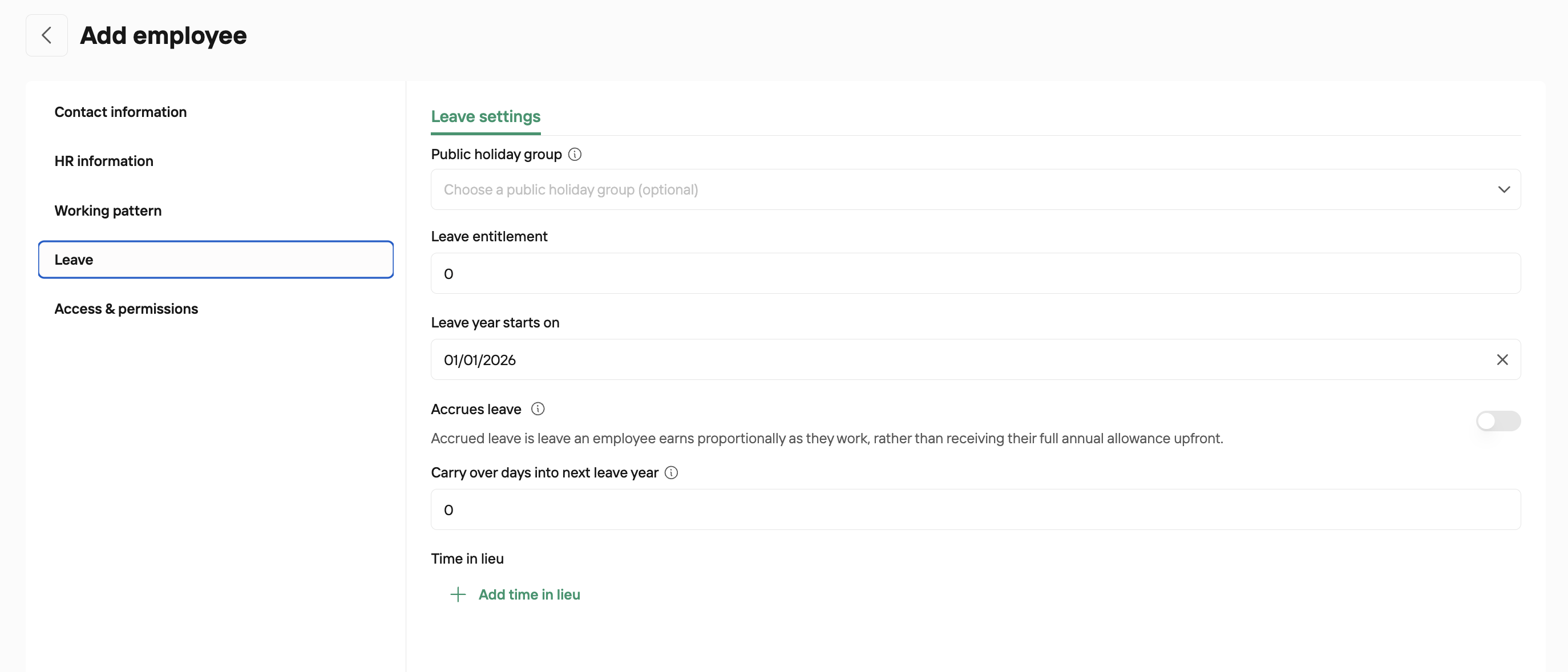
From this screen you can:
Add the staff member to a Public Holiday group you’ve created
Set their leave entitlement
Configure whether they accrue leave
Decide if they can carry over days from this leave year into the next
Use Time In Lieu to make one‑off adjustments to their leave balance
To look more about Accrues Leave, please read our guide
And to learn more about Time In Lieu, please read our guides
For an employee on a Fixed Working Pattern, any leave they book is paid based on that working pattern. TimeKeeper will calculate the leave hours using their normal hourly rate; you can’t set a separate pay rate for leave within TimeKeeper.
If you need a different rate for leave, this will have to be handled manually outside of TimeKeeper (e.g. in payroll).
For an employee who is marked as a Shift Worker/Rota Hours, you can set up their leave of 1 of the following options
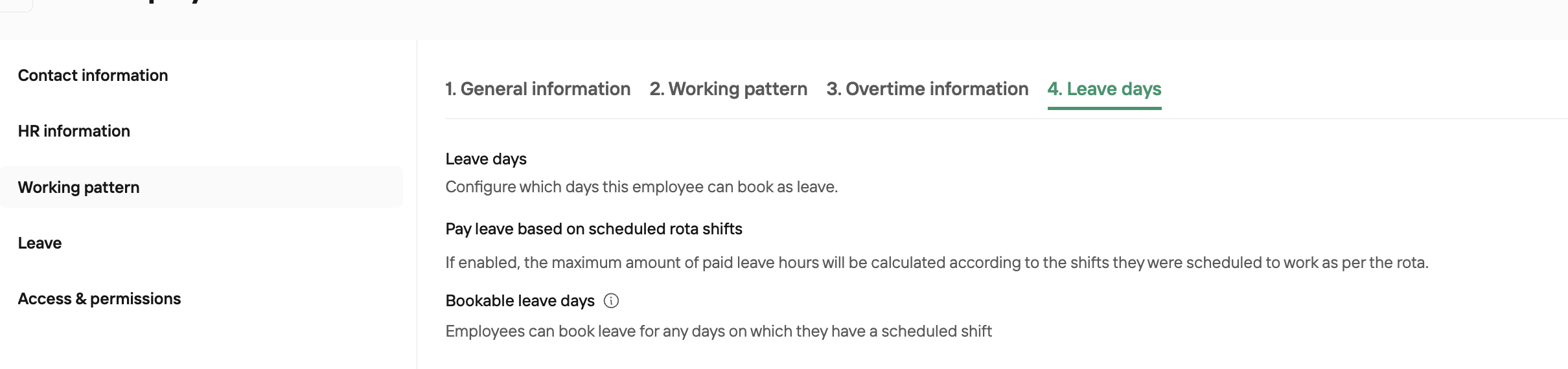
Pay Leave Based on Scheduled Rota Shifts -
If this is enabled, the maximum paid leave hours will be calculated based on the shifts the employee was scheduled to work on the rota. This means that even when the employee is on leave, an admin must still enter the shifts they were due to work, so TimeKeeper can use those scheduled hours as the basis for their leave.
Bookable Leave Days -

Employees can book leave on any day where they have a scheduled shift. Leave booked on a non‑working or non‑bookable leave day will be unpaid. Paid leave will always be calculated using the preset hours you’ve defined for one leave day.
If you have any questions, please contact [email protected]