
Managing Leavers in TimeKeeper
This guide will help you manage employees who are leaving the business within TimeKeeper.
Add the employees end date under the ‘HR’ tab in their employee profile.
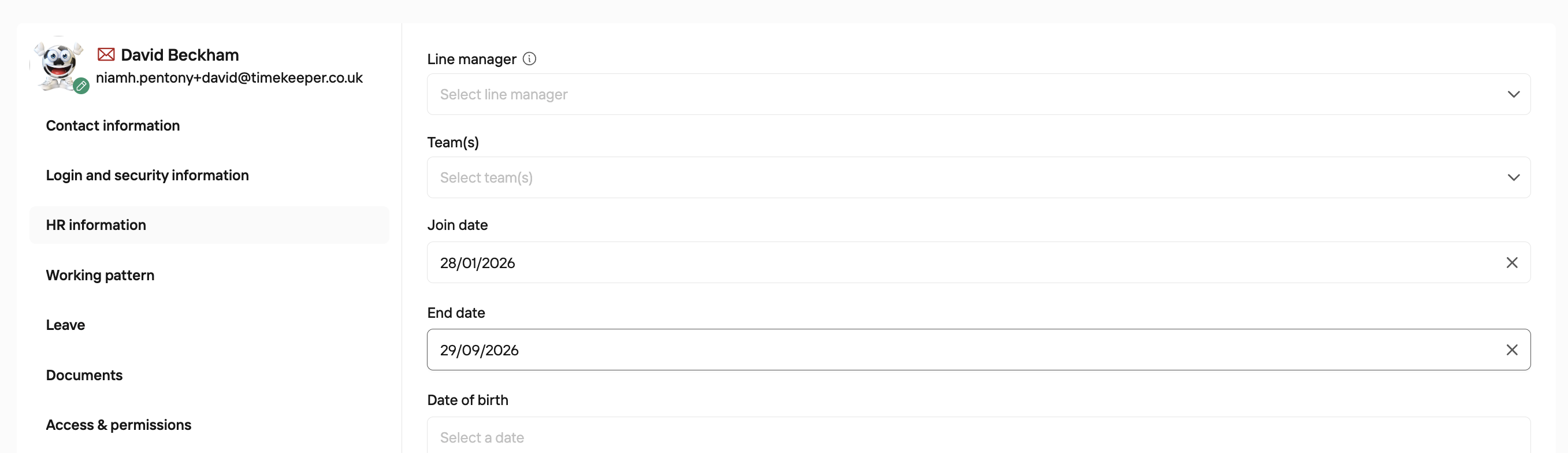
Note: to calculate the remaining or owed leave balance, prorated, please tick 'accrues leave' in the 'Leave'
tab as shown below.
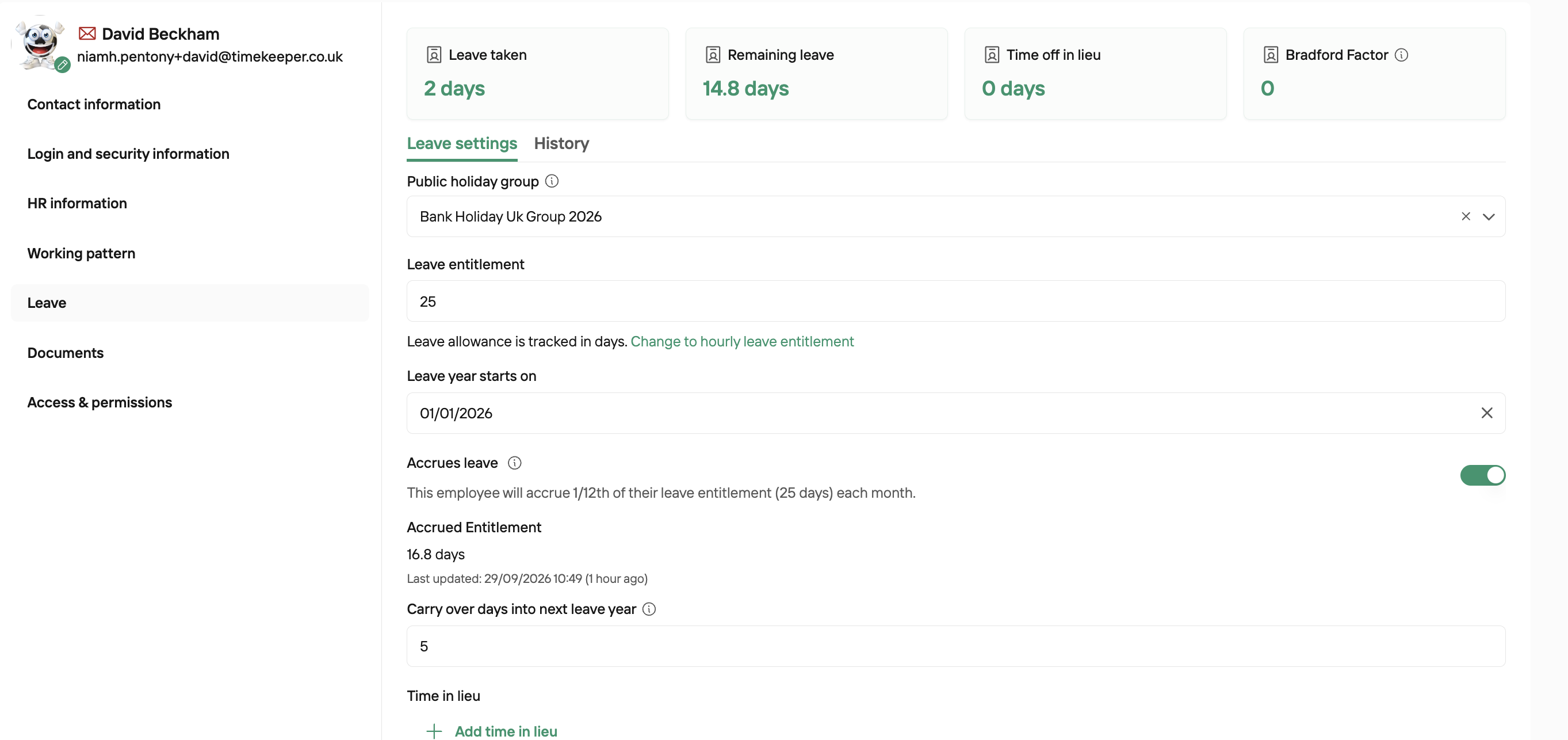
As you can see here David has 25 days entitlements, but based on his join date he only had 16.8 of those days available to him, and based on his end date only 14.8 are days he had to use in the timeframe.
When they leave, you can archive their profile in TimeKeeper by pressing the 3 dots beside their name and hitting archive. This will deactivate their account and remove them from monthly billing (if applicable), but retain their information, should this be required.

Note: If an employee record is deleted, this is permanent and we're unable to retrieve the data. We always recommend archiving any leavers should you need details in future.
Remaining Leave:
Once the employee end date has passed (providing 'accrues leave' has been enabled) the remaining leave will automatically update. However, you can find the remaining leave beforehand by running the Leave Accrual report in TimeKeeper. Go to More > Reports > Leave > Accrued Leave Report
If the leaving employee has leave booked in beyond their end date, it's best to delete this leave to see what is truly reminding for them.
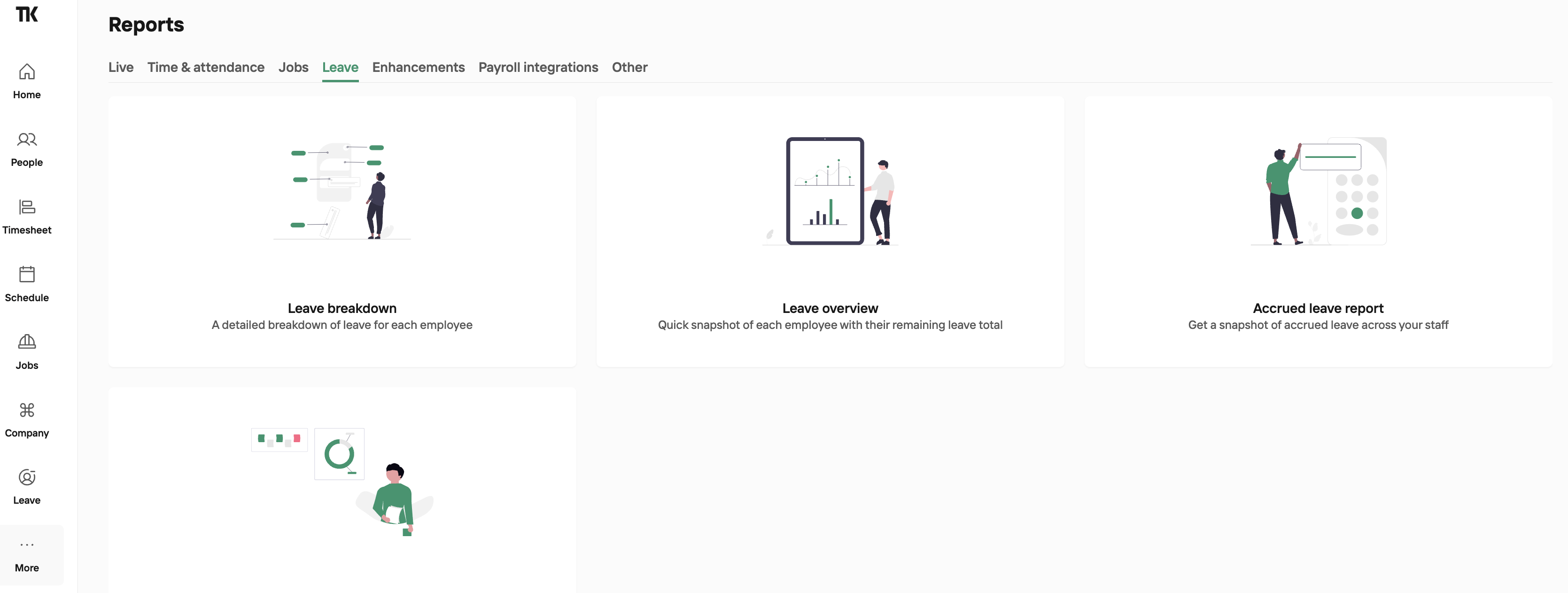
The report can be filtered by employee and will calculate their entitlement based off their tenure during the current leave year. Their profile will also show the prorated entitlement and what is remaining based on their accrued leave.
If they owe leave, the remaining balance will show as a negative. Leave taken includes leave booked for future dates, these may need to be cancelled before calculating the final entitlement.
Returning Employee:
If an employee who has previously left the company returns as a new starter, you can reactivate their existing profile.
Go to People > Directory > change to status to Archived > click the 3 dots next to the staff member in question and Restore
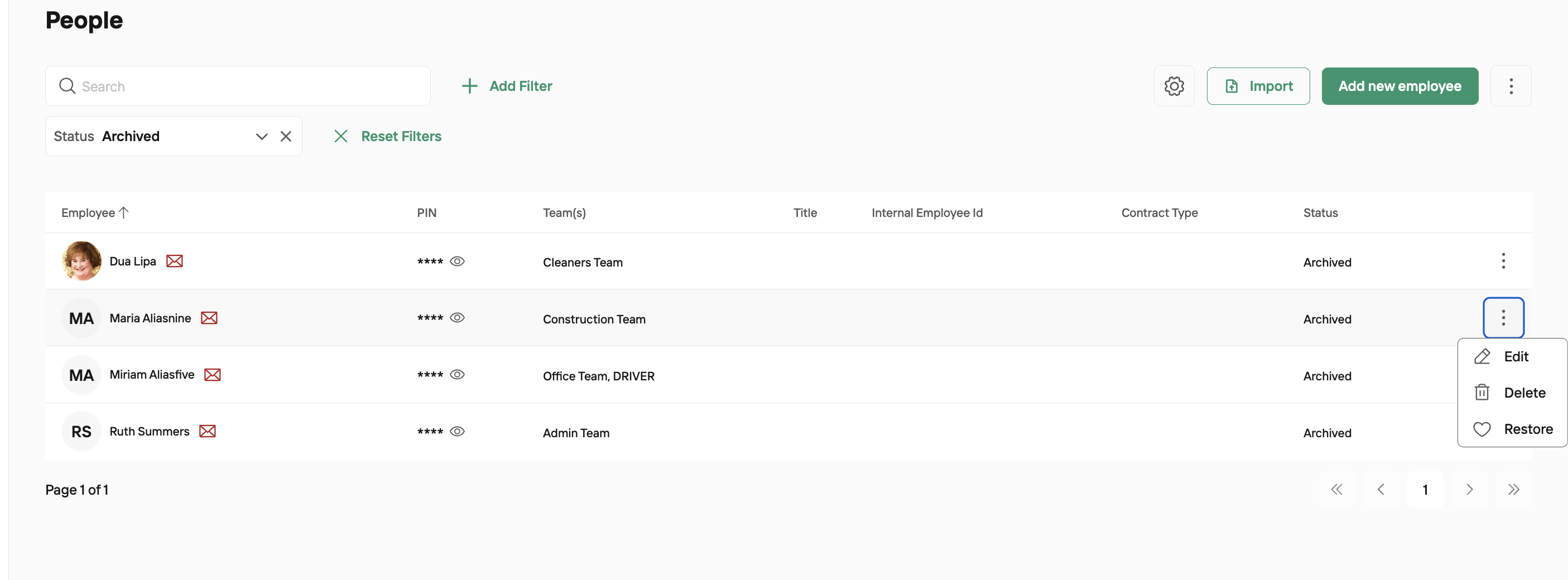
Their join date will be set to the date their account was reinstated and they can log in with their previous credentials, or change the password if required.
The TimeKeeper app is available on the App Store and the Google Play Store.
If you have any further questions, please reach out to the team via live chat or email [email protected]