
Setting up Employee Leave Halfway Through the Year
For many companies, employees may start partway through the year, meaning they are not entitled to a full year’s leave allowance. Below is the recommended way to configure leave in Timekeeper.
Step 1 –
Configure your global leave settings, located under More > Settings > Leave Settings.
Enable:

“Pro‑rate leave entitlement in first employment leave year” controls whether the system automatically reduces an employee’s first-year leave allowance based on their join date.
Enable:

Step 2 –
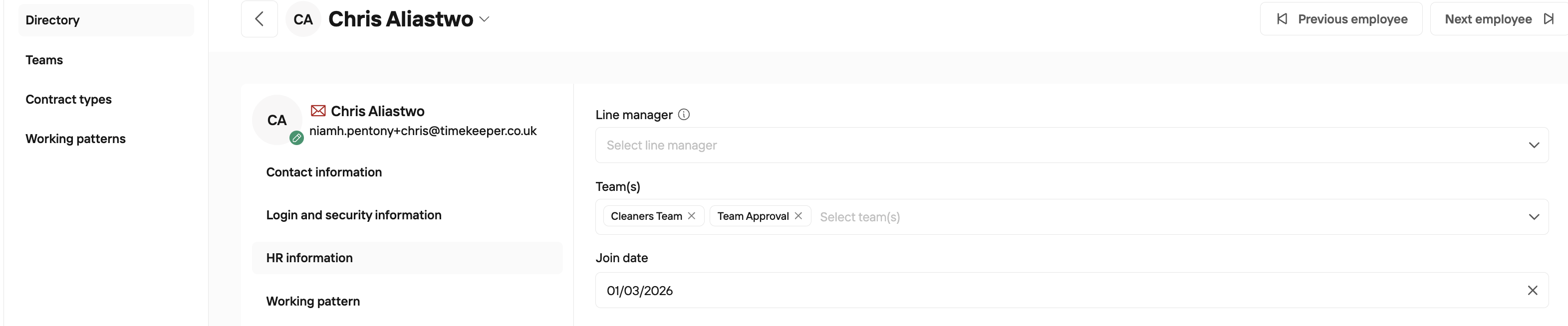
Add the employee via People > Directory, and under HR Information assign them a Join Date.
Step 3 -
In the Leave Tab, give the staff member a full year's leave entitlement. For example 20 days per year.

Because the Pro Rate setting is enabled and a full year’s entitlement is assigned, the system will automatically calculate how many of the 20 days are available to the employee based on their Join Date of 01/03/2026 in this example.
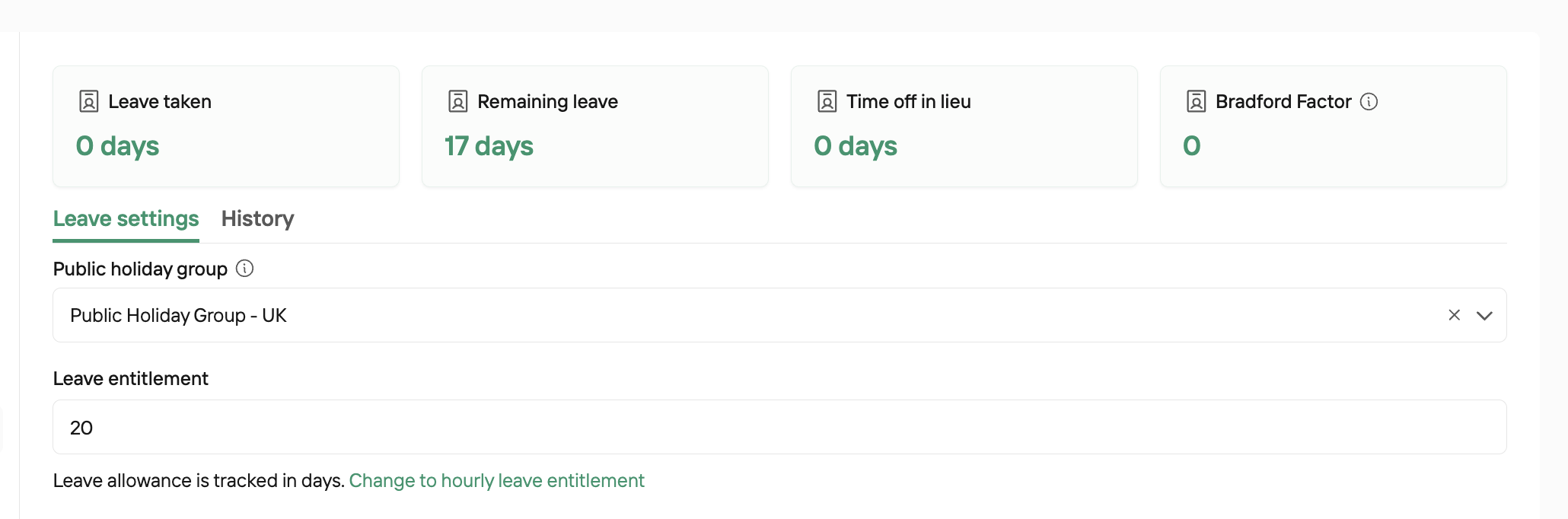
Out of the 20 days, my employee has 17 available to them.
Please note that the pro rate in Timekeeper will calculate per month and not per day.
When the employee moves into their second leave year in Timekeeper, they will automatically receive the 20 days’ leave entitlement that has been assigned to them. There is no need to update or modify anything in the Leave tab.
To learn about other Leave Settings available in Timekeeper please read our