
Updating an Employee Leave Entitlement
If an employee’s leave entitlement has been entered incorrectly, you may want to amend it, but you might see an error message preventing the change.
If, for example, a staff member has been given 28 days’ leave but should have 20, you can go to the employee’s profile > Leave tab, update the entitlement from 28 to 20, and click Save.
If you receive an error message, you’ll need to review your settings and check whether any existing booked leave is blocking the change:
If the employee accrues leave, first untick Accrues Leave, then adjust the leave entitlement, re-enable Accrues Leave, and save.
If the employee has leave already booked that would push their entitlement into a negative balance, review your Global Leave Settings to ensure they are configured correctly.
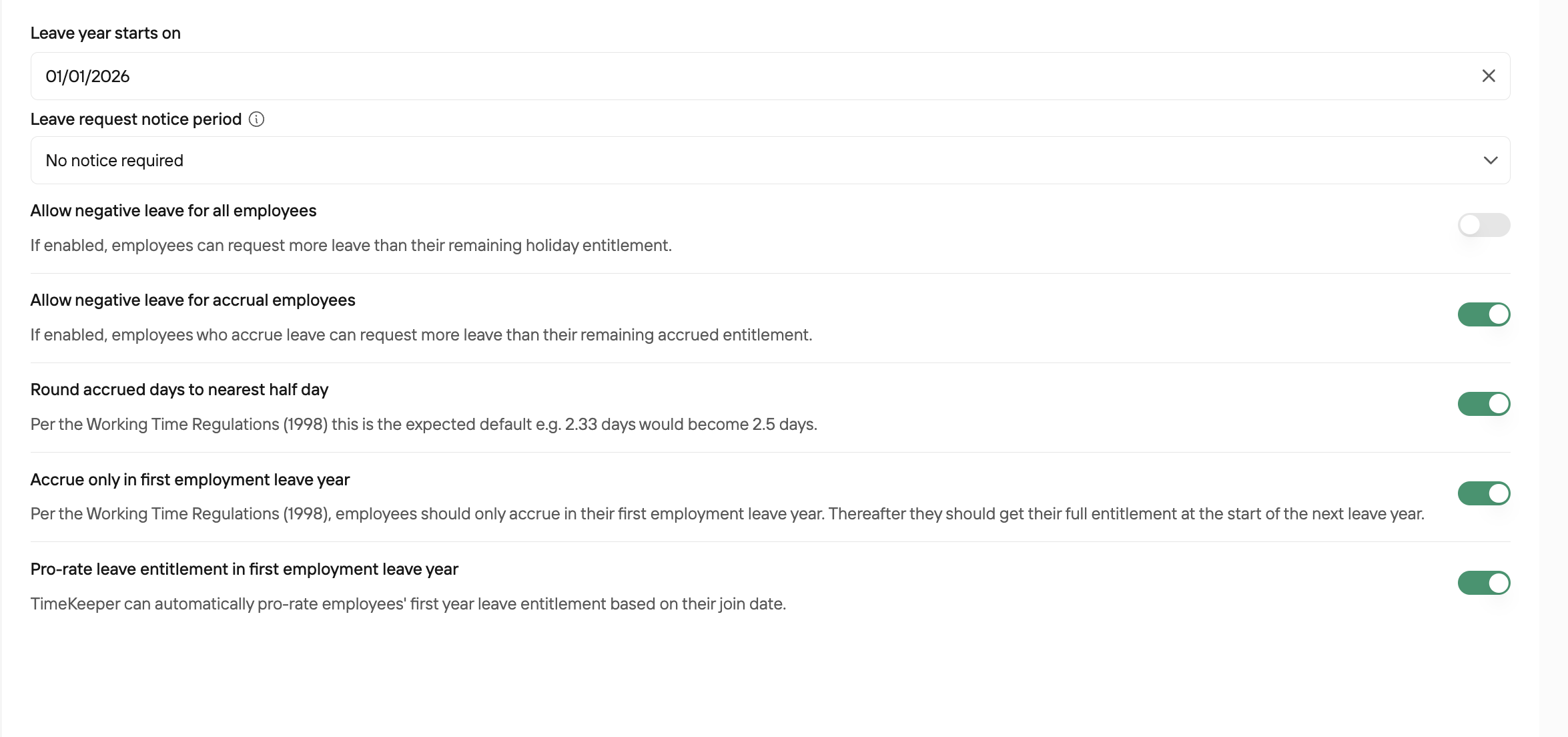
To learn more about the Leave Settings in your global setting, please review
If you need to make a one time adjustment to the leave entitlement, you can do so by using the Time In Lieu feature. For more information, please follow