
Add an Employee
For employees to use TimeKeeper, they first need to be added to the system. This is a simple process.
When creating a new employee, TimeKeeper only needs a few basic details:
Name
Email and/or phone number
Working pattern – their contracted hours and the days/times they are expected to work (e.g. Monday–Friday, 9:00am–5:00pm)
Basic access – for example, whether they can use the mobile app to clock in
If you only want to capture these basic details, click Save Employee and the profile will be created.
Once saved, the employee will automatically receive a welcome email or text prompting them to activate their profile.
What happens when an employee is added?
Two things will be sent to the employee (by email or text, depending on the contact details you entered):
Unique 4-digit PIN – used to clock in at the TimeKeeper kiosk
TimeKeeper invitation – allows them to set up their password. Once accepted, they can access the TimeKeeper portal and, if enabled, the mobile app.
Employee Photo
You can upload a profile photo for the employee. If facial recognition is enabled, this photo is used as the reference image.
If you leave the photo blank and facial recognition is enabled, TimeKeeper will use the employee’s first clock-in image as their profile photo.
Working Pattern
Eligible for Overtime
Specify whether the employee is eligible to be paid overtime.
Overtime Rate
Set the overtime multiplier (e.g. 1.5 for time-and-a-half).
Multiple Overtime Rates
Configure different overtime rates for different days if required.
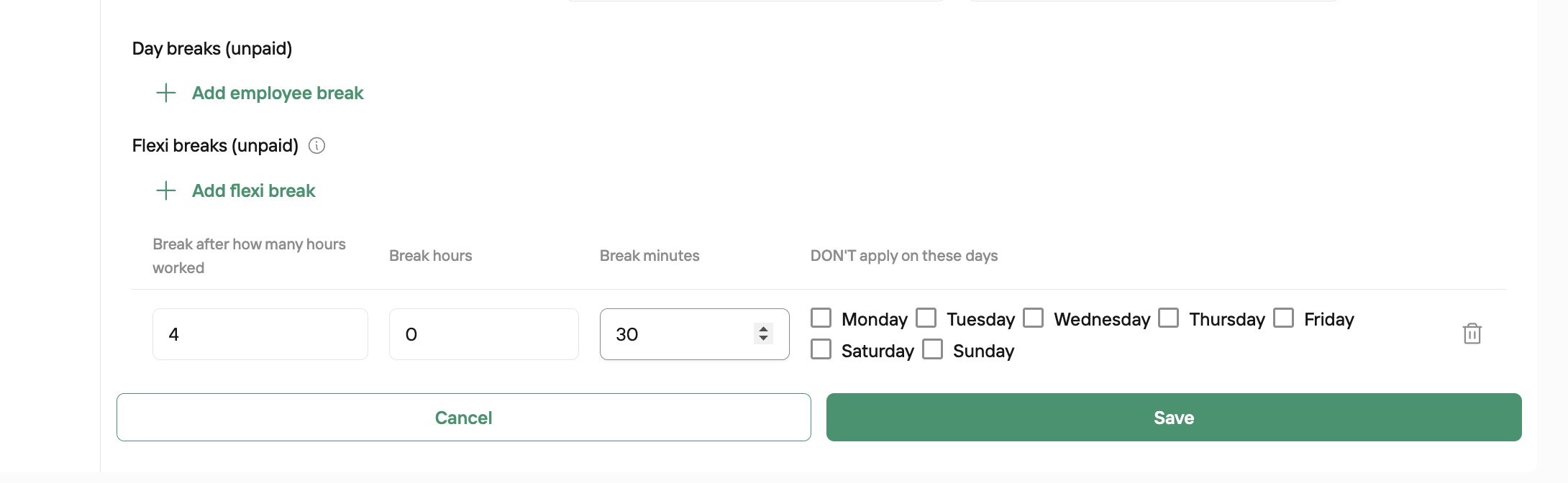
Unpaid Breaks
If you add unpaid breaks, TimeKeeper will automatically deduct these from the employee’s timesheet, provided they remain clocked in over the break period.
If you prefer employees to clock out and back in for breaks, do not set unpaid breaks here.
You can set up a Fixed Day Break, or a Flexi break which kicks in after a certain amount of hours worked have been completed.
Leave
TimeKeeper can also manage employee holiday/leave. To configure this, set:
Leave Entitlement
The number of days of annual leave the employee is entitled to.
Holiday Start Date
The date the employee’s holiday year begins (e.g. 1 January 2026, running until 31 December 2026).
Carry Over Days
The maximum number of unused days the employee can carry over into the next holiday year.
Access & Permissions
You can assign a manager for each employee. The manager can:
Receive notifications and approve/decline this employee’s leave requests
Review this employee’s timesheets (without seeing their pay information)
Note: for someone to act as a manager, the “This employee is a manager” option must be ticked in their employee profile.
Access Rights
You can control whether the employee:
Can access the mobile app
Is allowed to clock in using the mobile app