Set Employee Profile Photo from Existing Photo
In order to use Facial Recognition for an employee, they must have a picture set against their account. TimeKeeper will automatically set their profile picture based on the first clock in with a face detected. So you don't have to do anything for that but if you would like to change their profile photo follow the steps below.
To do this is very straightforward, simply perform the following.
Go to People > Directory
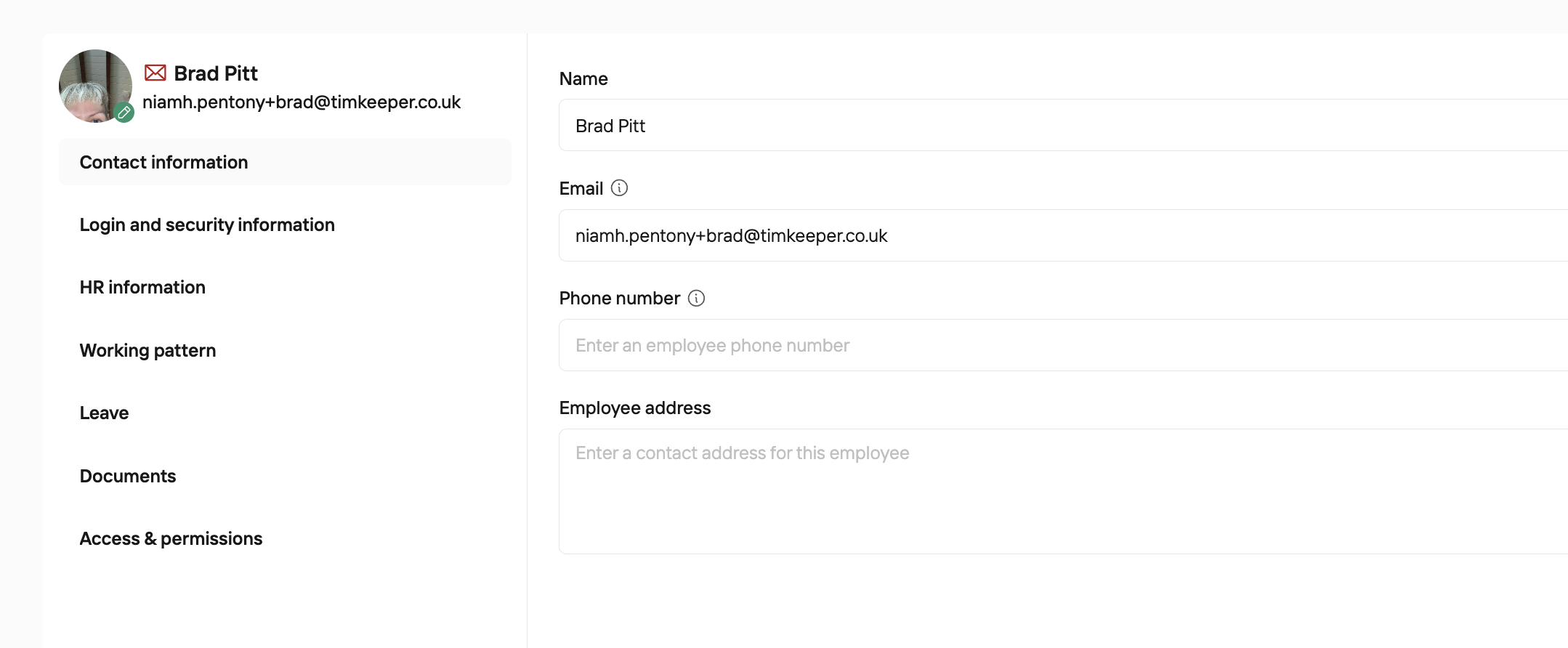
Click into on the Employee Profile
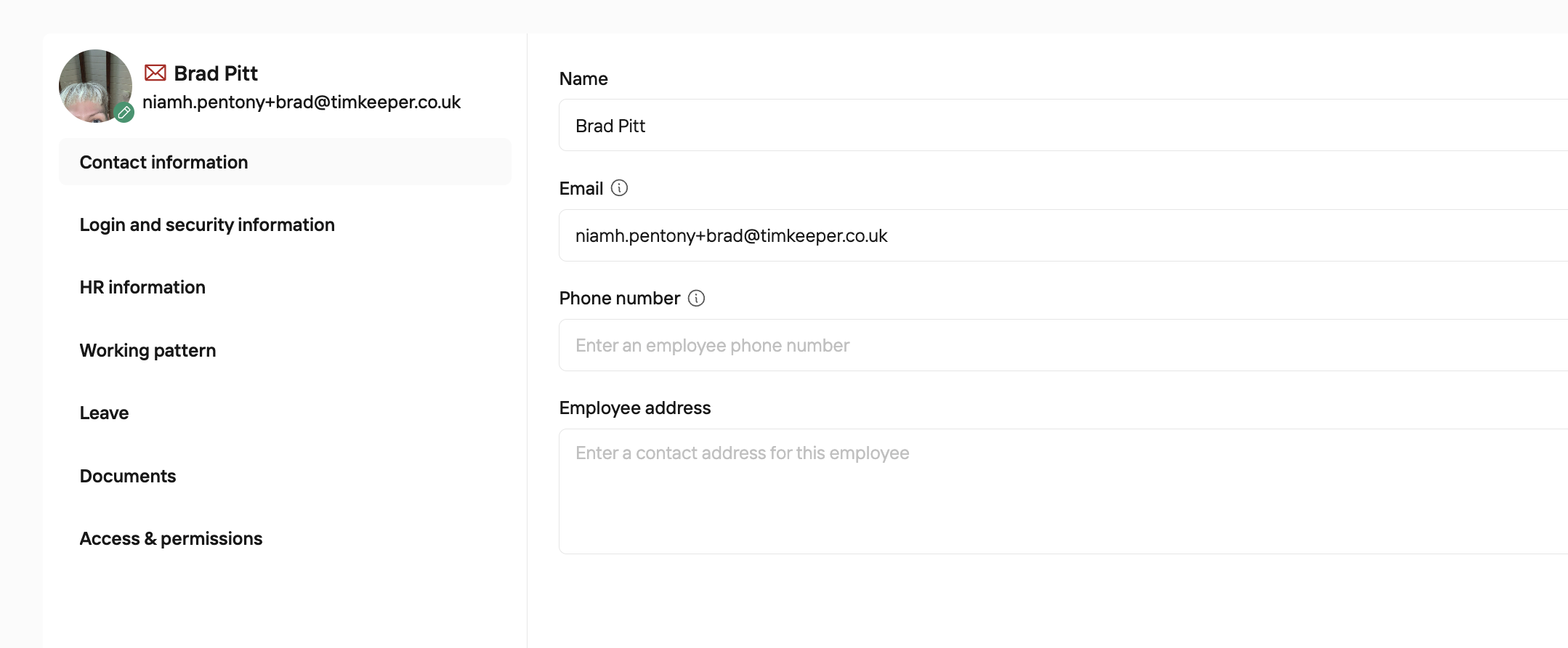
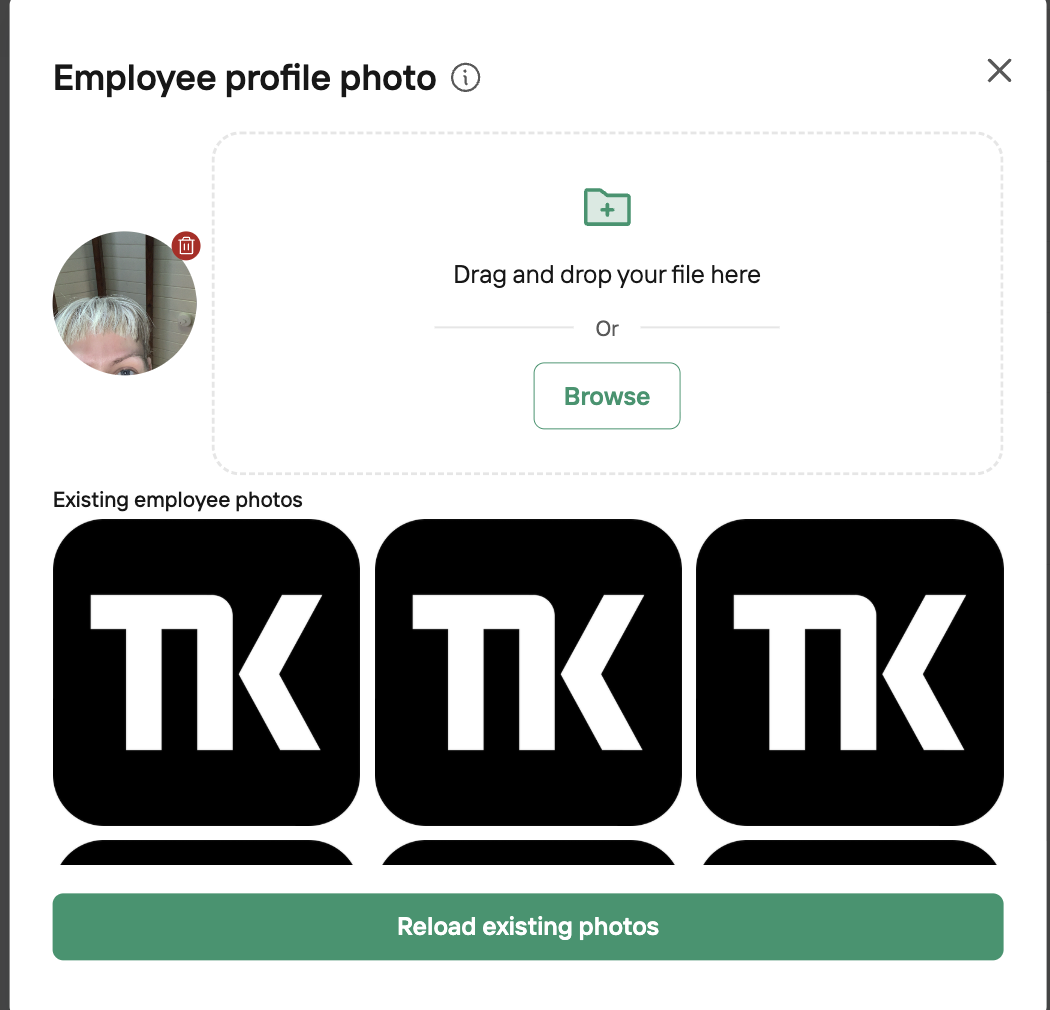
Click the Green Pencil Icon next to the staff members current photo
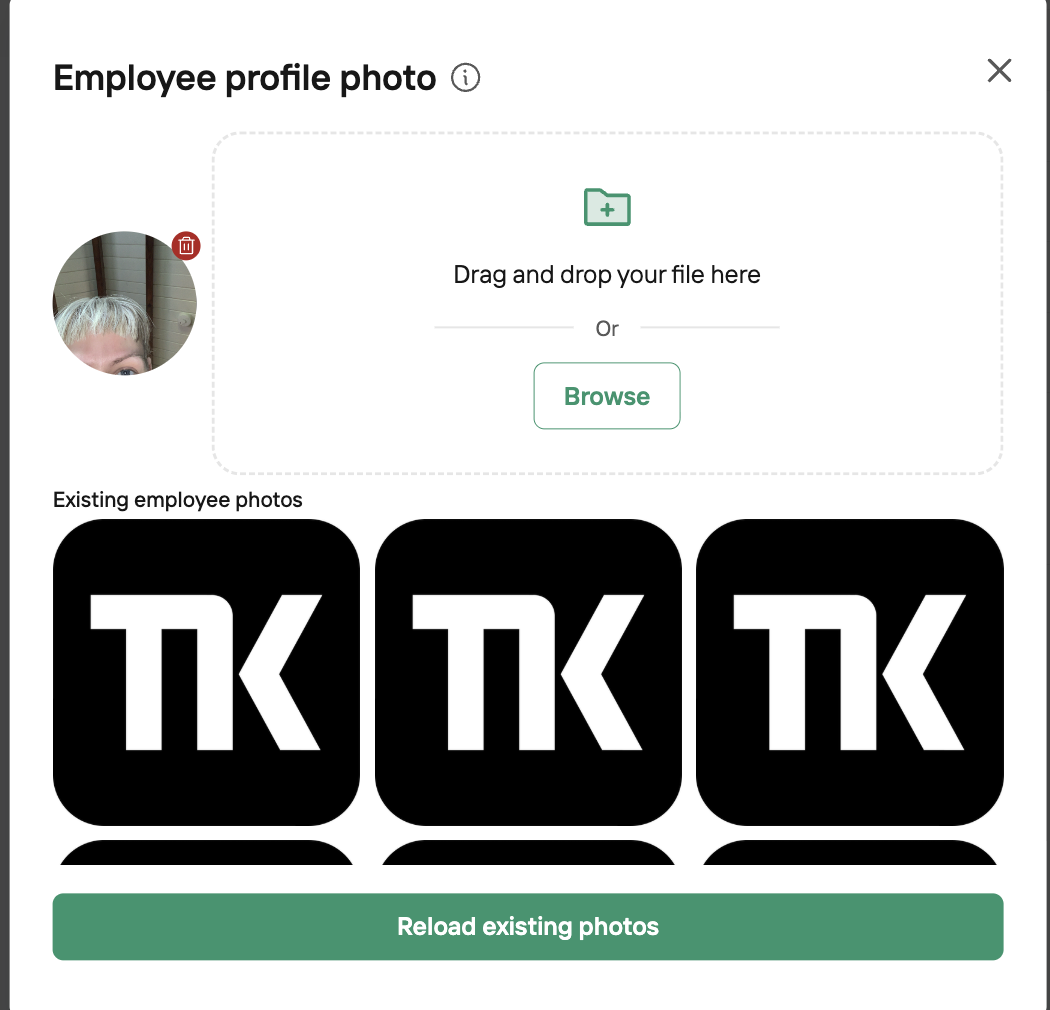
You can either upload a new photo, or browse the last 20 random images captured for this employee at clock-in and select one to use as their profile picture.
Alternatively, you can update the picture by clicking on the employee’s current profile image. You’ll then be prompted to upload a photo from your computer’s files.
Reset an Employee Profile Photo
If an employee profile photo needs to be reset, an Administrator can do this within the Employee directory.
1) Find the employee in People Directory and open the employee profile
2) Click the Green Pencil Icon next to the current photo
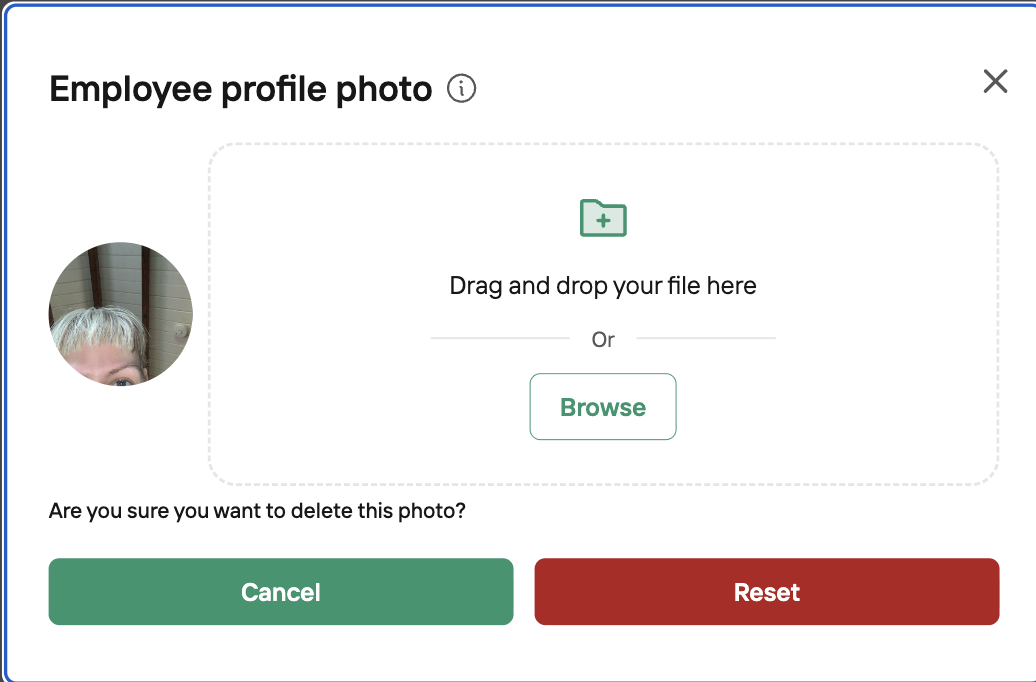
3) Click the Red Delete Icon next to the current photo
4) Hit Reset Photo