
Employee using the App
Logging into the app
To log in to the app, download the app to your device and log in with your email/phone number and password you set up. The email/phone number to log in with is included in the original email/text we sent you. The password is the one you configured.
The below video will take you through
Clocking in and out
Requesting time off
Submit requests
Viewing your timesheet
Employee Request Annual Leave Over Public Holiday
Around public holidays, staff often book annual leave to make the most of a longer break. However, if a staff member’s leave request covers the date of a public holiday, the annual leave will take precedence and the public holiday will no longer be applied for that person.
The best approach is to book annual leave up to the public holiday and then around it. For example, Christmas Day is December 25 and Boxing Day/St Stephen’s Day is December 26. If a staff member books leave from December 22 to January 2, all of those days will be deducted from their leave entitlement. Instead, they should request leave from December 22–24 and then again from December 27–31.
Below we have more information on the different Request Types and also have to View Shifts in the app for Shift workers and viewing Job Details in App.
Request Type:
Modify Clock in/out Time
If you want to request a change to your clock in or out time, you can request this via the TimeKeeper app. Tap Services > Make a request, select the date and then select the time entry they’d like to modify. You specify a new clock in or out time, and provide a reason for the change.
Once submitted, you can then view the status of their pending requests. Modify Clock In or Out requests can be approved or denied from the web portal by administrators or your Line Manager.
Time Addition
To make a request for additional hours on your timesheet, go to Make a Request in the services section of the app.
Select the 'Time Addition' request type. You can specify the date you'd like to add hours to, and the number of hours you are requesting. You also have the option to add a reason for this request, or attach a photo.
Once submitted, your time addition request must be approved by your administrator or Line Manager.
Time Entry
To make a request to add a new time entry, go to 'Make a request' in the services section of the app.
Select the date, start time and end time for this time entry. You also have the option of selecting a job for this time entry, and adding a note.
Once submitted, this time entry request will need to be approved by your administrator or Line Manager.
Expense / Allowance request
To make an expense request in TimeKeeper, go to 'Make a Request' in the services section of the app.
Select the type of allowance request you would like to make. You can then select the date this expense relates to, add a value, and a reason or photo if necessary.
Once submitted, your expense request will need to be approved by your administrator or Line Manager.
Viewing Shifts in App
Your your employer publishes your shifts on the rota planner, you will get an app notification like this one -

Open your app and go into 'My Shifts'
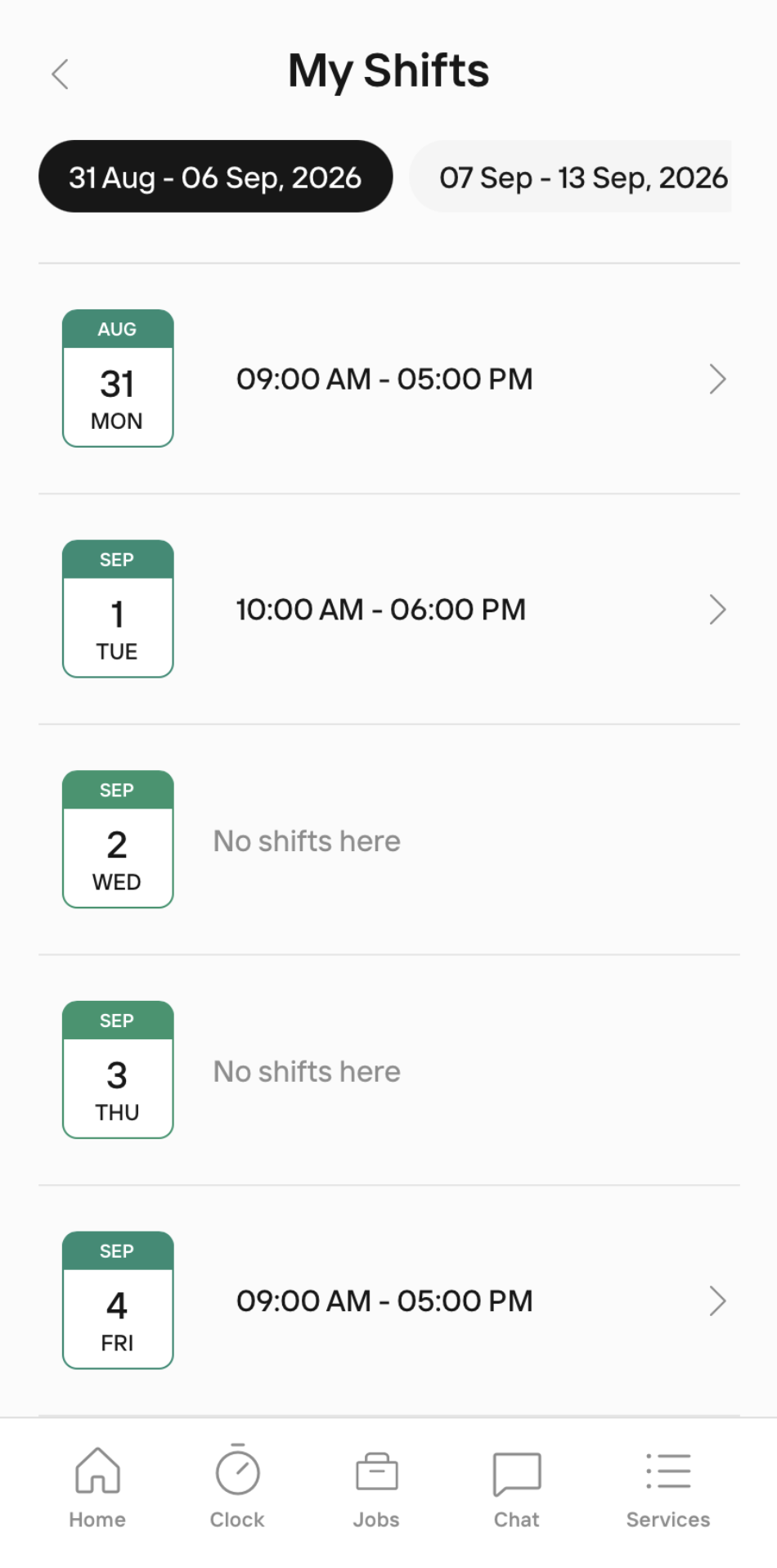
Once in Shifts, you can see your schedule in a weekly view.
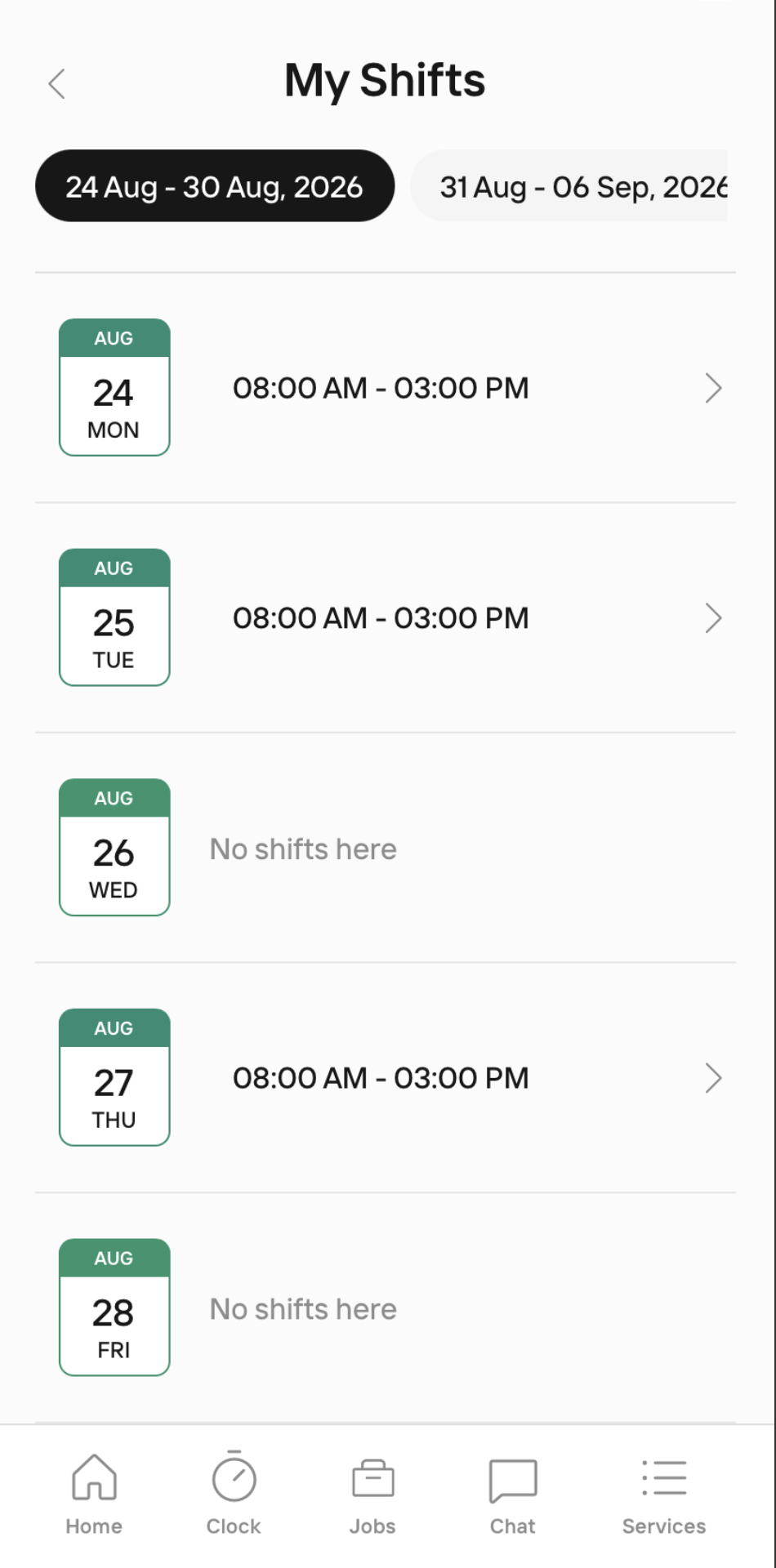
You can navigate through the weeks to see any published shifts and you can click into the shift to see if there is any additional information.
Viewing Job Details in App
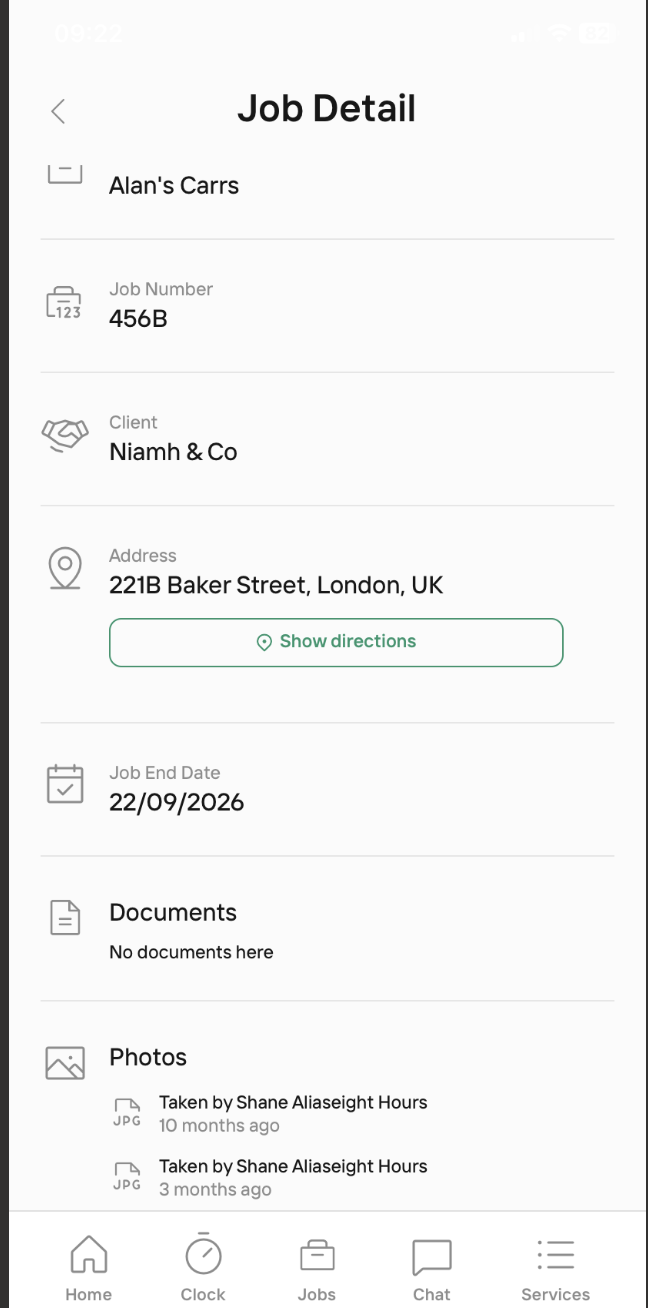
To view the details for a job, head to the Jobs tab and search for the job you need. Once you've found the job click into it.
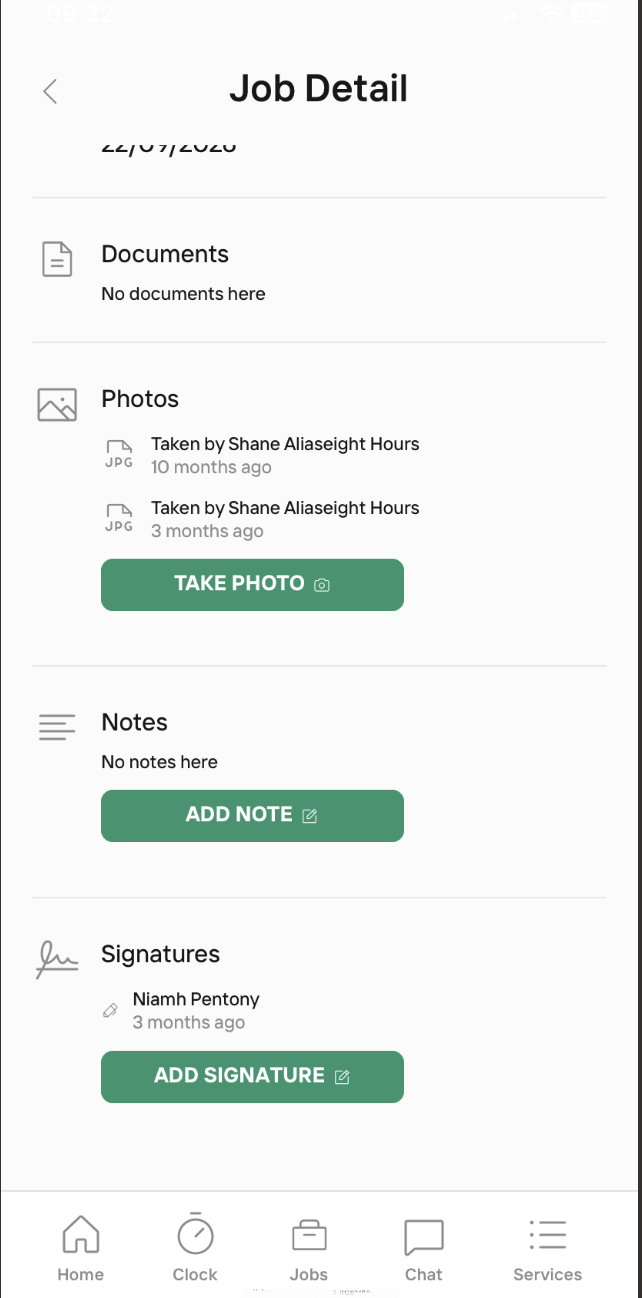
Here you can see details including the client, job address and job description. You can view any uploaded documents, photos or notes here. You can also add photos, notes and signatures to a job here.
Tap 'Clock with this job' to track time against this job.
If you have trouble logging in, please review our Troubleshooting guide -