
Accepting Your Invite (Email)
As an employee, before you can log in to the TimeKeeper app on your mobile, you will need to set a password for your account first.
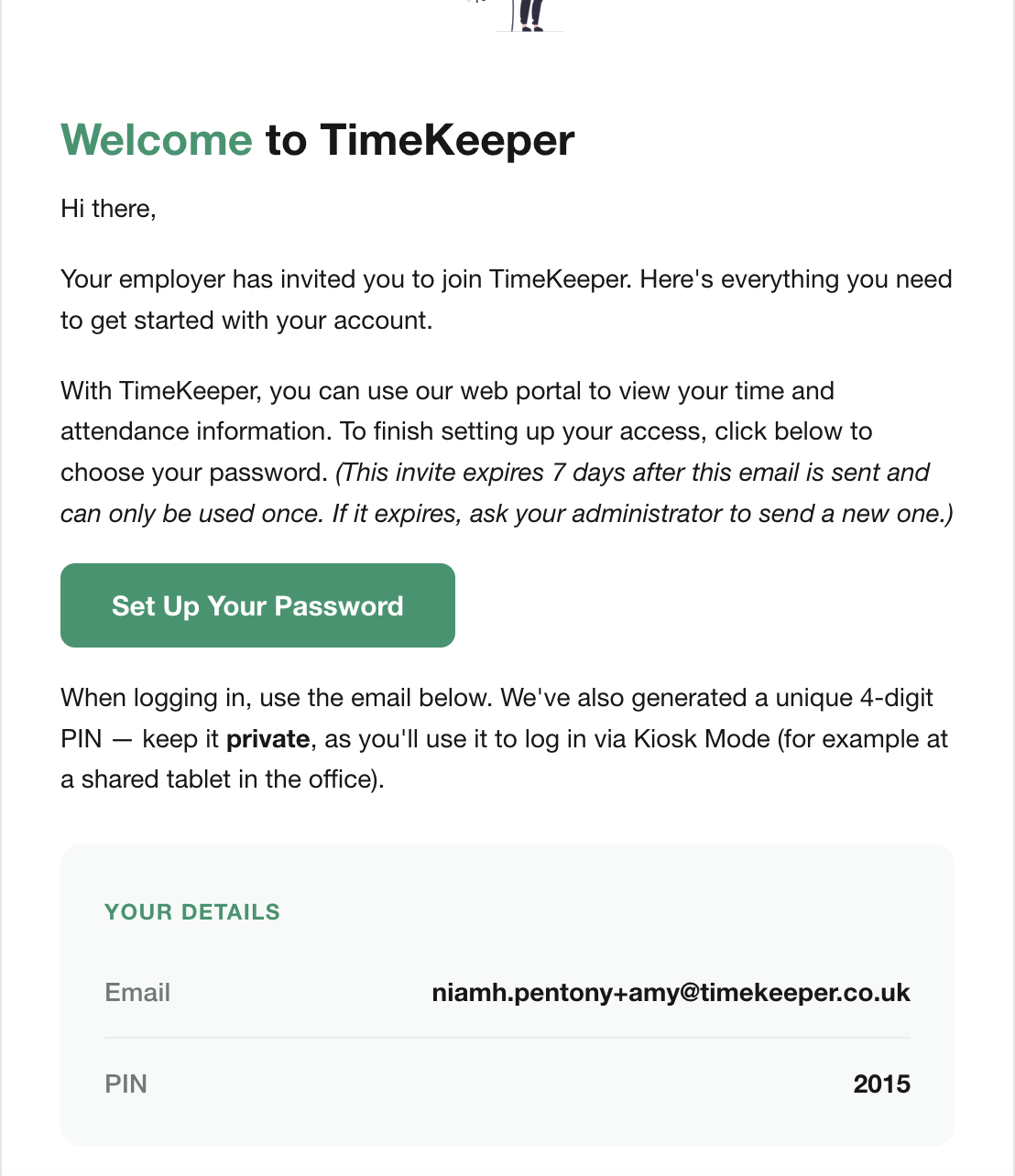
When your employer adds you to TimeKeeper, you'll receive an email or text which contains a link to set your password. Tap 'Set Up Your Password' and then set a secure password for your account (passwords must be no fewer than 12 characters, and cannot contain common words or phrases).
If you are seeing a red error message which says your invite has expired, you can ask your employer to send you a new one.
The PIN provided in the email is ONLY to be used when signing in on a shared kiosk tablet. If you are signing in on your own mobile phone you need to set up a password with as least 12 characters and use that.
After clicking 'Set Up Your Password' your screen will change to this
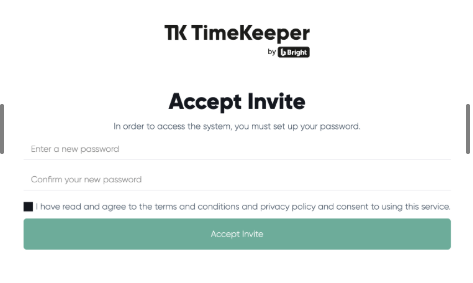
You must create a password that is at least 12 characters long and made up of a random combination of letters, numbers and symbols (for example: YachtGarden*84$). Common or predictable patterns like 123 or ABC are not allowed.
Using a password generator such as https://www.lastpass.com/ can be helpful.
It’s important that you tick the T&Cs checkbox so their profile is fully activated. Once completed, you can sign in using the email address and password you’ve just set up.
If you receive a text invite instead of an email, you should tap the link in the text to create your password. After that, you can sign in to the app using your mobile number and the password you've created.