
Access & Permissions
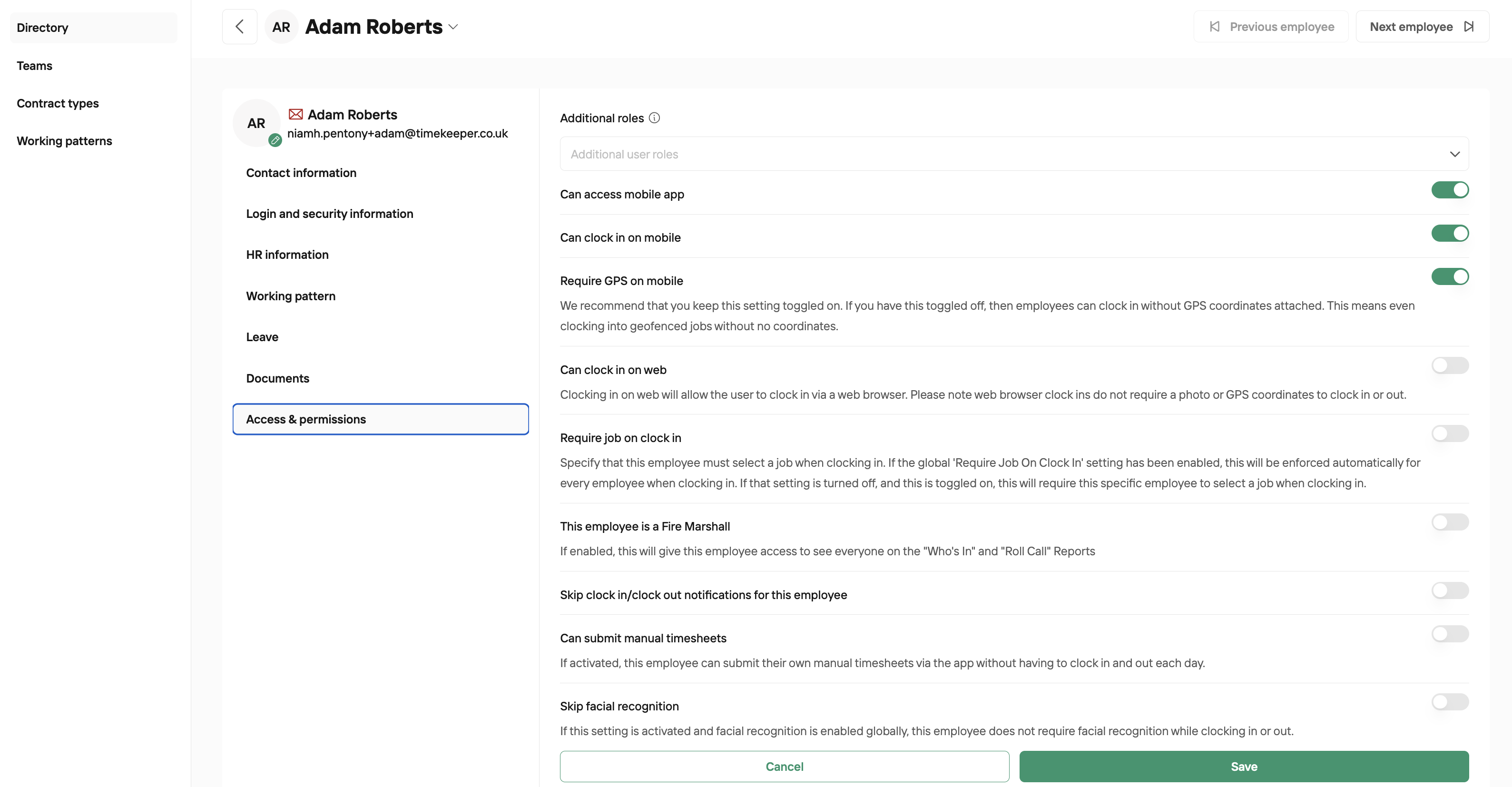
In an employee's profile, there is a section called 'Access & Permissions'. In this tab, the level of access & permissions can be delegated to the employee. Below is a breakdown of what each permission means.
Additional Roles
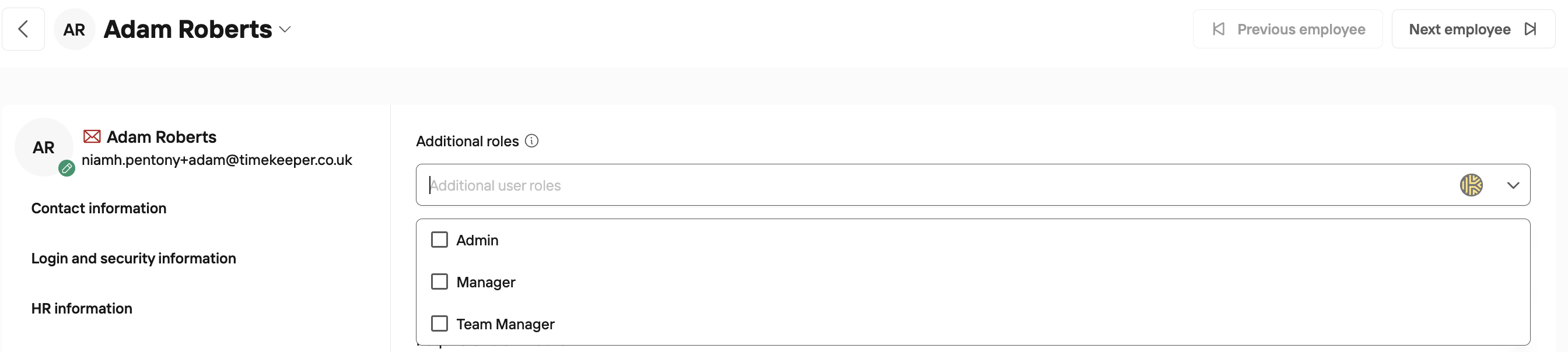
This is where you can select whether an employee is an administrator, a Team Manager or a Manager. To learn more about each role, please see Permission Levels FAQs.
'Can Access the Mobile App’
Allows the employee to log into the TimeKeeper mobile app on their own device.
‘Can Clock in on Mobile’
Lets the employee clock in using the mobile app.
Note: If the employee doesn’t see a clock icon in the app, this setting needs to be turned on.
‘Require GPS on Mobile’
By default, mobile clock-ins record GPS coordinates. If this is unticked, GPS will not be recorded for this employee’s mobile clock-ins, and they can clock into a geofenced job regardless of where they are.
Note: To ensure an employee can only clock in within a job’s geofence, keep this setting turned on.
‘Can Clock in on Web’
Employees can log into the web portal to view their timesheet and leave as standard. If this setting is ticked, they’ll also see the option to clock in from the web dashboard. Web clock-ins do not use GPS or facial recognition.
‘Require Job on Clock in’
If the global Require Job On Clock In setting is off, turning this on means this employee must select a job when clocking in.
If the global setting is on, the employee must select a job on clock in regardless of the individual toggle here.
‘This employee is a Fire Marshal’
If ticked, the employee can access the Roll Call and Who’s In reports.
‘Skip Clock In/Clock Out Notifications for this employee’
If the company-wide “Forgot clock in/out” notifications are enabled, this setting allows you to exclude this employee from those reminders.
‘Can submit Manual Timesheets’
By default, employees cannot edit their own time entries. If ticked, this employee can add new time entries (via app and web) and edit the time/details of existing entries.
‘Skip Facial Recognition’
If turned on, facial recognition checks will be skipped for this employee.
If you have any further questions, please reach out to us at [email protected] and we'd be happy to help.